

Getting started with the ChatBot: set it up for the most leads and sales
On this page
- What the chatbot does in the Growth Loop
- Set it up in this order
- 1. Teach it your business (15 minutes)
- 2. Make answers sell (5 minutes)
- 3. Greet and guide (10 minutes)
- 4. Capture leads (15 minutes)
- 5. Make it look like your brand (10 minutes)
- 6. Show it in the right places
- 7. Reach visitors on more channels
- 8. Test as a visitor
- How to get the most leads and sales from the chatbot
- A 20-minute weekly routine
- How the chatbot works with the other tools
- All ChatBot guides
- Availability
The WPBot ChatBot answers your visitors' questions from your own pages, products and documents, with links to the pages that sell. It collects leads, guides visitors with buttons, runs AI-led conversations that qualify leads, and learns every week from the questions it could not answer. This guide sets it up in the order that pays off first.
Tip
Before you start, connect your AI provider with the AI Wizard (Connect your AI with the AI Wizard) and fill in Business Context (Business Context: tell every AI feature about your business). The chatbot works without AI too, but AI with your knowledge base gives by far the best answers.
What the chatbot does in the Growth Loop
The chatbot is the Convert step of the Growth Loop. AI Writer and SEO & AI Search bring visitors to your pages; the chatbot turns their questions into clicks to product pages, leads and bookings. What it learns flows back: unanswered questions become your next articles, and every email it collects can start an AI Marketing journey.
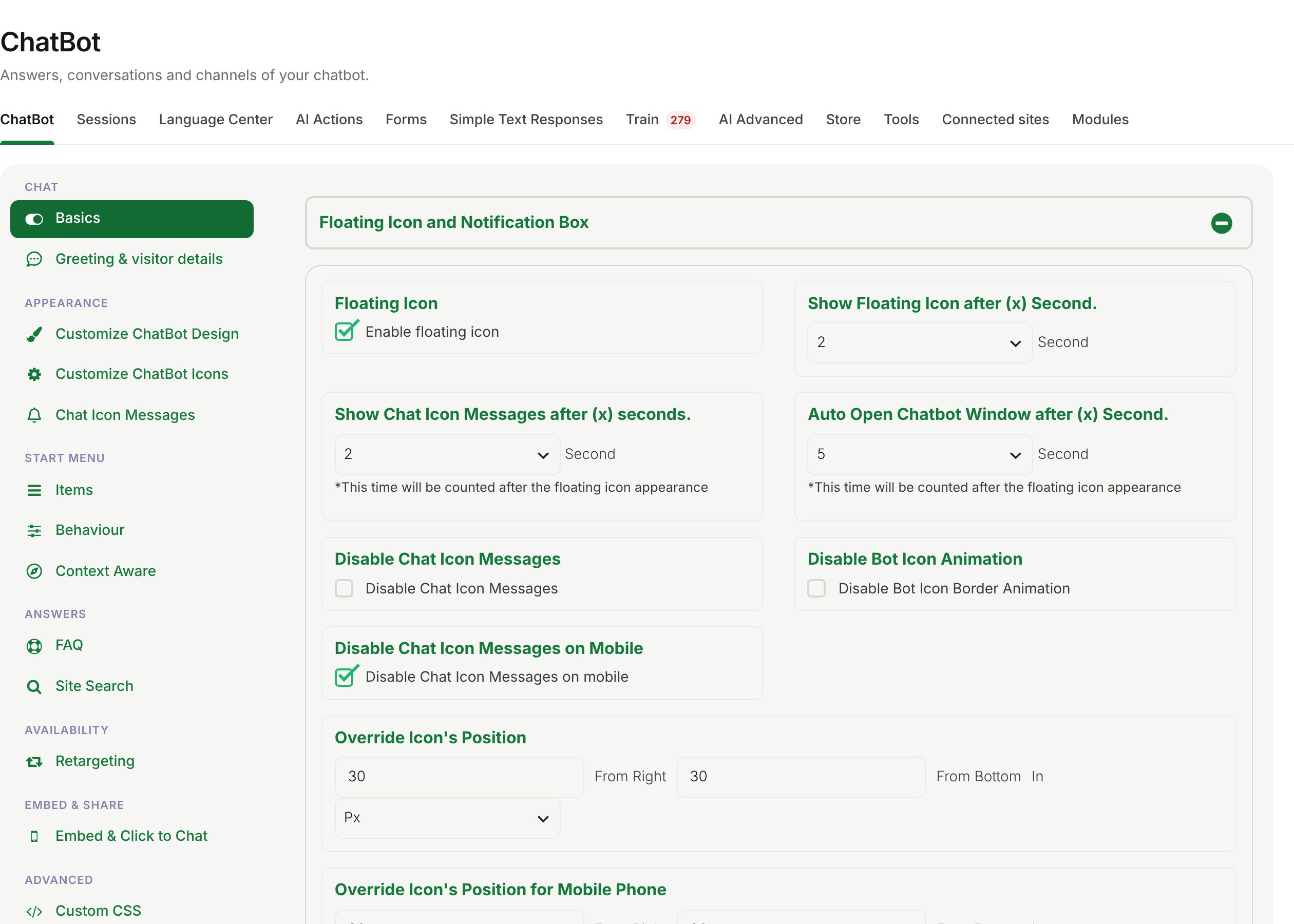
The ChatBot screens: tabs at the top, settings on the left.
Set it up in this order
1. Teach it your business (15 minutes)
Open WPBot Pro → AI / Settings → Knowledge Base. Tick Pages, Posts, Products and your other public content, Simple Text Responses and the FAQ. Keep Enable Auto Sync (on Save) on and click Embed All Selected Sources. Add your price list and brochures under Upload and sync.
Guides: The knowledge base: what the chatbot learns from, Add documents, sitemaps and Google Sheets or Docs, Check what the chatbot knows.
2. Make answers sell (5 minutes)
In AI / Settings → Answers, choose Business first, turn on Show source links under answers and Use the current page, and pick the buttons to show when the bot is not sure (a form or Send Us Email). Guide: Control how the chatbot answers.
Add exact answers for the facts that must never be wrong (prices, delivery, returns) as Simple Text Responses: your own exact answers.
3. Greet and guide (10 minutes)
- Greeting & visitor details: ask for the name, with Auto Detect Name on so visitors with a question get an answer at once. Greeting and visitor details
- Items: build a start menu of four to six buttons, with one money button near the top (a quote, a booking, a product advisor). Build the start menu
- Behaviour: after each answer, show related buttons. When the start menu shows
- Context Aware: show product buttons on product pages and help buttons on help pages. Context Aware start menu
4. Capture leads (15 minutes)
- Create an AI Action from a template such as Product Advisor or Web Agency Quote, and add it to the start menu. AI Actions: let the chatbot qualify leads and collect details
- Write two or three Chat Icon Messages that ask a real question and start your lead action on click. Chat Icon Messages: invite visitors to chat
- Add Email Subscription for blog readers, and conversational forms for detailed requests (Conversational Forms: capture leads in the chat).
- Set where lead emails go under Basics → Email Setup (Email Setup: where chatbot emails go and who sends them).
5. Make it look like your brand (10 minutes)
Design the chat button (Design the chat button and floating box) and the chat window (Design the chat window) with the live preview. Check them at phone width: most chats start on phones.
6. Show it in the right places
Decide where the chatbot loads (Choose where the chatbot shows), add "Ask about this product" or "Get a quote" buttons with Click to Chat shortcodes (Embed the chatbot and add Click to Chat buttons), and set up retargeting to open the chat on exit intent or after scrolling on your key pages (Retargeting: open the chat at the right moment).
7. Reach visitors on more channels
Messenger, Instagram, WhatsApp and Telegram, live chat with your team, voice and several languages: see Channels: answer customers on Messenger, Instagram, WhatsApp and Telegram, Live chat: answer visitors in the Inbox and on your phone and Voice and language. Shops add the store assistant: WooCommerce store: sell more in the chat.
8. Test as a visitor
Open your site in a private window and ask the ten questions customers ask most. Type reset to start again. Good answers are short, correct and end with a link or a next step.
How to get the most leads and sales from the chatbot
- Answers with source links. Every answer that links to a product, service or pricing page is a step toward a sale. Keep source links on and the knowledge base complete.
- One clear next step in every answer. Related buttons after answers, follow-up buttons in the window (Guide visitors in the chat window) and "not sure" buttons mean no conversation ends in a dead end.
- Ask for the email when it is worth something to the visitor: to send a quote, a recommendation or the answer to a question you will look into. An AI Action with Reply when done gives advice in return for the details.
- A start menu built from real questions. Rebuild it from what Train and Sessions show visitors actually ask.
- Retargeting on high-intent pages. Open the chat with an offer or a question on exit intent from pricing and product pages.
- Train every week. Each answered gap is a question the chatbot will never miss again.
- Measure. Read Sessions and AI Insight to see what visitors ask and where they drop off (Chat Sessions: read, reply to and export conversations, AI Insight and chat reports).
A 20-minute weekly routine
| When | What to do |
|---|---|
| Monday | Open ChatBot → Train. Add answers to the top questions, click Write article for the ones that need explaining, ignore the rest. Train the chatbot with questions it could not answer |
| Tuesday | Read a few conversations in Sessions. Where did visitors get stuck or leave? Adjust the start menu or a Simple Text Response. |
| Wednesday | Check new leads from AI Actions and forms, and follow up the same day. |
| Thursday | Refresh one Chat Icon Message or retargeting message with this week's offer. |
| Friday | Check What the chatbot knows for stuck items and the AI cost in AI / Settings → Spending and limits. |
How the chatbot works with the other tools
- AI Writer articles and Help Center articles become chatbot knowledge when they are published. Write article in Train starts the next one.
- SEO & AI Search brings visitors to the pages the chatbot links to; Train shows the questions people search for.
- AI Marketing receives the emails the chatbot collects and can send them a welcome journey; in Master, people who asked a question you answer in Train get your answer by email.
- Site Insight shows what visitors did before and after they chatted.
- Business Context gives the chatbot your contact details for "not sure" answers, and AI Actions use it when you write them with AI.
All ChatBot guides
- Start here: A tour of the ChatBot screens and settings, How the chatbot chooses an answer
- Setup: Floating icon, notification box and chat bar, Choose where the chatbot shows, Chat window and bot response options, Greeting and visitor details, Embed the chatbot and add Click to Chat buttons
- Design: Design the chat button and floating box, Design the chat window, Chat window layout and colours, Chat window material, fonts and motion, Guide visitors in the chat window, Chat window buttons: reactions, report, share, reset and close, Chat Icon Messages: invite visitors to chat, Add custom CSS to the chatbot
- Conversation: Build the start menu, When the start menu shows, Context Aware start menu, Intents: the things your chatbot can do, Build the chatbot FAQ, Simple Text Responses: your own exact answers, STR Pro: categories, follow-ups, entities, import and export, Site search, synonyms and stop words, Language Center: change every text the chatbot says, Connect Dialogflow ES or CX
- AI and knowledge: The knowledge base: what the chatbot learns from, Teach the chatbot your custom fields (ACF), Answer from database tables and spreadsheets (text-to-SQL), Add documents, sitemaps and Google Sheets or Docs, Check what the chatbot knows, AI Advanced: chatbot skills and connections to your API
- Train: Train the chatbot with questions it could not answer, Approve changes from AI assistants
- AI Actions: AI Actions: let the chatbot qualify leads and collect details, Create, test and improve an AI Action
- More: Forms, Conversations, Leads, Channels, Voice and language, Store, Connected sites, Tools, Troubleshooting
Availability
This guide describes WPBot Pro Master. In other editions:
- Professional: no Messenger, Instagram, WhatsApp or Telegram, live chat, voice, Multi-Language or support tickets, and no answer emails from AI Marketing.
- Starter: also no AI Advanced, STR Pro, conversational forms, store assistant or connected sites, and the knowledge base uses the free sources (pages, posts, custom post types, Simple Text Responses, FAQ, PDF, CSV and XML).
- WPBot Free: the chatbot core with AI answers, the knowledge base's free sources, Simple Text Responses, the FAQ, AI Actions, Train, and the Classic and Front desk window designs. No Language Center, Context Aware, Chat Icon Messages, retargeting, STR Pro or Pro window designs.
Was this article helpful?
Sorry about that. Get help another way:











