

AI Insight and chat reports
Reading every conversation takes too long. AI Insight reads them for you and emails a summary. Reports shows the numbers.
AI Insight
Open WPBot Pro → ChatBot → Sessions → AI Insight.
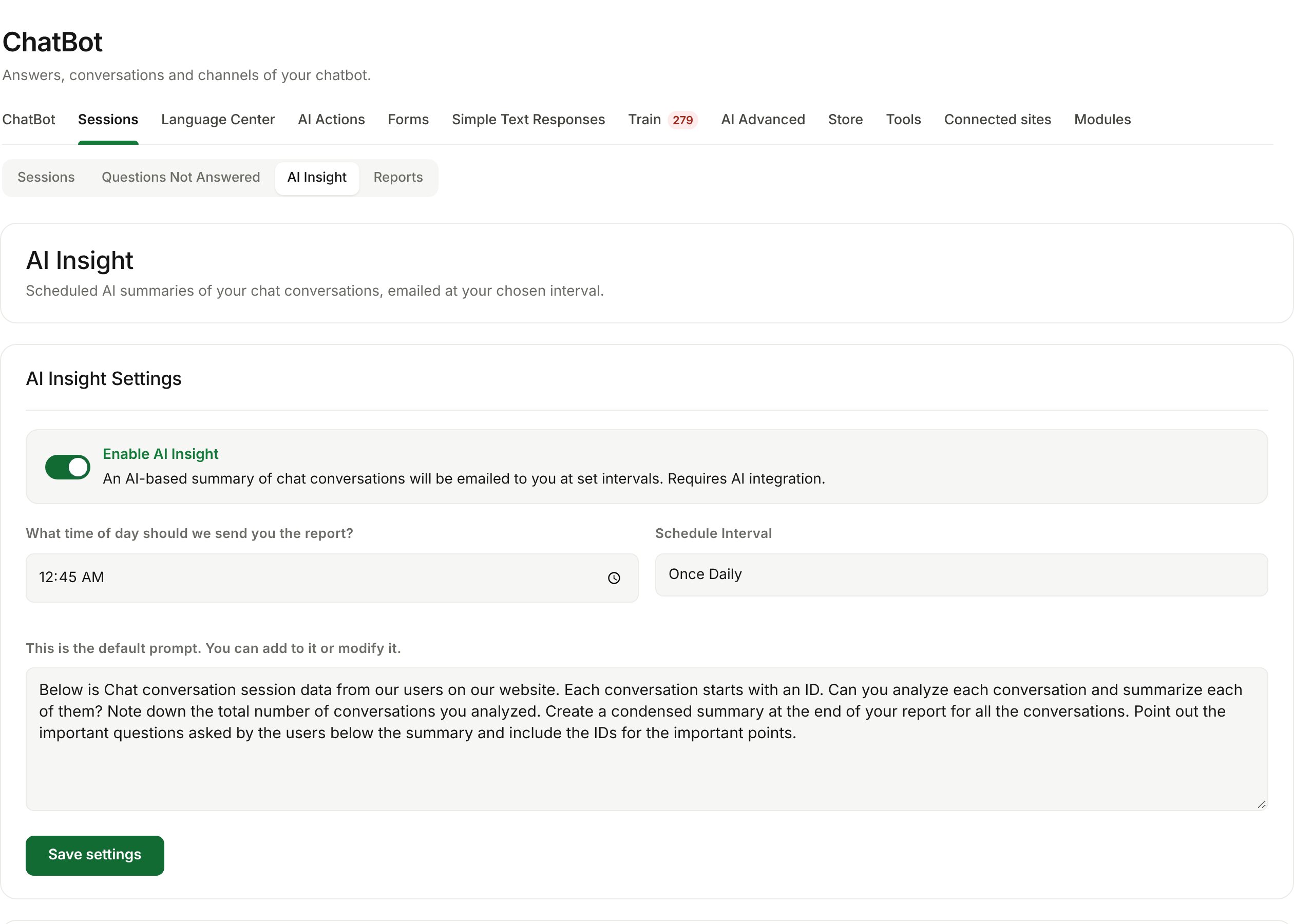
AI Insight settings: schedule and prompt.
- Switch on Enable AI Insight. It needs an AI provider in AI / Settings.
- Choose What time of day should we send you the report?
- Choose the Schedule Interval: Once Daily, Every two days or Weekly.
- Edit the prompt if you like. The default asks the AI to summarise each conversation, count them, write a condensed summary and point out the important questions with their session IDs.
- Click Save settings.
The report goes to the address in Email Setup (see Email Setup: where chatbot emails go and who sends them).
Run Report Now makes a report at once: enter how many recent sessions to analyse in Analyze the Last … Chat Sessions and click Email me the Report Now.
Tip
Add your own questions to the prompt, for example "List the products people asked about and any complaints about prices or delivery." The answers show you what to sell and what to fix.
AI Insight uses your AI provider, so each report has a small AI cost. It counts toward the Chat sessions and reports spending limit (see Set AI spending limits and alerts).
Reports
Open WPBot Pro → ChatBot → Sessions → Reports.
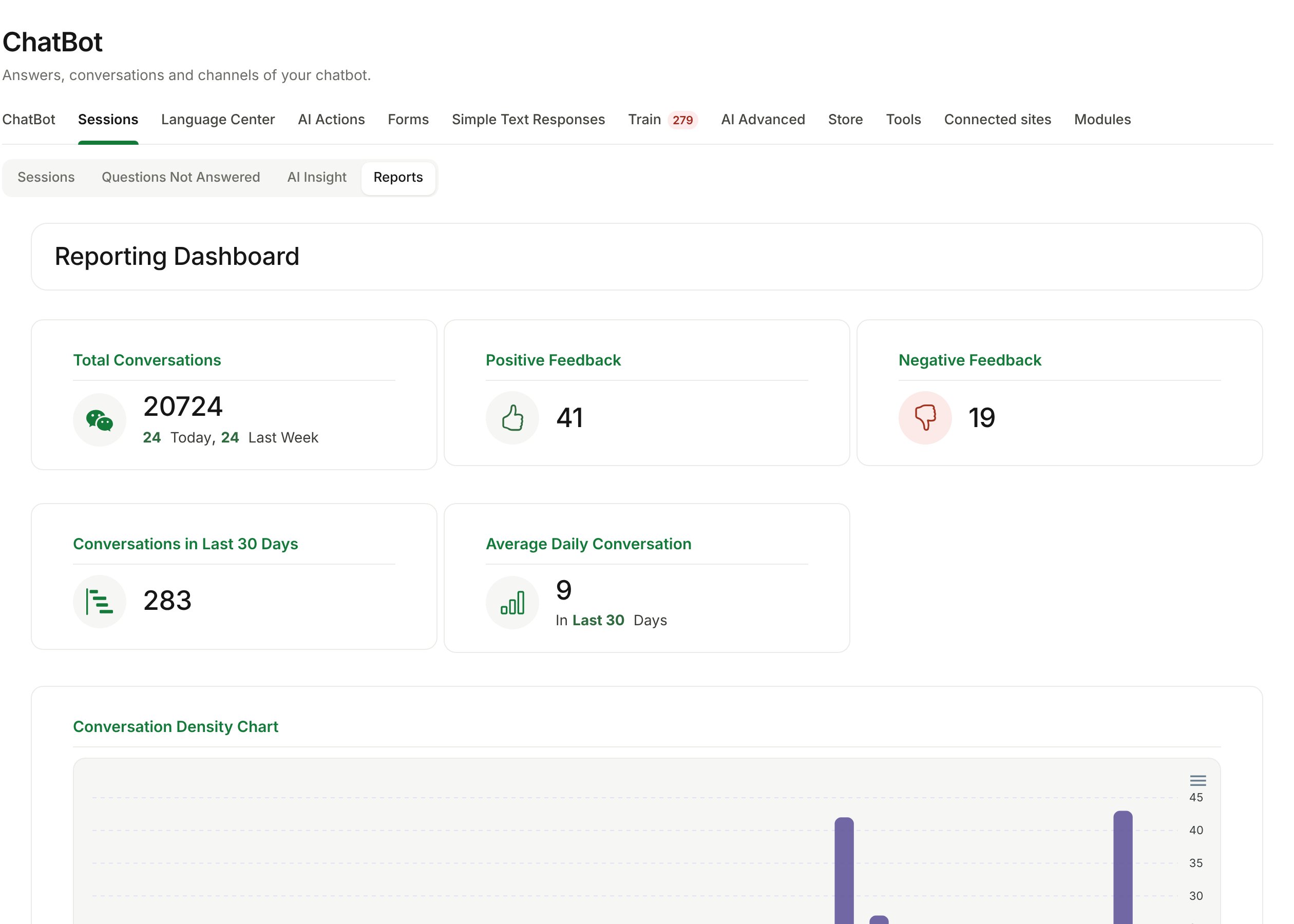
The Reporting Dashboard.
| Section | What it shows |
|---|---|
| Total Conversations | All conversations, with today's and last week's. |
| Positive Feedback and Negative Feedback | Thumbs up and thumbs down on answers. |
| Conversations in Last 30 Days and Average Daily Conversation | Recent volume. |
| Conversation Density Chart | Conversations per day. Download it as SVG, PNG or CSV. |
| Recent 5 Conversations | The latest sessions, with View Chat. |
| Conversations Reports | Answers visitors reported, with their comment. |
| Weekly Performance Comparison | The last 7 days against the 7 days before. |
Weekly email report
Under Weekly Email Report Settings, tick Enable Weekly Email Report, enter the Recipient Email Address and click Save Settings. Send Test Email checks that it arrives. The email compares conversation volume, feedback and daily averages week on week.
Use the numbers
- Negative feedback rising? Open the reported conversations and fix the answers, or offer a person sooner (see Live chat settings: when to offer a person, departments, Slack, Telegram and Teams).
- Conversations rising after a campaign? Make sure your forms and live chat are ready for the extra visitors.
- Compare with sales. Site Insight and the Store overview show which conversations led to orders.
Availability
AI Insight and Reports are in every WPBot Pro edition: Starter, Professional and Master. WPBot Free has Chat Sessions and Questions Not Answered, but not AI Insight or Reports.
Was this article helpful?
Sorry about that. Get help another way:











