

Answer from database tables and spreadsheets (text-to-SQL)
On this page
Some questions need exact figures: "How many units of model X are in stock?", "What is the cheapest flight to Rome in May?", "Which branch is open on Sundays?". Text answers from pages are not reliable for these. With database tables and text-to-SQL, the AI looks the answer up in your data instead.
Open WPBot Pro → AI / Settings → Knowledge Base → Database tables.
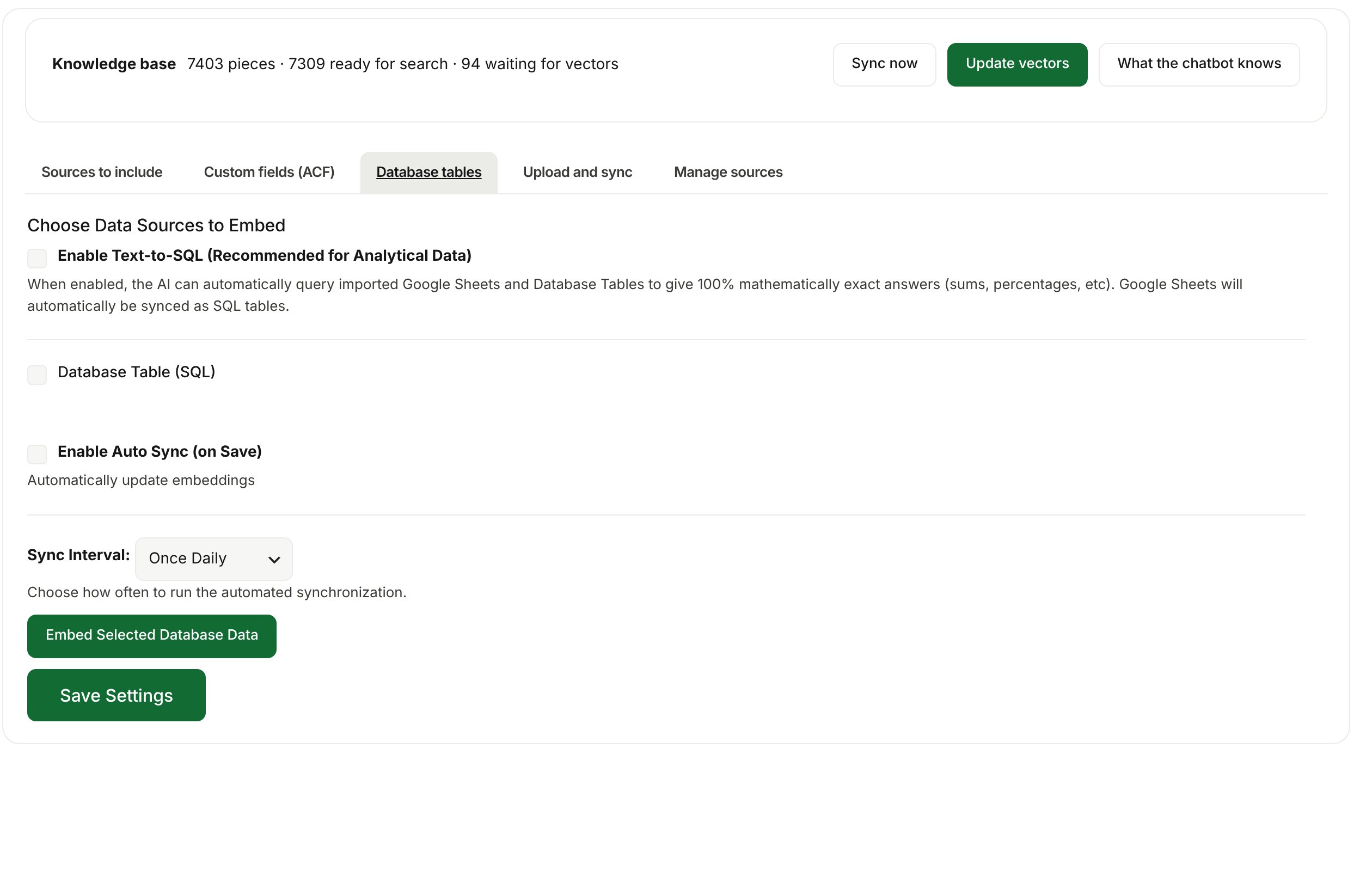
Knowledge Base: Database tables.
Text-to-SQL
Tick Enable Text-to-SQL (Recommended for Analytical Data). For questions about amounts, totals, averages, counts, percentages, top or lowest items and lists, the AI writes a database query on your chosen tables and answers from the exact result. Google Sheets you import are synced as tables automatically.
For safety, a query runs only when it is a single read-only SELECT on the tables you listed. Anything else is refused.
Add tables
- Tick Database Table (SQL).
- In the table, enter the Table Name and the Table Field(s) to use, several fields separated by commas. The Source Name column shows where a table came from (a Google Sheet or your own table).
- Click Add New Table for more. View Data shows a table's rows; Remove takes it off the list; Sync Table reads a sheet-based table again.
- View Available SQL Tables & Fields lists the tables in your database to help you type the names. Create Missing Tables creates empty tables for names that do not exist yet.
Warning
Add only tables whose data visitors may see, such as a product catalogue, price list or branch list. Never add tables with customers, users, orders, emails or other personal data: the chatbot can quote anything it can query.
Import Google Sheets and CSV files as tables
Under Google Sheets & CSV Database Sync:
- Import via Google Sheet URL: paste a published Google Sheet or a CSV address and click Import URL to SQL.
- Upload a Local CSV File: choose the file and click Upload CSV to SQL.
- Sync Existing Sheets to SQL turns sheets you uploaded earlier into tables.
Keep tables up to date
- Enable Auto Sync (on Save) updates the knowledge from the tables automatically.
- Sync Interval: Every 5 Minutes, Hourly, Twice Daily, Once Daily or Weekly.
- Embed Selected Database Data reads the selected tables now. Then click Save Settings.
Good uses
- Stock and prices from an inventory sheet your team already updates.
- Timetables, branches, rooms or events with dates and places.
- Comparison tables ("Which plan includes X?") kept in one sheet.
Availability
Professional and Master. Starter and WPBot Free do not have this tab.
Was this article helpful?
Sorry about that. Get help another way:











