

Chat window buttons: reactions, report, share, reset and close
On this page
Open WPBot Pro → ChatBot → Customize ChatBot Design and scroll below the chat window designer to Chat window buttons and texts.
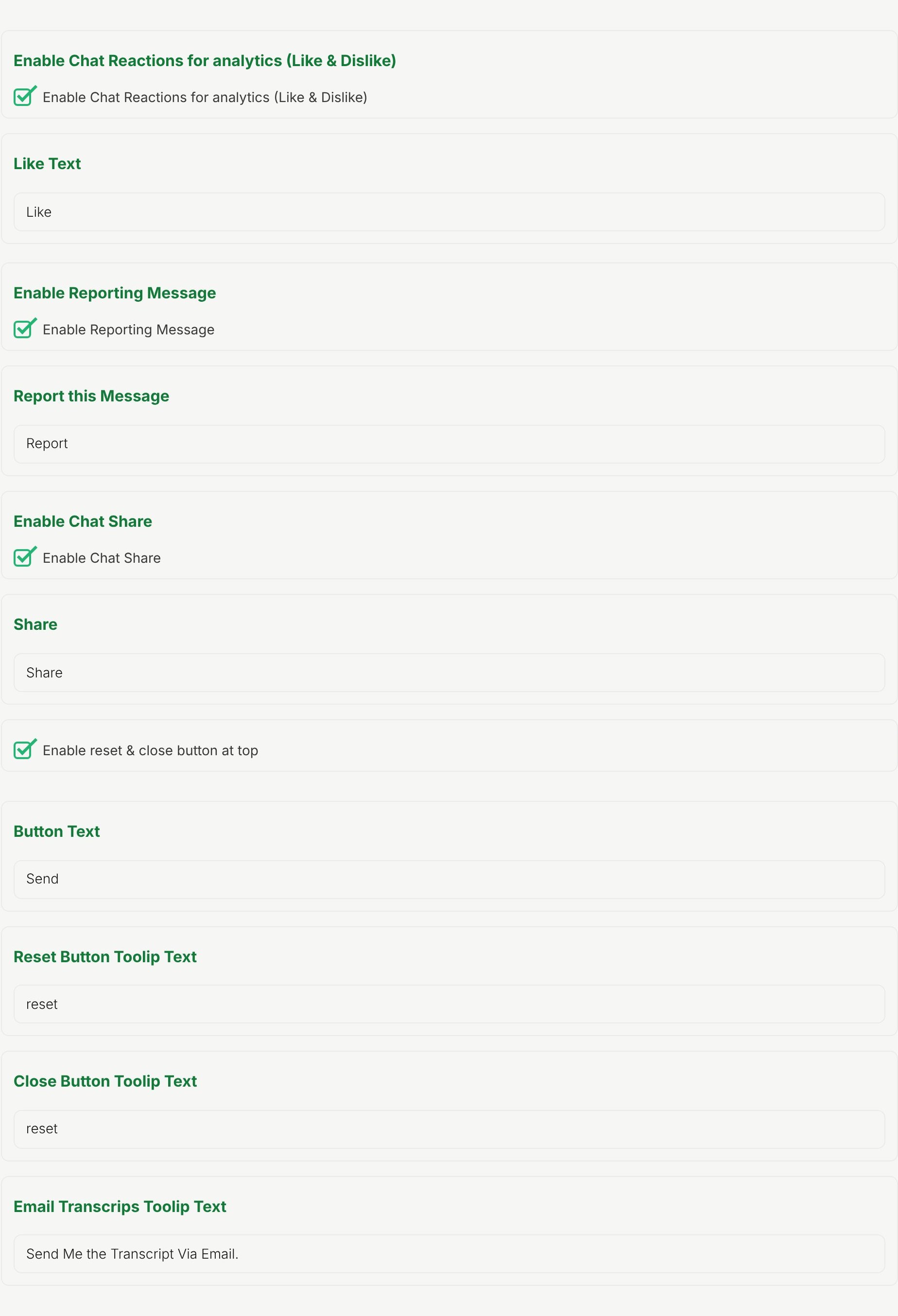
Chat window buttons and texts.
| Setting | What it does |
|---|---|
| Enable Chat Reactions for analytics (Like & Dislike) | Thumbs up and thumbs down under the bot's answers. Set the Like Text and Dislike Text. |
| Enable Reporting Message | Visitors can report a wrong or unwanted answer. Set the Report this Message text. |
| Enable Chat Share | Visitors can share the conversation. Set the Share text. |
| Enable reset & close button at top | Shows the reset and close buttons in the window's header. |
| Button Text | The text of the send button. |
| Reset Button Toolip Text, Close Button Toolip Text, Email Transcrips Toolip Text | The tooltips of the header buttons. |
Why reactions matter
Keep Chat Reactions on. Every thumbs-down sends the question to WPBot Pro → ChatBot → Train with the reason Thumbs down, so you see which answers visitors did not like and can fix them. See Train the chatbot with questions it could not answer.
When a visitor reports a message, the site admin gets an email (at most one every 10 minutes per visitor).
Availability
Reactions, reporting and sharing are in every edition, including WPBot Free. The reset and close button settings and tooltip texts are in the WPBot Pro editions.
Was this article helpful?
Sorry about that. Get help another way:











