

Add documents, sitemaps and Google Sheets or Docs
On this page
Not everything you know is on your WordPress pages. Price lists, brochures, manuals, spreadsheets and documentation on other sites can all become chatbot knowledge. Open WPBot Pro → AI / Settings → Knowledge Base → Upload and sync.
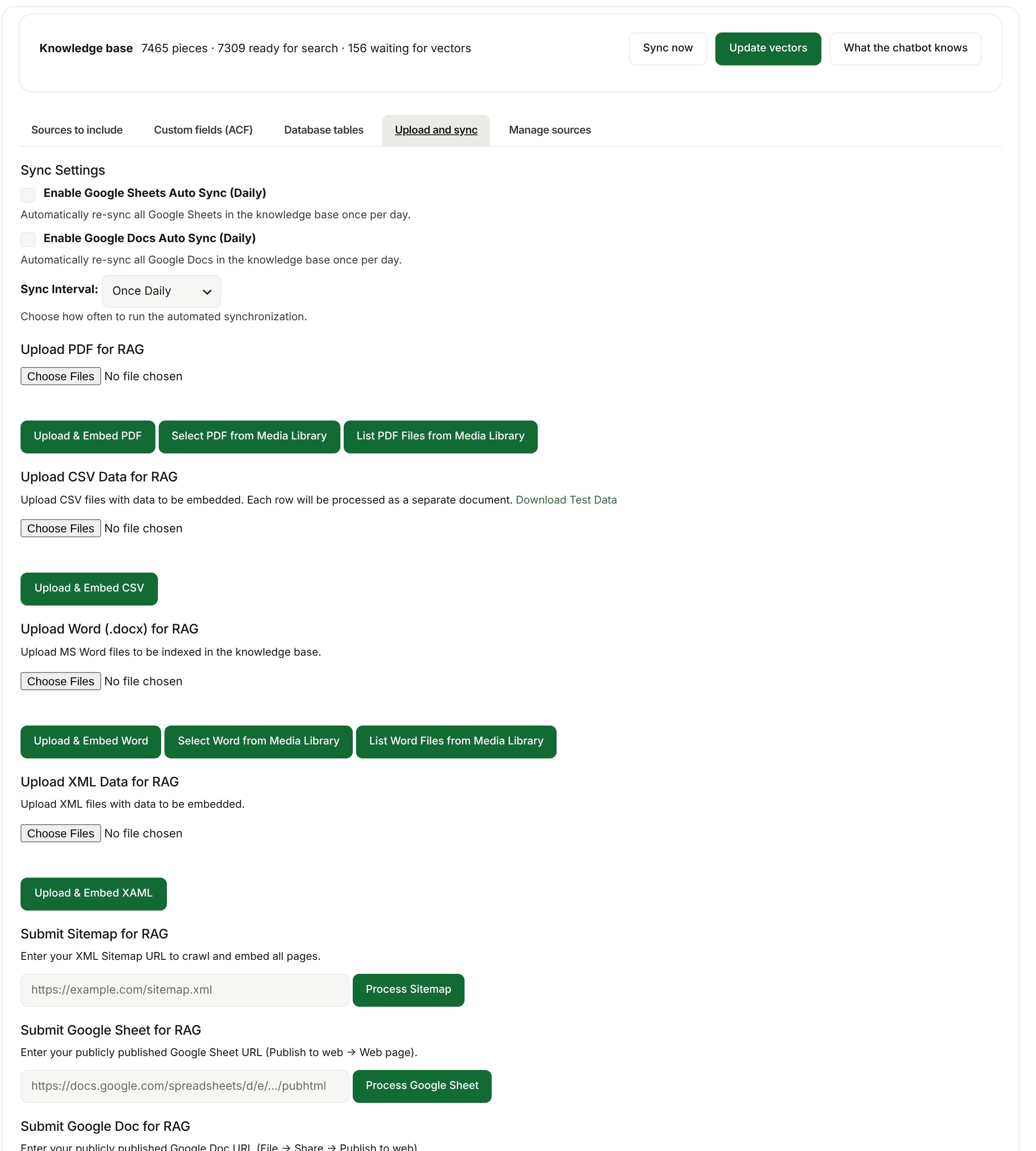
Knowledge Base: Upload and sync.
Files
| Section | What it takes |
|---|---|
| Upload PDF for RAG | PDF files: Upload & Embed PDF, or Select PDF from Media Library. List PDF Files from Media Library shows the PDFs you already have. |
| Upload CSV Data for RAG | CSV files. Each row becomes a separate document. Download Test Data gives you a sample file. |
| Upload Word (.docx) for RAG | Microsoft Word files, uploaded or picked from the Media Library. |
| Upload XML Data for RAG | XML files, for example a WordPress export of another site. |
Text-based PDFs work best. Scanned pages without real text cannot be read.
Websites and Google files
| Section | How |
|---|---|
| Submit Sitemap for RAG | Enter an XML sitemap address and click Process Sitemap. Every page in it is read and added, for example your documentation site or blog on another platform. |
| Submit Google Sheet for RAG | Publish the sheet first (Publish to web → Web page), then paste its address and click Process Google Sheet. |
| Submit Google Doc for RAG | Publish the doc first (File → Share → Publish to web), then paste its address and click Process Google Doc. |
Warning
A sheet or doc published to the web can be opened by anyone with its address. Publish only what is public anyway, such as a price list or a FAQ.
Keep Google files up to date
Under Sync Settings:
- Enable Google Sheets Auto Sync (Daily) and Enable Google Docs Auto Sync (Daily) read every sheet and doc in the knowledge base again automatically.
- Sync Interval: Every 5 Minutes, Hourly, Twice Daily, Once Daily or Weekly.
Edit the sheet, and the chatbot's answers follow without you touching WPBot. For exact figures from a sheet (totals, counts), import it as a table instead: see Answer from database tables and spreadsheets (text-to-SQL).
Manage sources
Open the Manage sources tab to see every file, spreadsheet and sitemap page as one source, with its Type and how many Documents (pieces) it gave. Sync Now reads a source again; Delete All removes the source and all its pieces from the knowledge base.
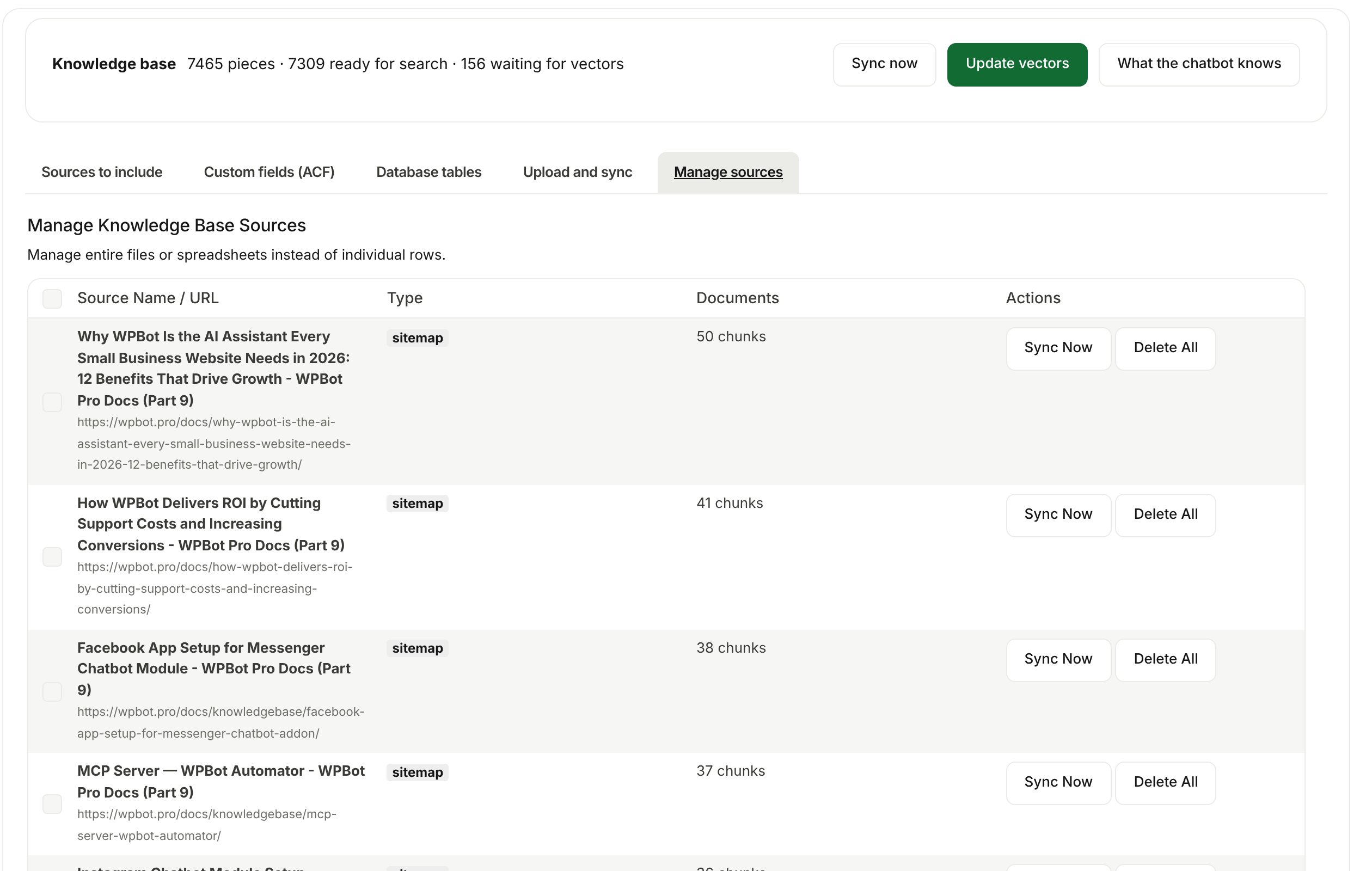
Manage sources lists every file, sheet and sitemap page.
Everything you add appears in What the chatbot knows too (Check what the chatbot knows).
What to add first
- Your price list and service sheets. Questions about price come right before a purchase.
- Product manuals and specification sheets, so the chatbot answers detailed pre-sales and support questions.
- Your terms, delivery and returns policies, for exact answers.
Availability
PDF, CSV and XML uploads are in every edition, including WPBot Free. Word files, sitemaps, Google Sheets and Docs and their automatic sync are in Professional and Master.
Was this article helpful?
Sorry about that. Get help another way:











