

Conversational Forms: capture leads in the chat
On this page
A Conversational Form asks its questions one at a time inside the chat window, like a person would. Visitors answer with a few words or by tapping buttons. When the last question is answered, WPBot saves the entry, emails it to you and can take a payment, book a calendar slot or send the data to your CRM.
Forms convert better than a long page form because the visitor is already talking to you. One question at a time feels easy, and the chatbot can skip questions that do not apply.
Open WPBot Pro → ChatBot → Forms.
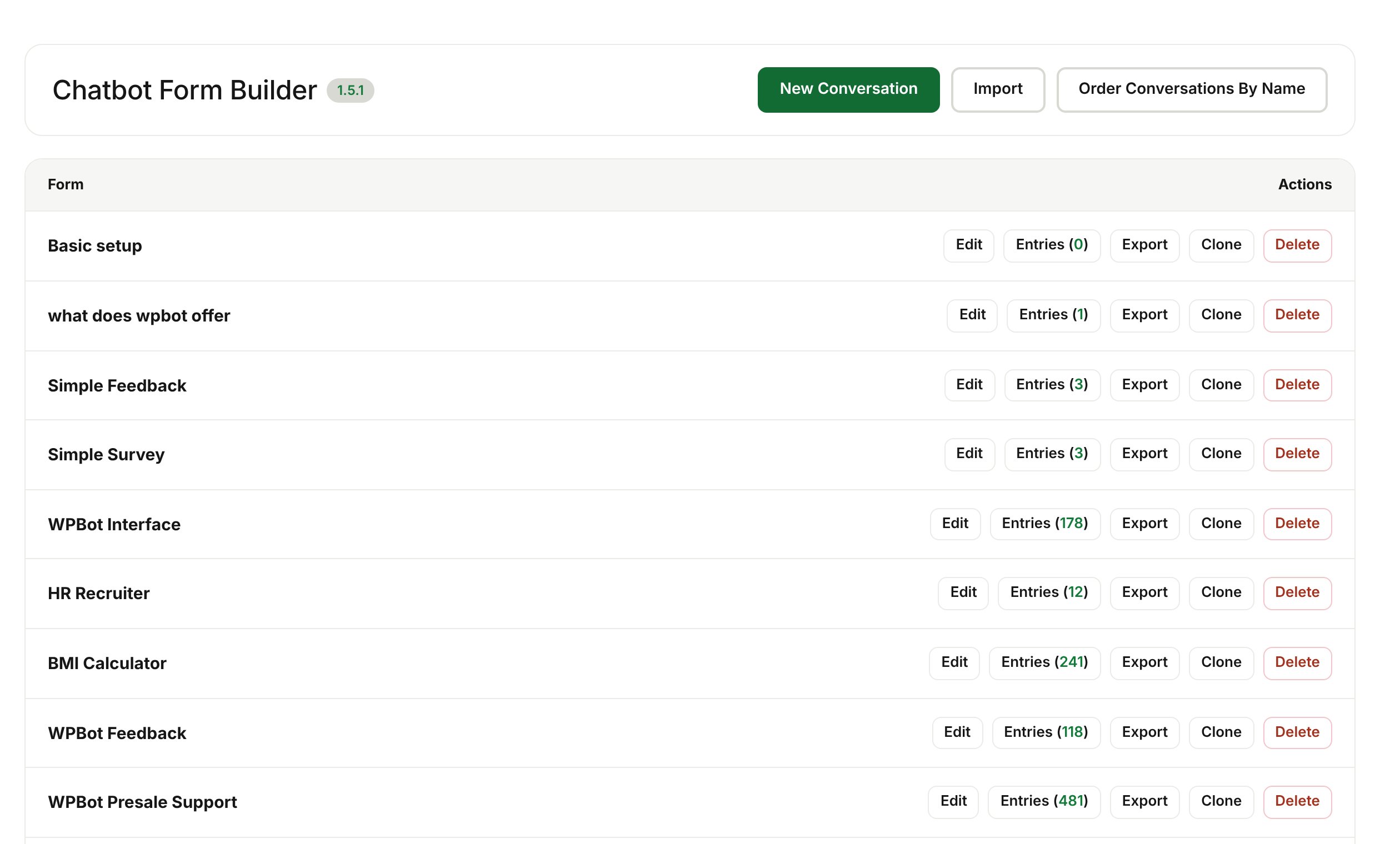
ChatBot → Forms lists every conversational form with its entries.
What you can build
- Lead capture: name, email, phone and what the visitor needs.
- Quotes and pricing requests: a few questions, then a calculated price.
- Bookings and appointments: date and time pickers, or a slot in your Google Calendar.
- Surveys and feedback: buttons for answers, a star rating with Select Option.
- Paid requests: a Stripe payment step anywhere in the form.
- Calculators: BMI, BMR or price calculators with the Calculation field.
The forms list includes ready-made examples such as Simple booking, Appointment, lead generation and Pricing form. Click Clone on one to start from it.
How visitors start a form
| Way | How to set it up |
|---|---|
| The visitor types a keyword | The form's Intent Name in Form Settings. Add several keywords separated by commas. |
| A start-menu button | Drag the form into the start menu. See Start menu. |
| When the AI is not sure | Add the form to WHEN THE BOT ISN'T SURE, SHOW THESE BUTTONS in AI / Settings → Answers. See Control how the chatbot answers. |
| Retargeting and automations | Choose the form in Trigger an Intent Instead on the Retargeting page, or use the action Show a lead form or Start an intent or AI Action in Store → Automations. See Retargeting: open the chat at the right moment. |
| From another form | A Select Option answer can start another form, a Simple Text Response or live chat. See Form fields, branching and calculations. |
Use forms for the most leads and sales
- Ask for the email early, not first. Start with one easy question about the visitor's need, then ask for contact details.
- Keep it short. Three to six questions are enough for a first contact. Mark optional questions Skippable.
- Use buttons. Select Option answers are quicker than typing and give you clean data for reports.
- Branch. Use a field's Condition so each visitor only sees the questions for their answer.
- Offer the form at the right moment. A "Get a quote" form on pricing pages, or on exit intent, catches visitors who are about to leave.
- Reply fast. Send the entry to the person who follows up, and send the visitor an automatic confirmation with the Auto Responder processor.
- Measure. Track completed forms in Google Analytics. See Track form submissions with Google Tag Manager.
Forms in the Growth Loop
Forms are the Convert step of the Growth Loop. Visitors who arrive from your articles (AI Writer), search (SEO & AI Search) and posts (Social) become leads in the chat. Send form data to your CRM or mailing list with Send chatbot leads to webhooks, HubSpot, FluentCRM and Mailchimp, so AI Marketing and your team can follow up.
Guides in this section
- Build a conversational form
- Form fields, branching and calculations
- Form emails, processors and entries
- Take payments in conversational forms with Stripe
- Track form submissions with Google Tag Manager
Availability
Conversational Forms are in Master and Professional. Starter and WPBot Free do not include them; they can collect contact details with AI Actions forms instead (see AI Actions). The CRM and webhook connections need Master.
Was this article helpful?
Sorry about that. Get help another way:











