

Greeting and visitor details
Open WPBot Pro → ChatBot → Greeting & visitor details. These settings decide what happens in the first seconds of every chat: the greeting, and what the bot asks the visitor before it helps.
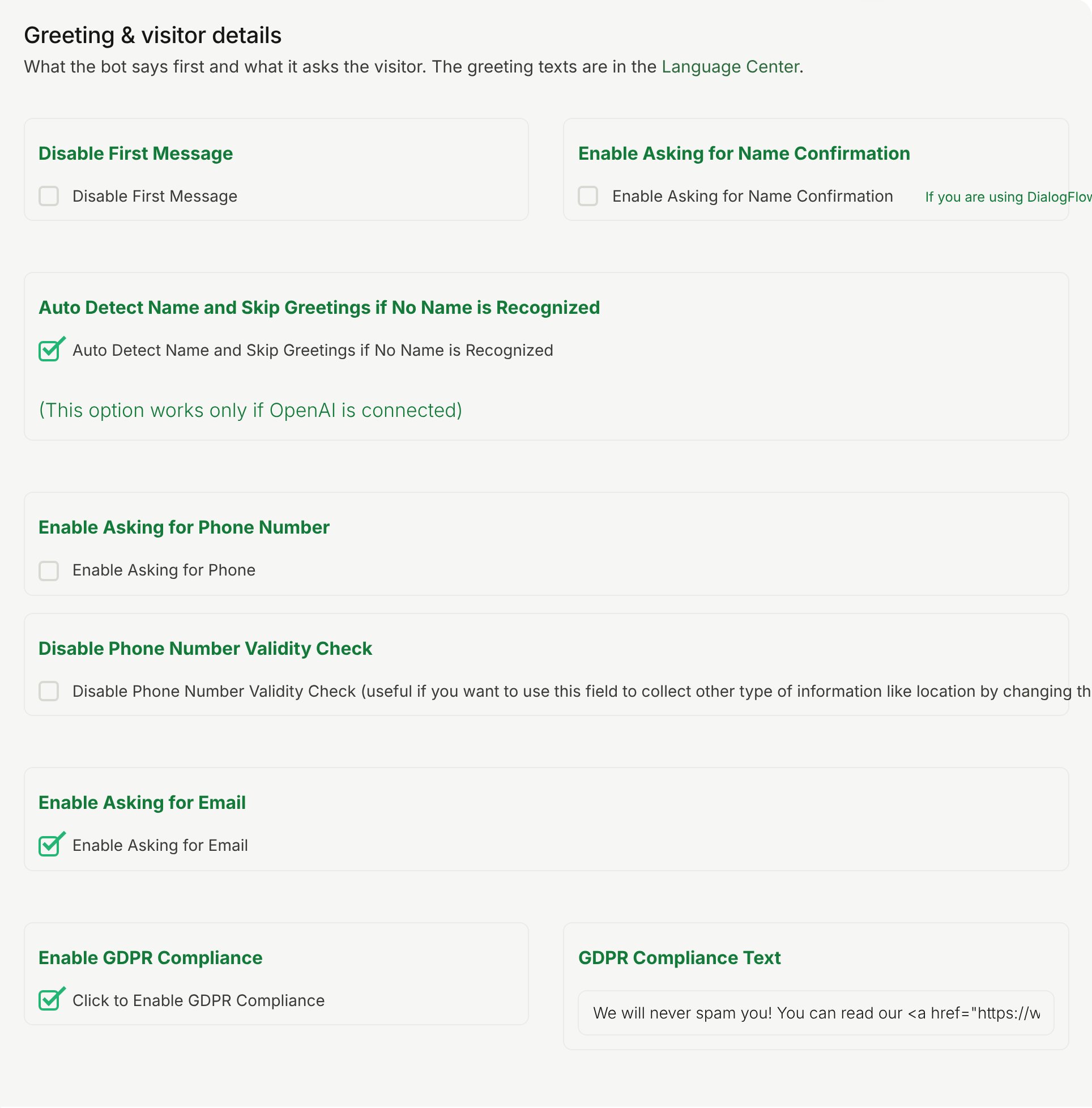
Greeting & visitor details.
The settings
| Setting | What it does |
|---|---|
| Disable First Message | Leaves out the "Agent name has joined the conversation" line at the start. |
| Enable Asking for Name Confirmation | After the visitor types a name, the bot asks "I understand that your name is … Is that correct?". Not used with Dialogflow. |
| Auto Detect Name and Skip Greetings if No Name is Recognized | AI picks the name out of what the visitor typed ("Hi, I'm Sam" gives "Sam"). If there is no name, for example the visitor asked a question straight away, the bot skips the greeting questions and answers. Works only when an AI provider is connected. |
| Enable Asking for Phone Number | The bot asks for a phone number after the name. |
| Disable Phone Number Validity Check | Accepts any answer to the phone question. Use it when you change the question in the Language Center to collect something else, such as a city. |
| Enable Asking for Email | The bot asks for an email address after the name. |
| Enable GDPR Compliance | Shows your GDPR Compliance Text (for example a link to your privacy policy) when the bot asks for details. |
Whether the name question comes at all, and whether the start menu follows, is set in When the start menu shows under When the chat opens.
Change the words
Every greeting text is in the Language Center: change every text the chatbot says: Welcome to, Welcome back, Hi There!, May I know your name?, May I know your email?, May I know your phone number?, the thank-you lines and Nice to meet you. Add several versions of a message and the bot picks one at random, so returning visitors do not see the same words every time.
Tip
After changing these settings, type reset in the chat and press Enter, or open your site in a private window, to see the greeting as a new visitor does.
Ask for details without losing visitors
Every question before the first answer costs some visitors. A good balance for most sites:
- Ask for the name only, with Auto Detect Name on, so visitors who come with a question get an answer at once.
- Ask for the email when it is worth something to the visitor: to send a quote, a booking confirmation or the answer to a question the bot could not answer. Use an AI Action or a form for that, and the email subscription item in the start menu.
- Turn on GDPR Compliance if you have visitors in the EU or UK, and link your privacy policy in the text.
Names, emails and phone numbers the visitor gives are kept with their chat session. With AI Marketing on, every email the chatbot collects also lands in its ChatBot Subscribers list, ready for a welcome journey; visitors who only asked to be contacted are kept as leads and are not emailed until they opt in. This is the step from Convert to Reach / Sell in the Growth Loop. See Leads and integrations: get more contacts from your chatbot.
Availability
In every WPBot Pro edition. Auto Detect Name needs a connected AI provider. WPBot Free's Greeting & visitor details tab has Enable Asking for Email only; its greeting texts are on the Change Language tab.
Was this article helpful?
Sorry about that. Get help another way:











