

Floating icon, notification box and chat bar
On this page
The floating icon is the chat button in the corner of every page. The notification box is the small message next to it, such as "Need help?". Both are set in WPBot Pro → ChatBot → Basics.
Floating Icon and Notification Box
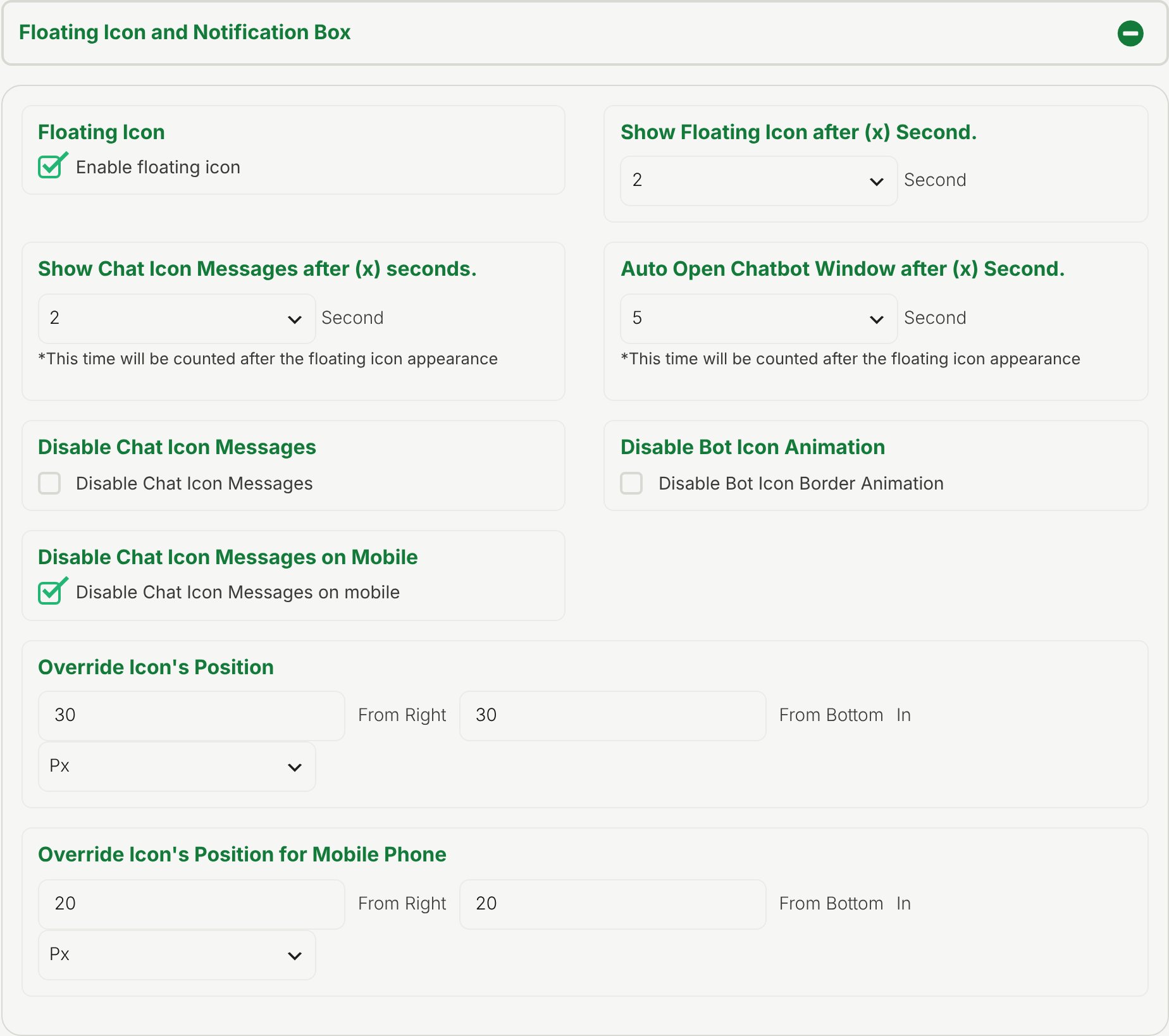
Timing, animation and position of the floating icon.
| Setting | What it does |
|---|---|
| Enable floating icon | Shows the chat icon on your pages. |
| Show Floating Icon after (x) Second. | How long after the page loads the icon appears. |
| Show Chat Icon Messages after (x) seconds. | How long after the page loads the notification box appears. |
| Auto Open Chatbot Window after (x) Second. | The delay before the chat opens by itself. It works only when Auto Open Chatbot Window For First Time Page Load is on in ChatBot Window Options, and it is added to the icon's delay. |
| Disable Chat Icon Messages | Hides the notification box everywhere. |
| Disable Bot Icon Animation | Stops the animated border around the icon. |
| Disable Chat Icon Messages on Mobile | Hides the notification box on phones, where screen space is small. |
| Override Icon's Position | Distance From Right and From Bottom, in Px or Percent. |
| Override Icon's Position for Mobile Phone | The same distances, for phones only. |
The text of the notification box is set in Chat Icon Messages: invite visitors to chat. The look of the button itself (icon, glass finish, motion) is set in Design the chat button and floating box.
Note
A visitor sees the automatic opening once: after it opens, the chat waits 12 hours before it opens by itself again for that visitor.
Floating Chat Bar Options
Open Floating Chat Bar Options on the same tab to add a "Chat with Us" bar, with your icon, along the right edge or the bottom of the screen.
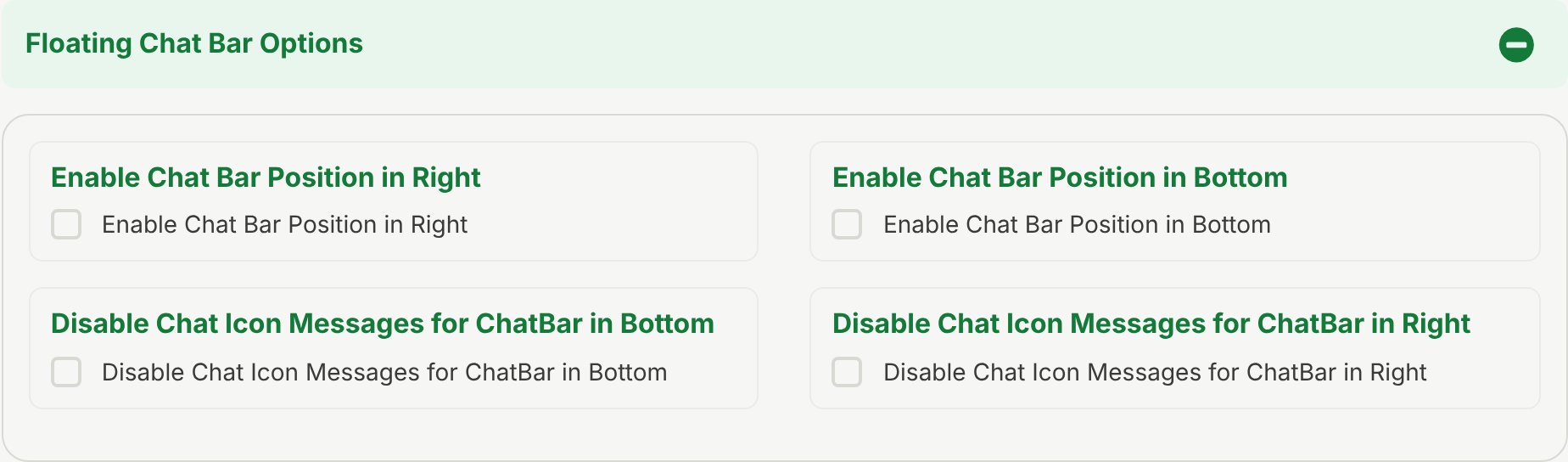
The floating chat bar can sit on the right edge or at the bottom.
- Enable Chat Bar Position in Right and Enable Chat Bar Position in Bottom show the bar.
- Disable Chat Icon Messages for ChatBar in Bottom and Disable Chat Icon Messages for ChatBar in Right hide the notification box next to that bar.
The bar's text is "Chat with us!" in the Language Center: change every text the chatbot says.
Settings that bring more leads
- Show the icon after 1 to 2 seconds, not at once: the page loads first and the icon gets noticed when it appears.
- Keep the notification box on desktop. A short question such as "Looking for a price?" with a click action starts far more chats than the icon alone. See Chat Icon Messages: invite visitors to chat.
- Use auto-open sparingly. It works well on a pricing or contact page, but on every page it can annoy visitors. Use page control or Retargeting to open the chat only where it helps.
- Move the icon on phones if it covers your "Add to cart" button or a cookie banner.
Availability
This tab is in every WPBot Pro edition. WPBot Free has a shorter Basics tab with Disable Floating Button and Override WPBot Icon's Position (in px), without the delays, auto-open timing, mobile position or floating chat bar.
Was this article helpful?
Sorry about that. Get help another way:











