

How the chatbot chooses an answer
When a visitor types a question, the chatbot tries several sources in a fixed order and stops at the first one that answers. Knowing the order helps you decide where to put an answer.
The order
- Start menu and intents. A click on a start menu button, a Chat Icon Message or a Click to Chat button starts that item directly: an FAQ, a form, an AI Action, a link. Keywords such as
resetor your FAQ keyword do the same (see Language Center: change every text the chatbot says). - Simple Text Responses. Answers you wrote yourself, matched by question, keywords and phrase matching. They always win, so use them for answers that must be exactly right. See Simple Text Responses: your own exact answers.
- Dialogflow, when you connected a Dialogflow agent. See Connect Dialogflow ES or CX.
- Site search, which lists your pages that contain the visitor's words. While an AI provider answers, the Site Search button leaves the start menu. See Site search, synonyms and stop words.
- Knowledge base and AI. The chatbot finds the parts of your content that match the question in the knowledge base, and the AI writes the answer from them, with links to the pages it used. The page the visitor is on and your AI Actions are given to the AI too. See The knowledge base: what the chatbot learns from and Control how the chatbot answers.
- Fallback. When nothing answers, the visitor gets your "no result" message, and the question is saved in Train. After a few answers without a result, the start menu or your own message shows (When the start menu shows). When the AI answers but is not sure, it offers the buttons you chose in AI / Settings → Answers instead of guessing.
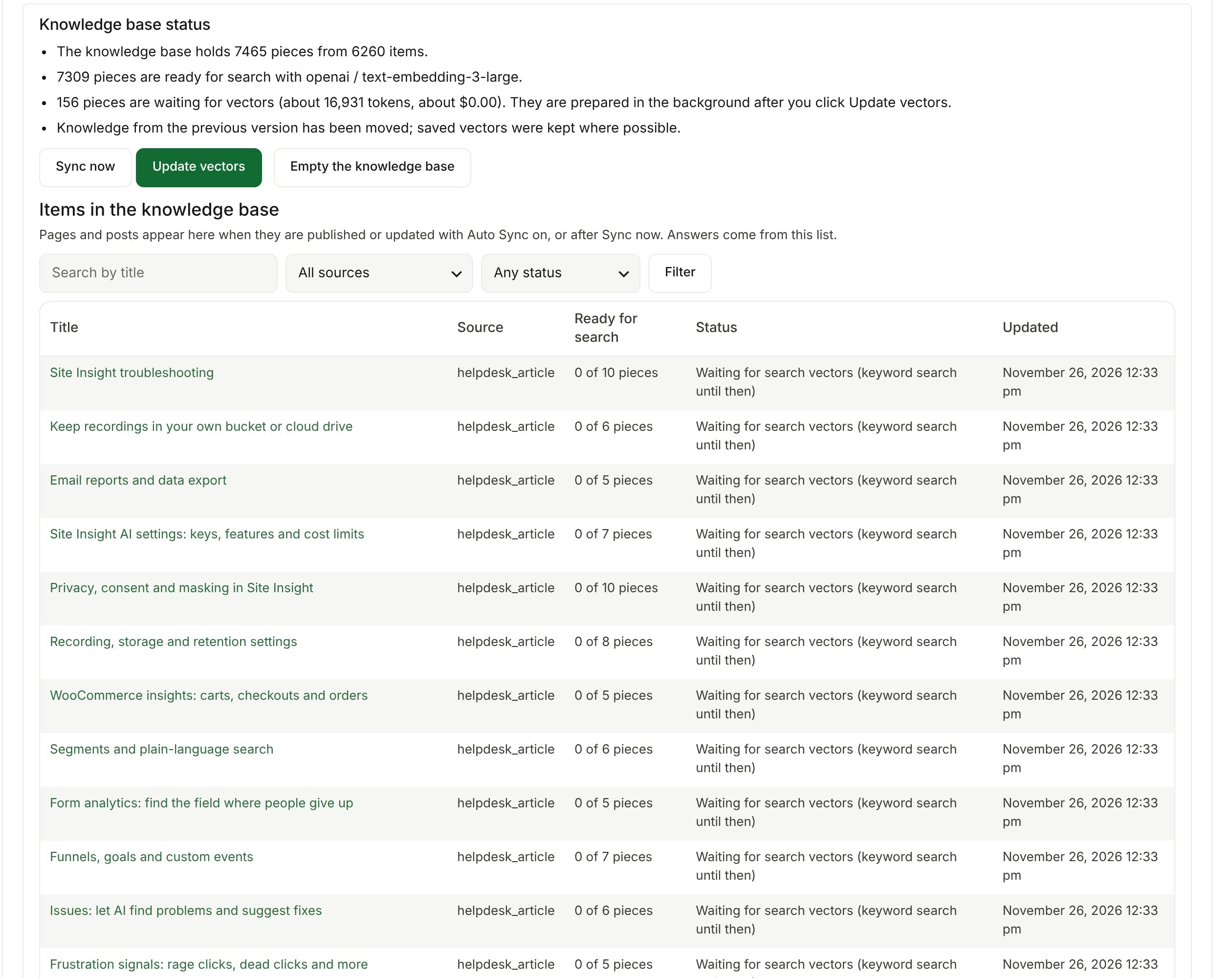
What the chatbot knows: the content the AI answers from.
Where to put an answer
| You want | Put it in |
|---|---|
| A fixed, word-for-word answer (prices, returns policy, opening hours) | Simple Text Responses: your own exact answers |
| Answers about everything on your site | The The knowledge base: what the chatbot learns from: pages, posts, products, documents |
| A guided path (choose a topic, then a question) | The Build the chatbot FAQ and start menu |
| Collect details, then act (quote, booking, qualification) | An AI Action or a conversational form (Conversational Forms: capture leads in the chat) |
| An answer to a question the bot missed | Add answer in Train |
Questions the bot could not answer
Every question that ends in the fallback, gets a "not sure" answer, a thumbs-down, or comes before a request for a person, appears in WPBot Pro → ChatBot → Train, most asked first. Answering them there is the fastest way to improve the chatbot week by week. See Train the chatbot with questions it could not answer.
Without AI
The chatbot also works without an AI provider: it answers from Simple Text Responses, the FAQ, the start menu, forms and site search. If you set a spending limit and it is reached, the chatbot keeps answering this way until the period resets (see Set AI spending limits and alerts).
Availability
In every edition, including WPBot Free.
Was this article helpful?
Sorry about that. Get help another way:











