

Build the start menu
The start menu is the row of buttons the chatbot offers after the greeting: "FAQ", "Get a quote", "Track my order". Buttons are the fastest way into a conversation, especially on phones. Open WPBot Pro → ChatBot → Items. The tab has two parts: Start menu items and Predefined intents.
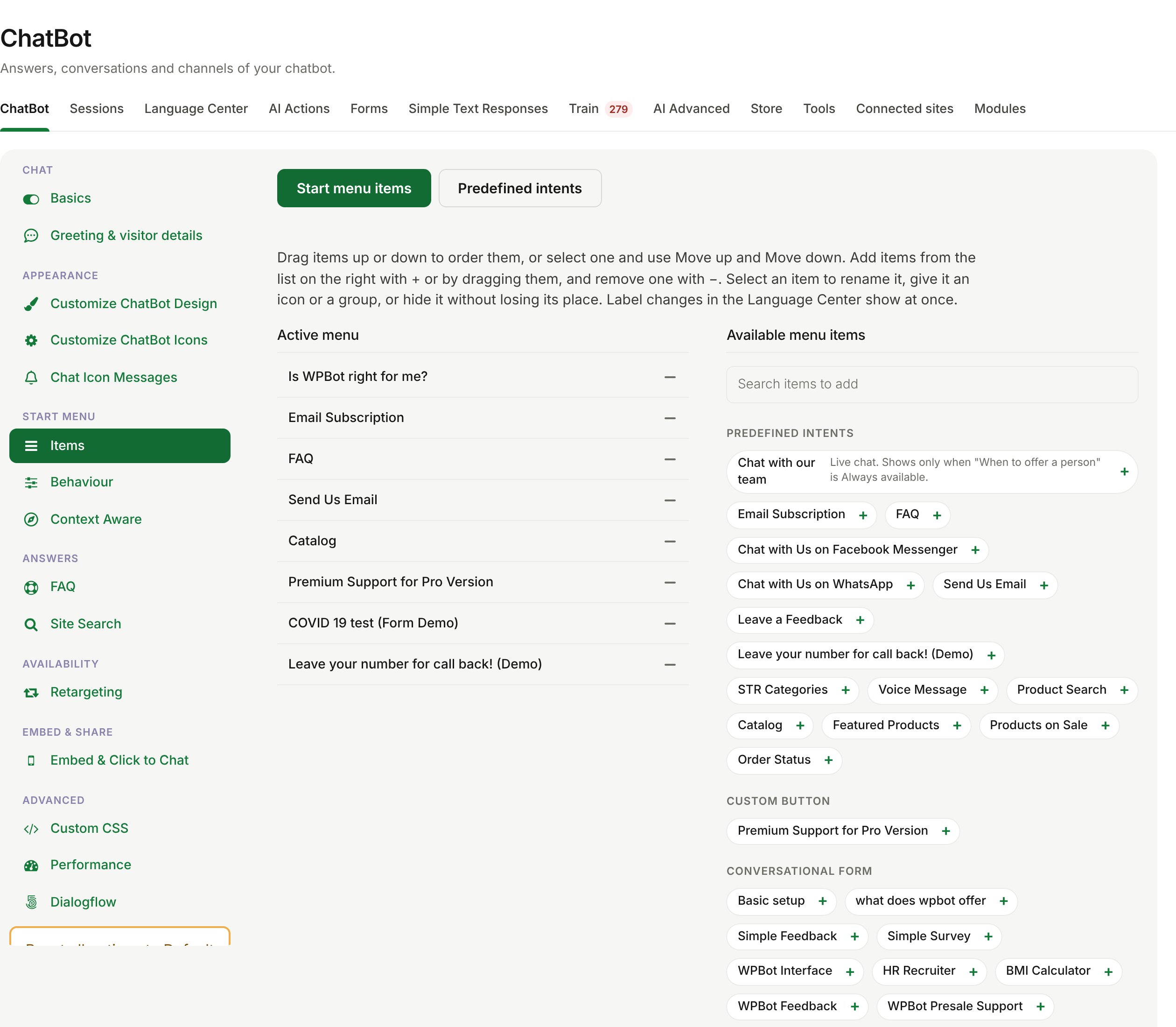
Active menu on the left, Available menu items on the right, and a preview.
Arrange the menu
- Active menu lists the buttons in the order visitors see them. Drag an item up or down, or select it and use Move up and Move down.
- Available menu items lists everything you can add. Click + or drag an item into the Active menu. Remove an item with −.
- Edit the selected item: select an item to change its Label, give it an Icon (an emoji, optional) or a Group (optional), or tick Hide in the chat (kept here) to take it out of the chat without losing its place.
- Preview in the chat shows the menu as visitors see it, including how many buttons show before More options.
Label changes in the Language Center: change every text the chatbot says show here at once.
What you can add
| Group | Items |
|---|---|
| Predefined intents | Email Subscription, FAQ, Send Us Email, Leave a Feedback, the callback request, STR Categories, Voice Message, and the WooCommerce items Product Search, Catalog, Featured Products, Products on Sale and Order Status. Chat with our team (live chat) shows only when live chat is set to be always available. |
| Custom button | Your own buttons that open a link, write an email or call a phone number. |
| Conversational form | Every form you built under Forms. |
| AI Actions | Every AI Action you saved. |
| Simple Text Response categories | A button per category of your Simple Text Responses. |
| Dialogflow CX | Intents from your Dialogflow CX agent, when connected. |
The Predefined intents tab, next to Start menu items, holds each built-in intent's settings: a switch to turn its feature and button off (for example Disable Send Email feature and button on start) and its Button Label. Under Add Custom Menu Button with Link you add custom buttons: a label, the address, and the type Link, Email or Phone.
Note
While an AI provider answers your visitors, Site Search is not offered as a start menu item: the AI answers from your content instead. It comes back if you switch the AI off.
Build a menu that sells
- Lead with what most visitors want. Look at Train and Sessions: if most questions are about delivery or prices, make those the first buttons.
- Put one money button near the top: a quote form, a booking or a product advisor AI Action.
- Keep four to six buttons. The rest wait behind More options; set the number in When the start menu shows.
- Add emoji icons. They make buttons easier to scan and are used by the icon styles of the start menu bar (Guide visitors in the chat window).
- Let the menu adapt to the page with Context Aware start menu: product items on product pages, support items on help pages.
Availability
The start menu is in every edition, including WPBot Free, where you can order, rename and hide items. Icons and groups are in every WPBot Pro edition. Some items depend on your edition: Simple Text Response categories, the WooCommerce items and Conversational Forms need Professional or Master; Voice Message and live chat need Master.
Was this article helpful?
Sorry about that. Get help another way:











