

A tour of the ChatBot screens and settings
On this page
Open WPBot Pro → ChatBot. Every chatbot screen shows the same row of tabs at the top, and the first tab, ChatBot, holds the settings in a menu on the left.
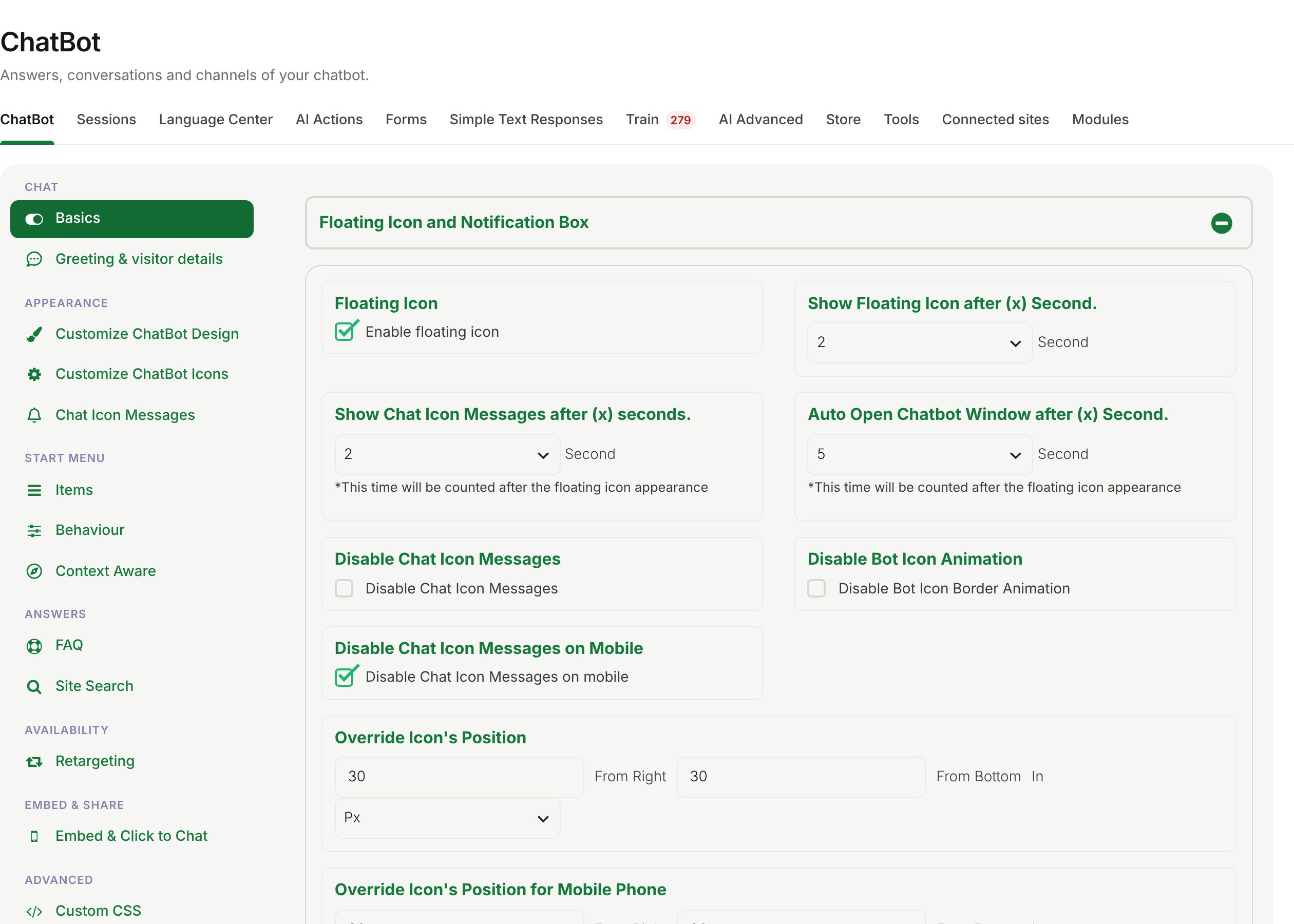
The ChatBot tabs at the top and the settings menu on the left.
The ChatBot tabs
The number next to Train counts the open questions waiting for you. Tabs of modules you switched off do not show.
The AI provider, answers, knowledge base and spending live in WPBot Pro → AI / Settings. See Getting started with AI and Account Settings: the best answers at the lowest cost and The knowledge base: what the chatbot learns from.
The ChatBot settings menu
| Group | Settings | Guides |
|---|---|---|
| Chat | Basics, Greeting & visitor details | Floating icon, notification box and chat bar, Choose where the chatbot shows, Chat window and bot response options, Greeting and visitor details |
| Appearance | Customize ChatBot Design, Customize ChatBot Icons, Chat Icon Messages | Design the chat window, Design the chat button and floating box, Chat Icon Messages: invite visitors to chat |
| Start Menu | Items, Behaviour, Context Aware | Build the start menu, When the start menu shows, Context Aware start menu |
| Answers | FAQ, Site Search | Build the chatbot FAQ, Site search, synonyms and stop words |
| Availability | Retargeting | Retargeting: open the chat at the right moment |
| Embed & share | Embed & Click to Chat | Embed the chatbot and add Click to Chat buttons |
| Advanced | Custom CSS, Performance, Dialogflow | Add custom CSS to the chatbot, Performance: a fast chatbot and caching plugins, Connect Dialogflow ES or CX |
The Basics tab is a set of panels you open one by one: Floating Icon and Notification Box, Email Setup, Bot Response Options, Page Control Bot Loading Options, ChatBot Window Options, Floating Chat Bar Options and Misc. Options. Email Setup is explained in Email Setup: where chatbot emails go and who sends them.
Save and test
- Click Save Settings at the bottom of the screen before you open another tab of the menu.
- Reset all options to Default at the bottom of the menu puts every ChatBot setting back to its default. It cannot be undone.
- To test as a new visitor, type
resetin the chat and press Enter, or open your site in a private window.
Tip
Use the search box in the header of the WPBot screens to jump straight to a setting by name.
Settings that were removed
Some older tabs were removed from the menu and switched off (November 2026). Their saved values stay in the database, but they no longer do anything on your site:
- Bot Activity Hour: opening hours no longer hide the chatbot. It answers at any time; offer a form or "Send Us Email" for requests outside your hours.
- Button Configurations: the Messenger, Skype, WhatsApp, Viber, website link and phone buttons on the chat window. Use the start menu's custom buttons (Build the start menu) or the real channel integrations (Channels: answer customers on Messenger, Instagram, WhatsApp and Telegram) instead.
- Integrations: the n8n and OpenAI Agent Builder buttons. Use AI Actions: let the chatbot qualify leads and collect details with a webhook instead.
The chat window's own buttons and texts (reactions, report, share, reset and close) moved to Customize ChatBot Design: see Chat window buttons: reactions, report, share, reset and close.
Availability
The ChatBot screens are in every edition. Some tabs depend on your edition: AI Advanced is in Professional and Master, Store and Forms need Professional or Master, and Connected sites needs Professional or Master. WPBot Free has a shorter settings menu, without the Language Center, Context Aware, Chat Icon Messages, Embed & Click to Chat and Retargeting.
Was this article helpful?
Sorry about that. Get help another way:











