

Getting started with AI and Account Settings: the best answers at the lowest cost
On this page
WPBot Pro → AI / Settings is the control room for every AI feature in WPBot. The provider and keys you set here answer your chatbot and power AI Writer, SEO & AI Search, Social, AI Marketing, Site Insight and the Help Center. Together with Business Context and Permissions, these settings decide how good, how safe and how expensive every AI result is.
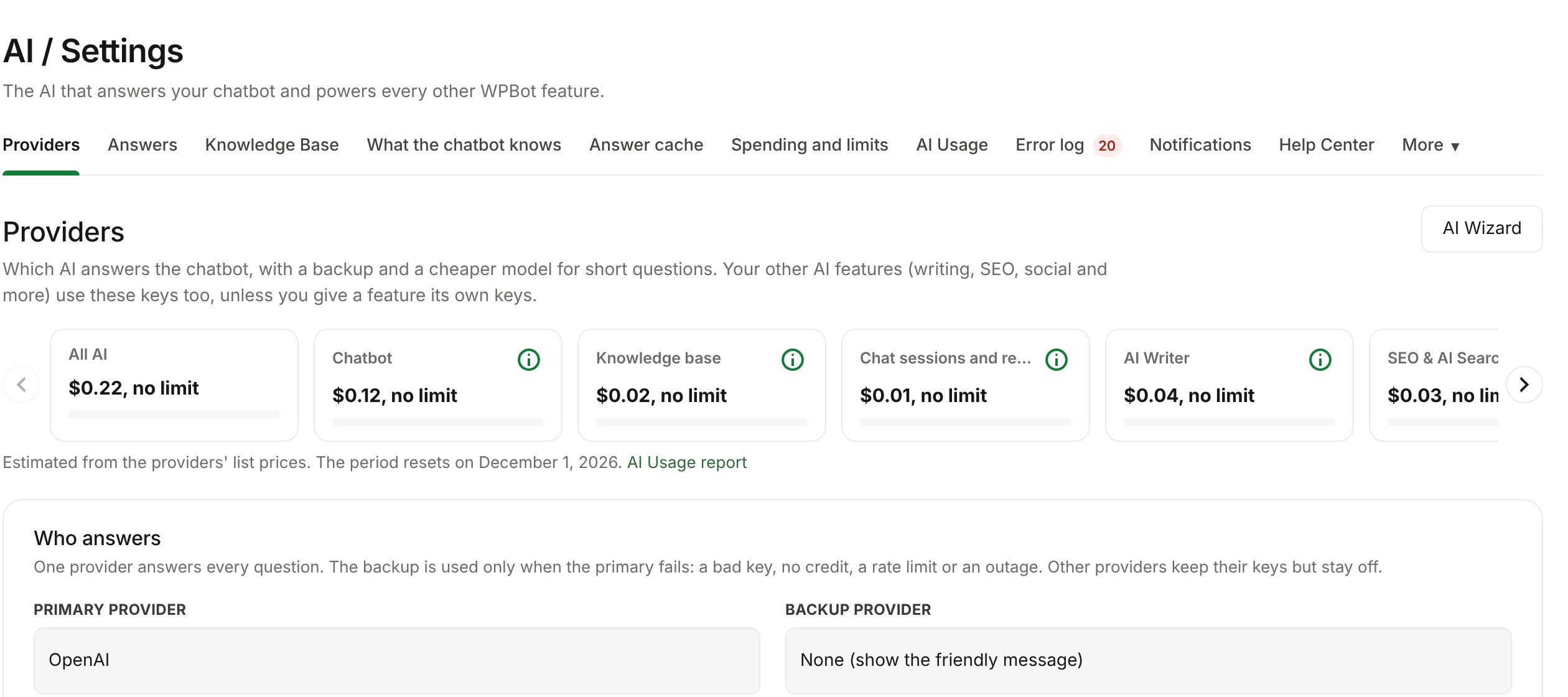
AI / Settings shows this period's AI spend for every feature at the top of each tab.
What is in this section
| Area | What it controls | Guide |
|---|---|---|
| Providers | Which AI answers, the backup, and a cheaper model for short questions | Choose your AI provider and add your key |
| Answers | Personality, what the AI may answer, source links, reply style | Control how the chatbot answers |
| Answer cache | Reusing answers to repeated questions for free | Answer cache: free, instant answers to repeated questions |
| Spending and limits | Limits per feature, alerts, chatbot rate limits | Set AI spending limits and alerts |
| AI Usage | What each feature, task and model costs | Read the AI Usage report |
| Business Context | What every AI feature knows about your business | Business Context: tell every AI feature about your business |
| Permissions and Menu Access | Who can see, use and change each tool | Permissions: who can see, use and change each tool |
| Notifications | Where and how often WPBot emails you | Notification emails and digests |
| White Label | Your own name and logo instead of WPBot's | White Label: your own name and logo |
| Chatbot data and Error log | What is kept, what is deleted, and what went wrong | Chatbot data and privacy, Error log and support reports |
The Knowledge Base and What the chatbot knows tabs are covered in AI answers and knowledge base, and the Help Center tab in Getting started with the Help Center: answers that bring traffic and cut support.
Set it up in this order
- Connect a provider with the AI Wizard, then add a backup provider from a different company. Your chatbot keeps answering through outages, expired cards and rate limits.
- Write Business Context. The Growth Suite tools read it before they write. Five minutes here improves every article, post and email.
- Choose what the AI may answer. "Business first" keeps conversations on what you sell without being rude about other questions.
- Turn on source links and "Use the current page". Links send visitors to the pages that sell; page context makes "how much is this?" work on a product page.
- Set spending limits and alerts, then turn on the answer cache.
- Choose your notification emails and digests, and give your team the access they need.
How these settings drive traffic and sales
AI / Settings sits behind every step of the Growth Loop:
- Create and Get found: AI Writer and SEO & AI Search use your provider, your Business Context facts and your "never say" rules. Accurate, on-brand content ranks and converts better.
- Share: Social writes posts from the same profile, so every network hears the same offer.
- Convert: the chatbot's answers, source links and contact buttons turn questions into leads and clicks to product pages.
- Reach / Sell: AI Marketing's emails use the same facts and tone.
- Learn: AI Usage shows what each part costs, so you spend on what brings sales.
Get the best answers for the least money
- Pick a "Best value" model for the primary provider. Starred models in each list are marked Best value, Best quality and Cheapest.
- Use a cheaper model for short questions. Greetings and one-line questions do not need your best model. See Use a cheaper model for short questions.
- Turn on the answer cache. Repeated questions from visitors who are not logged in are answered instantly at no AI cost.
- Keep answers focused. "Business first" plus a good knowledge base gives shorter, more accurate answers, which also cost less.
- Set per-feature limits for heavy users such as the knowledge base sync or AI Writer, and a global limit for everything.
- Check AI Usage monthly and move spend to what works.
Next steps
- Choose your AI provider and add your key
- Business Context: tell every AI feature about your business
- Set AI spending limits and alerts
Availability
Everything in this section is in every edition, including WPBot Free, with these exceptions:
- White Label is Master only.
- Menu Access and the license screen are in the WPBot Pro editions only.
- The AI spending report by channel and provider, spike alerts, CSV export and the weekly spending email need Professional or Master.
Was this article helpful?
Sorry about that. Get help another way:











