

Performance: a fast chatbot and caching plugins
A fast page sells more, and a chatbot should never slow your site down. Open WPBot Pro → ChatBot, tab Performance.
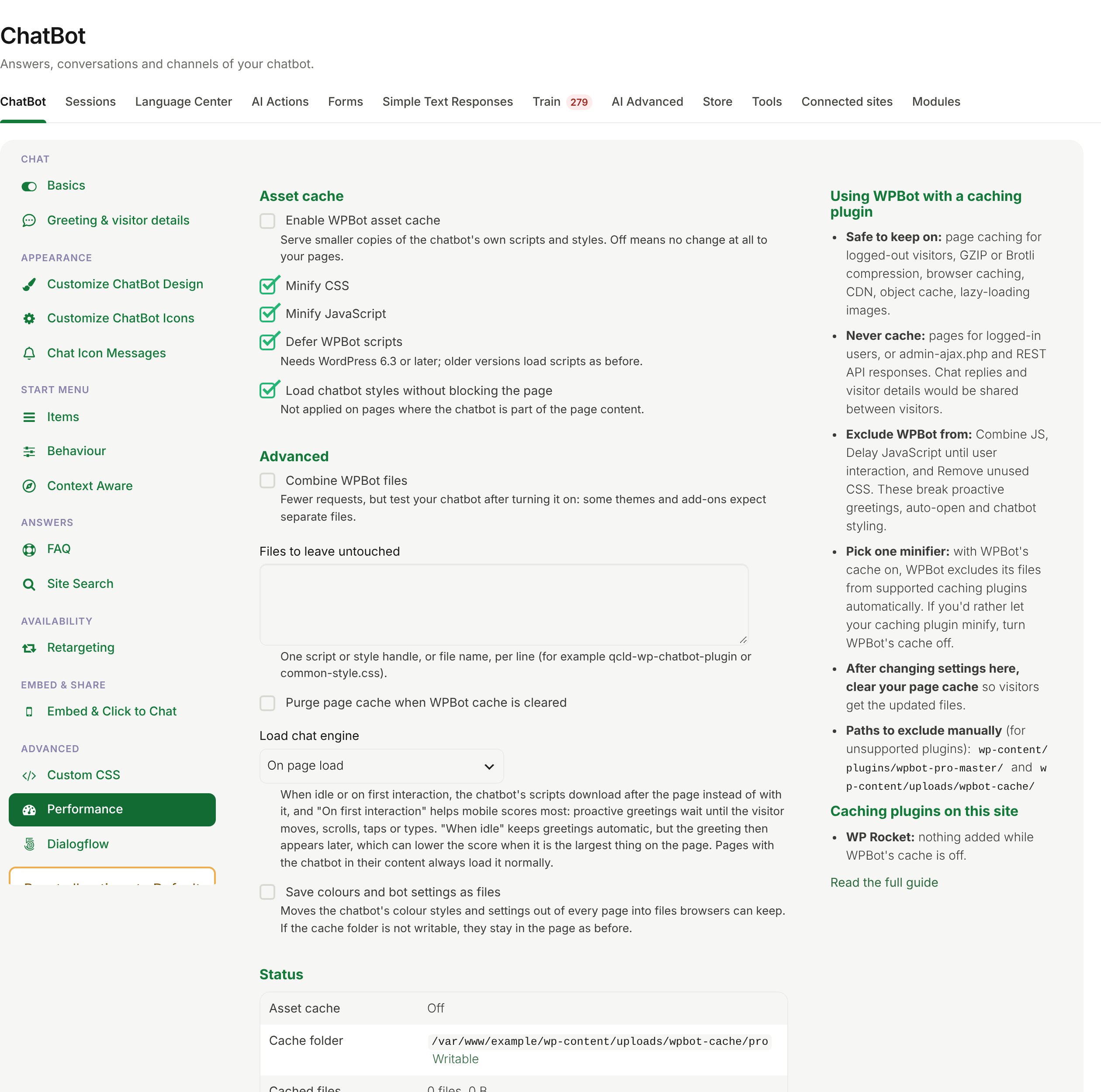
The Performance tab: asset cache, advanced options, chat engine loading and status.
Asset cache
- Enable WPBot asset cache: serve smaller copies of the chatbot's own scripts and styles. Off means no change at all to your pages.
- Minify CSS and Minify JavaScript.
- Defer WPBot scripts: needs WordPress 6.3 or later; older versions load scripts as before.
- Load chatbot styles without blocking the page: not applied on pages where the chatbot is part of the page content.
Advanced
- Combine WPBot files: fewer requests, but test your chatbot after turning it on: some themes and add-ons expect separate files.
- Files to leave untouched: one script or style handle, or file name, per line.
- Purge page cache when WPBot cache is cleared.
- Load chat engine: On page load, When idle or On first interaction. With the last two, the chatbot's scripts download after the page instead of with it. "On first interaction" helps mobile scores most, but proactive greetings wait until the visitor moves, scrolls, taps or types. "When idle" keeps greetings automatic, but they appear a little later. Pages with the chatbot in their content always load it normally.
- Save colours and bot settings as files: moves the chatbot's colour styles and settings out of every page into files browsers can keep. If the cache folder is not writable, they stay in the page.
Status shows whether the asset cache is on, the cache folder and whether it is writable, the cached files, and the caching plugins found on your site. Clear WPBot asset cache and Rebuild now refresh the files.
Using WPBot with a caching plugin
The tab's own guide sums it up:
- Safe to keep on: page caching for logged-out visitors, GZIP or Brotli compression, browser caching, CDN, object cache, lazy-loading images.
- Never cache: pages for logged-in users, or
admin-ajax.phpand REST API responses. Chat replies and visitor details would be shared between visitors. - Exclude WPBot from: Combine JS, Delay JavaScript until user interaction, and Remove unused CSS. These break proactive greetings, auto-open and chatbot styling.
- Pick one minifier: with WPBot's cache on, WPBot excludes its files from supported caching plugins automatically. If you would rather let your caching plugin minify, turn WPBot's cache off.
- After changing settings, clear your page cache so visitors get the updated files.
- For unsupported plugins, exclude the paths
wp-content/plugins/wpbot-pro-master/andwp-content/uploads/wpbot-cache/by hand.
WPBot also clears the site's caches when you save WPBot settings: the object cache and the page caches of WP Rocket, LiteSpeed Cache, W3 Total Cache, WP Super Cache, Autoptimize, SiteGround Speed Optimizer, WP Fastest Cache, Hummingbird, Breeze, Cache Enabler, Nginx Helper, WP-Optimize and WP Engine.
Recommended setup
- Turn on Enable WPBot asset cache with minify, defer and non-blocking styles.
- Choose When idle for Load chat engine if you use greetings or retargeting, or On first interaction if mobile speed matters most.
- Turn on Save colours and bot settings as files.
- Clear your page cache, then test the chatbot in a private window on desktop and phone.
If the chatbot disappears after a change, see The chatbot does not show or does not reply.
Availability
The asset cache is in every edition, including WPBot Free. Load chat engine and Save colours and bot settings as files are in the WPBot Pro editions only.
Was this article helpful?
Sorry about that. Get help another way:











