

Getting started with the Help Center: answers that bring traffic and cut support
On this page
The Help Center puts help articles, documentation and knowledge bases on your own site, in your theme. Customers find answers themselves, your chatbot answers from the same articles with a link to the exact section, and every article can bring visitors from Google and AI search. This very help center is built with it.
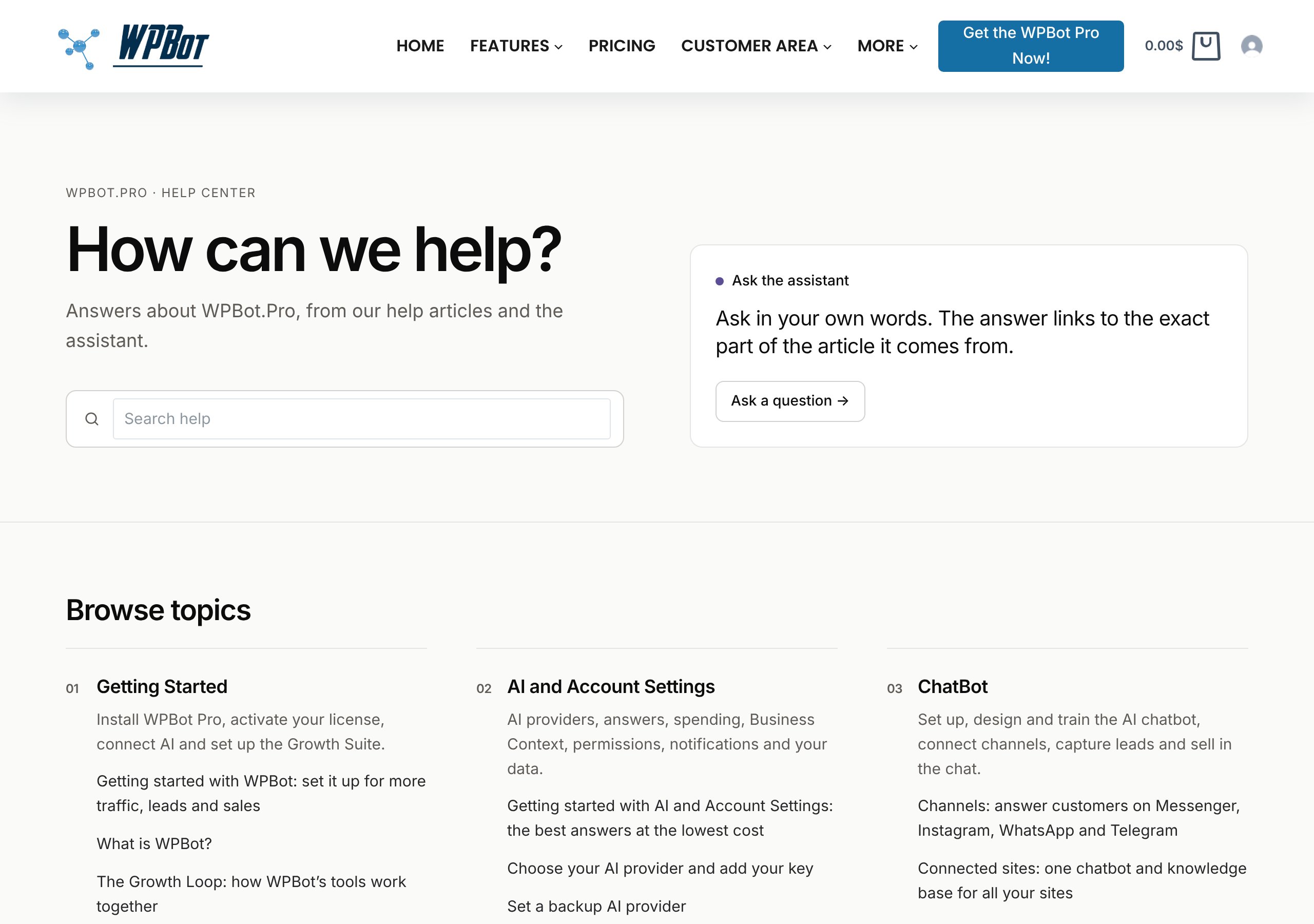
The Help Center home page: search, the assistant and topics with their top articles.
What it does for you
- Fewer support requests. Customers find answers any time, so fewer people email or chat with the same questions.
- Better chatbot answers. Every published article is added to the chatbot's knowledge base, heading by heading. Answers link to the section they came from.
- More traffic. Each article is a page Google can rank, with structured data, plus a Markdown copy and an llms.txt list so AI assistants such as ChatGPT and Claude read your docs correctly.
- A list of what to write next. Questions the chatbot or the search could not answer, and "not helpful" votes, go to Knowledge Gaps.
Where it fits in the Growth Loop
The Help Center sits between Create and Convert in the Growth Loop:
- Create: write articles yourself, with AI Writer, or let Claude write them from your GitHub repository.
- Get found: articles get structured data, Markdown copies and llms.txt, so they show in search results and AI answers.
- Convert: the chatbot answers from your articles, and "Still need help?" under each article opens the chatbot.
- Learn → Create: knowledge gaps and "not helpful" votes tell you which article to write or fix next.
Set it up in this order
- Turn it on in WPBot Pro → AI / Settings → Help Center. See Turn on the Help Center.
- Choose the address (default
/help/) and the Design. See Help Center address and general settings and Help Center design and layouts. - Plan the structure: a knowledge base per product or area, categories for topics. See Knowledge bases, categories and tags.
- Start from what you have. Get started turns the questions your chatbot could not answer and your FAQ, shipping and returns pages into drafts. See Build your help center from what you already have.
- Write and publish articles with the Help Center blocks. See Write and publish a help article and Help Center blocks for articles.
- Check the chatbot answers from them. See How the chatbot answers from your help articles.
- Optional: let Claude build docs from your GitHub repository (Let Claude build your docs from GitHub: prompt, drafts, suggestions and change log), and open your docs to customers' AI assistants (Let your customers' AI assistants read your docs).
Write articles that rank, answer and sell
- One question per article, with the question in the title: "How do I change my delivery address?" beats "Delivery".
- Answer in the first two sentences, then give the steps. Search results, AI answers and the chatbot all take the opening.
- Use clear headings. The chatbot cites articles section by section, so a heading such as "Change the address after ordering" becomes the link a visitor lands on.
- Use the Steps block for procedures and Accordion items for FAQs: they become how-to and FAQ structured data.
- Fill in "Other ways people ask". Search and the chatbot use these questions to find the article.
- Link to your product and pricing pages where they help. Help readers are often ready to buy.
- Keep it current. Add Applies to with a version, and update articles that get "not helpful" votes.
A 20-minute weekly routine
| When | What to do |
|---|---|
| Monday | Open Knowledge Gaps. Pick the three questions asked most often and click Write article. |
| Tuesday | Finish and publish those articles. |
| Wednesday | Open Analytics: fix the least helpful article and look at searches with no result. |
| Friday | Ask the chatbot two of the new questions in a private window and check that it links to your new articles. |
All Help Center guides
- Start here: Turn on the Help Center, Build your help center from what you already have
- Articles and organizing: Write and publish a help article, Help Center blocks for articles, Knowledge bases, categories and tags, Organize the order of categories and articles, Glossary: explain terms in every article, Articles for signed-in customers only
- Display and design: Help Center address and general settings, Help Center design and layouts, Show the Help Center on any page: shortcodes, blocks and Elementor widgets, What visitors see in your Help Center, Help Center search: typos, synonyms and live suggestions
- AI and GitHub: How the chatbot answers from your help articles, Connect Claude Code or Claude Desktop to your Help Center, Let Claude build your docs from GitHub: prompt, drafts, suggestions and change log, Let your customers' AI assistants read your docs, Get found: structured data, Markdown copies and llms.txt
- Feedback, analytics and gaps: "Was this article helpful?" votes and reasons, Help Center analytics, Knowledge gaps: turn unanswered questions into articles
- More: A multilingual Help Center with Polylang or WPML, Who can write, publish and manage the Help Center, Help Center troubleshooting
Availability
The Help Center is in every edition, including WPBot Free, with every feature described in this documentation. Professional and Master also include the Help Center Pro module; in WPBot Pro 16.0.0 it adds no extra screens or settings yet, so the Help Center works the same in every edition. Articles stay when you move between editions.
Was this article helpful?
Sorry about that. Get help another way:











