

Glossary: explain terms in every article
On this page
Product words that are obvious to you are new to many customers. The glossary explains them everywhere, without repeating the definition in each article.
Add terms
- Open WPBot Pro → Help Center → Glossary.
- Enter the term as the Name, for example "Knowledge base".
- Write a short definition in Description: one or two plain sentences.
- Click Add term.
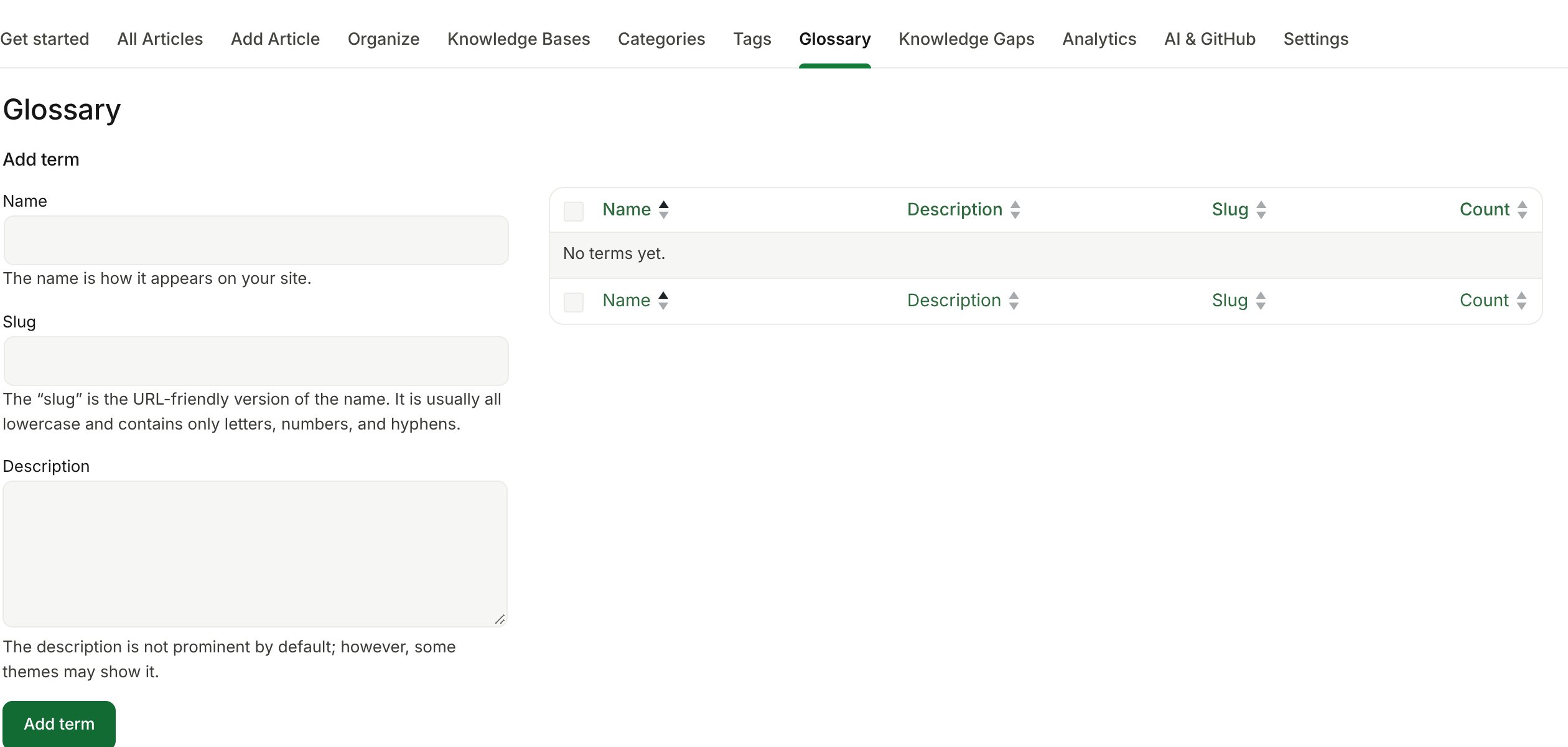
The Glossary screen.
What visitors see
- Popovers: the first use of each term in an article is marked. Hovering, tapping or focusing it with the keyboard shows the definition; Escape closes it.
- The A to Z page at your Help Center address plus
/glossary/(for example/help/glossary/), grouped by letter.
Turn popovers off or on in Settings → General → Glossary: Explain glossary terms in articles (the first use of each term shows its definition). To show the glossary on another page, use the Glossary block, the glossary shortcode or the Elementor widget. See Show the Help Center on any page: shortcodes, blocks and Elementor widgets.
Tips
- Add the 10 to 20 terms customers ask about most: your product names, plan names and technical words.
- Write definitions that make sense alone, without "see above".
- With Polylang or WPML, translate terms like articles; popovers use the visitor's language. See A multilingual Help Center with Polylang or WPML.
Availability
In every edition, including WPBot Free.
Was this article helpful?
Sorry about that. Get help another way:











