

Getting started with AI Writer: content that brings traffic, leads and sales
On this page
AI Writer writes blog posts, help articles, FAQ pages, website pages and product descriptions from one sentence. It writes from your own pages, products, documents and chatbot knowledge, in your brand voice, and it never invents numbers: anything it cannot back up becomes an [add: …] note for you to fill in.
Open WPBot Pro → AI Writer.
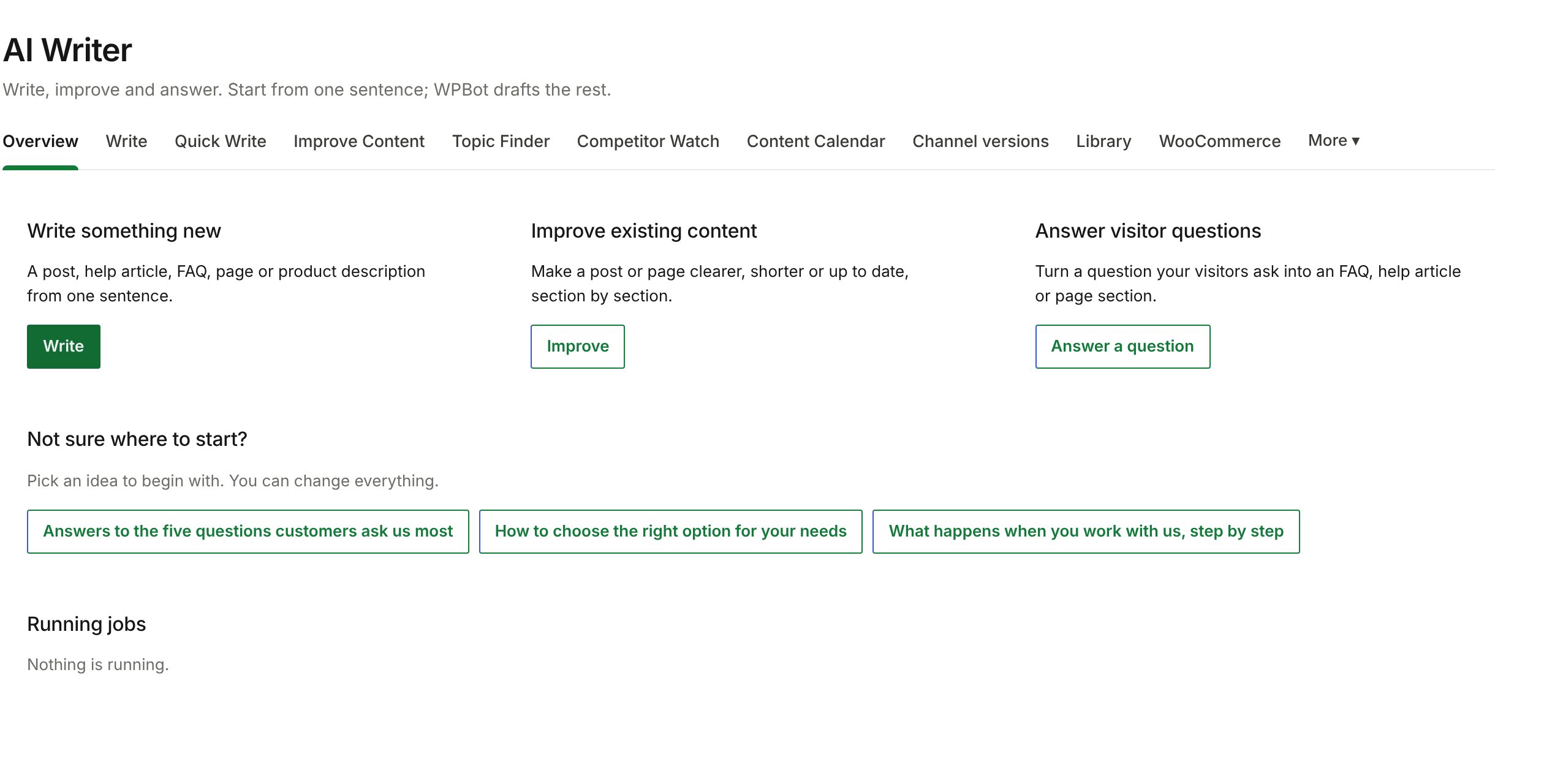
The AI Writer Overview: write something new, improve existing content or answer a visitor question.
Where AI Writer sits in the Growth Loop
AI Writer is the Create step of the Growth Loop. It is where new visitors start:
| Step | What AI Writer does there |
|---|---|
| Create | Writes the articles and pages that answer what people search for and ask. |
| Get found | Uses your keywords and Search Console data from SEO & AI Search, so each piece targets a real search. |
| Share | Turns a finished piece into posts for each network and sends them to Social. |
| Convert | Adds the piece to your chatbot's knowledge, so the chatbot answers with it and links to it. |
| Learn | Counts the visits, leads and orders each topic brings, from Site Insight, and ranks similar topics higher next time. |
Business Context sits in the middle: AI Writer reads it before every piece, so your prices, guarantees and "never say" rules are always right.
Set it up in this order
- Connect your AI. AI Writer uses the provider and keys from WPBot Pro → AI / Settings. See Connect your AI with the AI Wizard.
- Fill in Business Context. Five minutes here improves every draft. See Business Context: tell every AI feature about your business.
- Create your brand voice. In AI Writer → Brand & Business → Brand Voice, pick three to five of your best pages and click Create my voice. See Brand Voice: make AI Writer sound like you.
- Add your proof. In Brand & Business → Business Profile, click Fill from your content to collect reviews, numbers and guarantees AI Writer may quote. See Business Profile: your Persuasion Kit and customer words.
- Connect Search Console in Settings & AI Provider → Connections. Topic Finder then shows rising searches and searches with no page on your site. See Connect Google Search Console and YouTube to AI Writer.
- Set a monthly budget in Settings & AI Provider. See AI Writer settings: AI provider, budget and writing defaults.
- Write your first piece with Write. See Write an article with AI Writer.
Pick topics that bring visitors
The best topic is one people already search for or ask about, and that your site does not answer yet. AI Writer gives you four places to find them:
- Questions visitors ask your chatbot. Open ChatBot → Train for the questions the chatbot could not answer, or let Topic Finder → Visitor questions from chats group and rank everything visitors asked. Write the answer with Answer a question on the Overview. See Turn chatbot questions into articles.
- Topic Finder. One ranked list from site searches that found nothing, Search Console, best sellers and top landing pages, seasons and events, news feeds, competitor gaps and more. See Topic Finder: what to write next.
- Search Console. Rising searches, and searches you appear for with no matching page.
- Keyword Vault. Keywords you marked Targeted in SEO & AI Search that have no page yet appear in Topic Finder with their search numbers. See Getting started with SEO & AI Search: get found on Google and in AI answers.
Tip
Write one piece per question or search. If a page of yours already targets the same search, AI Writer warns you and offers Improve that page instead: two pages for the same search compete with each other in Google.
Write in your voice, with your facts
- Brand Voice and the style guide set how you sound, the words you use and avoid, and how product names are spelled.
- Business Context gives every piece your real facts.
- Sources on the brief: tick your own pages and products, upload a document, keep Use what your ChatBot knows on, and add Reference notes with prices or steps. Everything ticked is used as fact.
- Make it yours: a few questions before writing add the details only you know. That is what makes a piece sound like you and not like everyone else.
Check before you publish
- Open the draft and read the Checklist in the AI Writer sidebar: placeholders left, sentences that sound like AI, voice, headings and honesty checks. See AI Writer in the block editor: sidebar, checklist and block actions.
- Fill in every
[add: …]note and check the Claims to check list. - Check the page in SEO & AI Search: its on-page score, search title and description, and how easy it is for AI assistants to quote. The SEO & AI Search panel in the editor shows the score as you work.
- Publish, then click Add to chatbot knowledge in the sidebar so the chatbot can answer with the page.
Hand off and measure
- Share: with Make versions automatically when a piece is published on, AI Writer writes a version for each network, a newsletter item and a short video script, each with a tracked link. Click Send to Social to turn them into Social drafts. See Channel versions and campaigns: share every piece everywhere.
- Learn: Results shows visits, leads and orders per topic from Site Insight. Topics that clearly earn more rank higher in Topic Finder. See Results, headline tests and A/B tests.
How to get the most traffic, leads and sales
- Answer real questions first. Chatbot questions and site searches that found nothing are proven demand.
- Pick a format. Checklists, how-to guides and comparisons are easy for readers and AI search to use. See Article formats, real data and downloads.
- Use your own proof. Real reviews and numbers from your Persuasion Kit convert better than general claims.
- Link your pages. Use Link to these pages on the brief and Link to this article from after publishing, so visitors and Google find the new page.
- Refresh what decays. Improve Content lists pages that are losing visitors. Updating a page that already ranks is often faster than writing a new one. See Improve existing content and regenerate drafts.
- Publish ahead for seasons. Topic Finder suggests seasonal topics two to four weeks before the date, so they can be found in time.
A weekly content routine
| When | What to do |
|---|---|
| Monday | Open Topic Finder and ChatBot → Train. Add the three best topics to the Content Calendar. |
| Tuesday | Write one piece with Write. Fill in the notes and check it in SEO & AI Search. |
| Wednesday | Publish, add it to the chatbot's knowledge, and approve its Channel versions. |
| Thursday | Improve one page from Pages that need attention. |
| Friday | Read Results: which topics brought visits, leads and orders? Plan more of those. |
All AI Writer guides
- Start: A tour of AI Writer
- Writing: Write an article with AI Writer, Article formats, real data and downloads, How it persuades: reader stage, frameworks and Compare techniques, Write many articles, interview mode and the Headline lab, Quick Write and templates: social posts, emails, ads and more, Improve existing content and regenerate drafts, AI Writer in the block editor: sidebar, checklist and block actions, Write WooCommerce product descriptions, buying guides and comparisons, Local pages: one service in one place
- Planning: Topic Finder: what to write next, Coverage and topic clusters, Turn chatbot questions into articles, Competitor Watch: what your competitors publish, rank for and advertise, Plan your content with the Content Calendar
- Publishing: The Library and the review workflow, Channel versions and campaigns: share every piece everywhere, Results, headline tests and A/B tests
- Settings: Brand Voice: make AI Writer sound like you, Business Profile: your Persuasion Kit and customer words, AI Writer settings: AI provider, budget and writing defaults, Images in AI Writer: Media Library, stock photos and AI images, Connect Google Search Console and YouTube to AI Writer, AI Writer usage and costs
Availability
This guide describes WPBot Pro Master. AI Writer Pro is included in every WPBot Pro edition, so Starter, Professional and Master have everything on this page, with one exception: Social trends in Topic Finder needs Social Pro, which is Master only.
WPBot Free includes the AI Writer core: Write (one piece), five article formats, Quick Write templates, Improve Content, Topic Finder with its free sources, the Content Calendar, the Library, WooCommerce product writing, Brand Voice, the Business Profile, the editor sidebar and Usage & Costs. Channel versions, Competitor Watch, Local pages, Results, bulk writing, several voices, the review workflow and the Pro topic sources are Pro.
Was this article helpful?
Sorry about that. Get help another way:











