

Help Center design and layouts
On this page
Open WPBot Pro → Help Center → Settings → Design. Changes show in Preview (not saved yet) next to the form; click Save design to keep them.
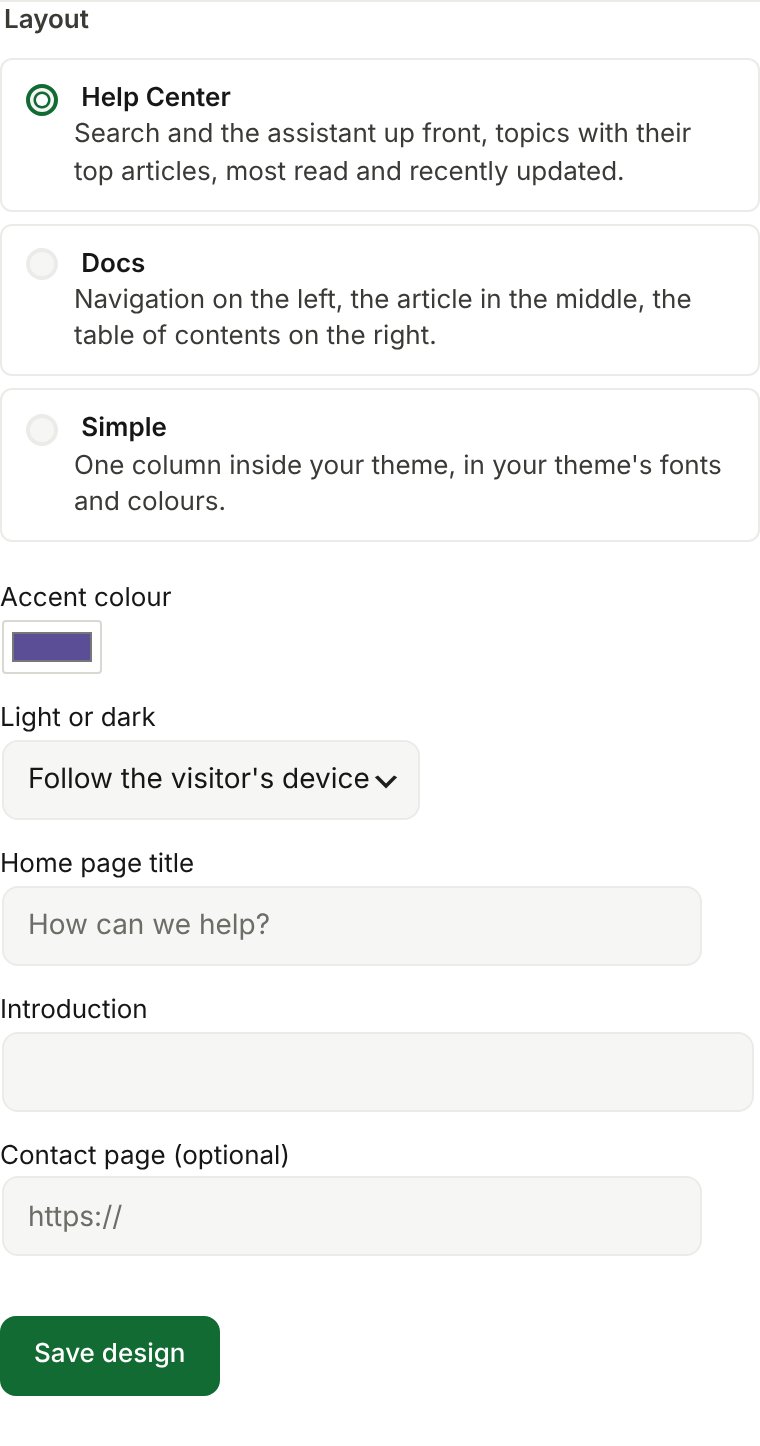
The Design tab: layout, accent colour, light or dark, home page title, introduction and contact page.
Layout
| Layout | Best for |
|---|---|
| Help Center | Customer support: search and the assistant up front, topics with their top articles, most read and recently updated. |
| Docs | Product documentation: navigation on the left, the article in the middle, the table of contents on the right. |
| Simple | Sites that want the help pages to look like the rest of the site: one column inside your theme, in your theme's fonts and colours. |
All layouts run inside your theme's header and footer, use your theme's fonts, work in right-to-left languages and print cleanly.
Other settings
| Setting | What it does |
|---|---|
| Accent colour | Links, buttons and highlights. It starts with your brand colour from WPBot. |
| Light or dark | Follow the visitor's device, Light or Dark |
| Home page title | The big heading on the home page. Default: "How can we help?" |
| Introduction | The line under the title |
| Contact page (optional) | A page for "Still stuck? Our team will help." and "Contact us" after a "not helpful" vote |
Tips
- Use Help Center for customers and Docs for developer or setup documentation.
- Write an introduction that names your product, for example "Answers about WPBot, from our help articles and the assistant."
- Always set a Contact page: visitors who cannot find an answer should still reach you.
A theme can also override the Help Center template. See Theme templates, CSS and Markdown copies.
Availability
In every edition, including WPBot Free.
Was this article helpful?
Sorry about that. Get help another way:











