

Getting started with WPBot: set it up for more traffic, leads and sales
On this page
- What you will have at the end
- Step 1: Install WPBot Pro and activate your license
- Step 2: Connect your AI
- Step 3: Tell WPBot about your business
- Step 4: Check the chatbot, then open your site
- Step 5: Start the Growth Loop
- How to get the most traffic and sales from WPBot
- A 30-minute weekly routine
- Next steps
- Availability
WPBot is an AI ChatBot and a Growth Suite in one plugin. This guide sets it up in about 30 minutes, in the order that pays off first, and then shows you how to keep it improving week after week.
Tip
You need an API key from an AI provider (OpenAI, Anthropic Claude, Google Gemini, OpenRouter, xAI Grok, Mistral or DeepSeek), or your own Ollama server. Keep it ready before you start.
What you will have at the end
- A chatbot on every page that answers from your own pages, products and documents, with links to them.
- One shared profile of your business that every AI feature reads before it writes.
- The six AI tools of the Growth Loop switched on and connected, so each one feeds the next.
- Spending limits and notification emails that suit you.
Step 1: Install WPBot Pro and activate your license
- Upload the WPBot Pro Master zip in Plugins → Add New Plugin → Upload Plugin and activate it. WPBot Pro installs WPBot Free for you in the background if it is missing.
- Open WPBot Pro → Master License, paste your license key and click Activate License. Your license turns on automatic updates and professional support.
Details: Install WPBot Pro and Activate your license.
Step 2: Connect your AI
Open WPBot Pro → AI / Settings and click AI Wizard. In three steps you choose a provider, paste your key and pick the content the chatbot should learn from (pages, posts and other post types). The wizard then prepares your content for AI search.
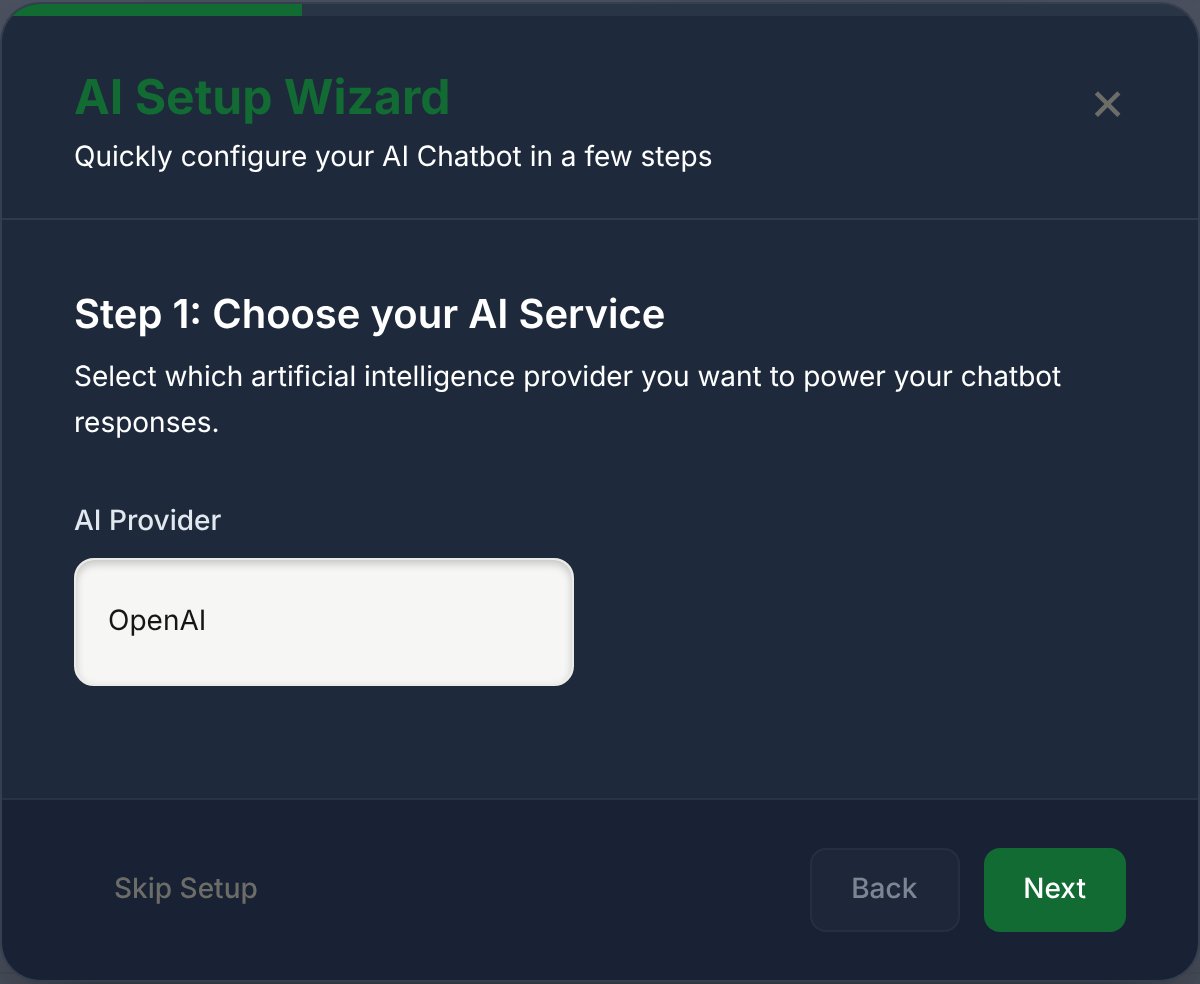
The AI Setup Wizard connects your AI provider and trains the chatbot on your content.
Details: Connect your AI with the AI Wizard.
Step 3: Tell WPBot about your business
Open WPBot Pro → Business Context and click Write it for me with AI. WPBot reads what it already found on your site and writes a short summary of your business. Then add the facts AI must always get right: prices, opening hours, delivery times and guarantees.
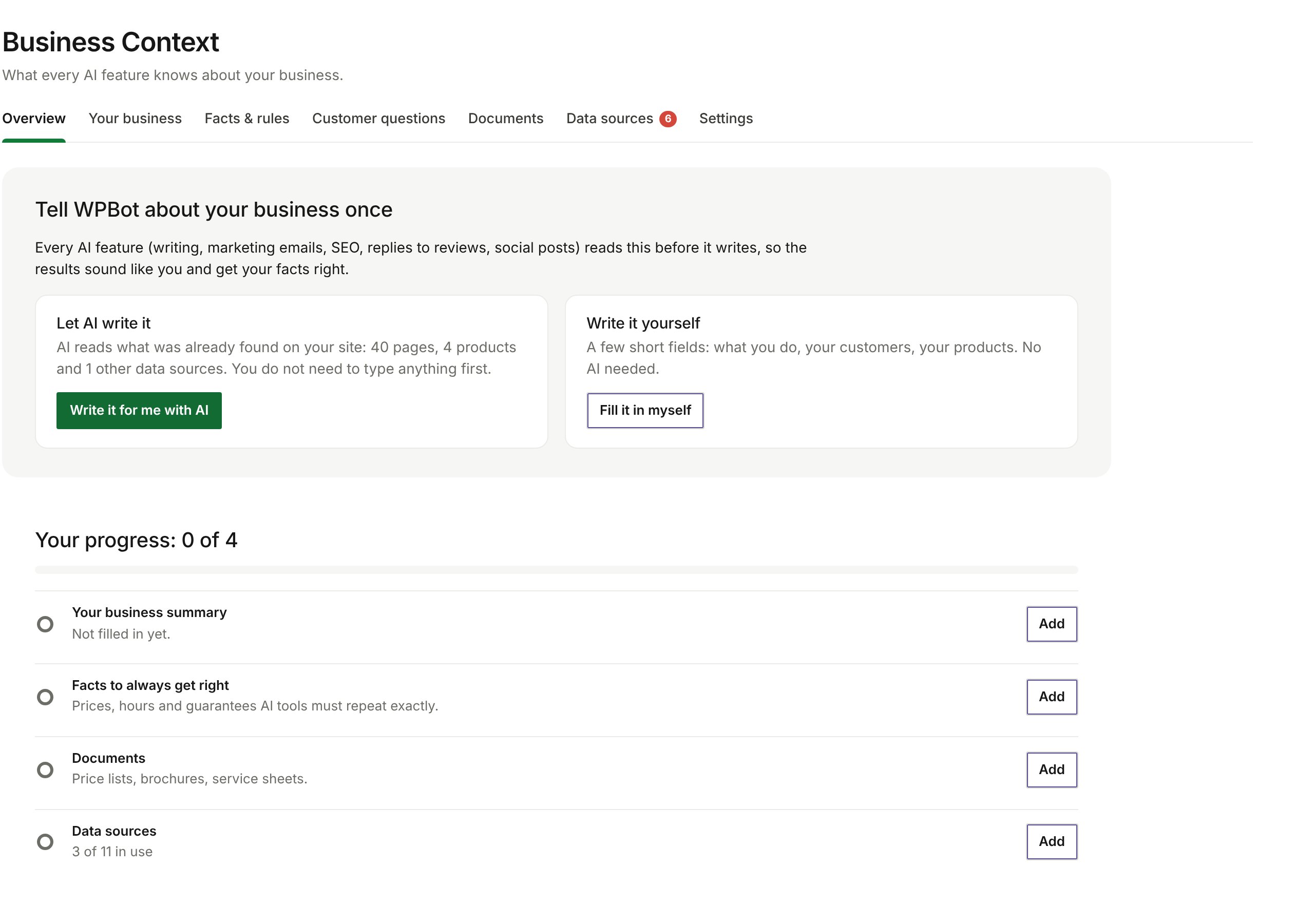
Business Context is read by the Growth Suite tools before they write.
This is the most important five minutes of the whole setup. AI Writer, SEO & AI Search, Social and AI Marketing read Business Context before they write, so every article, post and email sounds like you and repeats your facts correctly. The chatbot uses it for the contact details it offers when it is not sure. Details: Business Context: tell every AI feature about your business.
Step 4: Check the chatbot, then open your site
Open your site in a private browser window and ask the chatbot the five questions your customers ask most. Good answers come with source links to your pages.
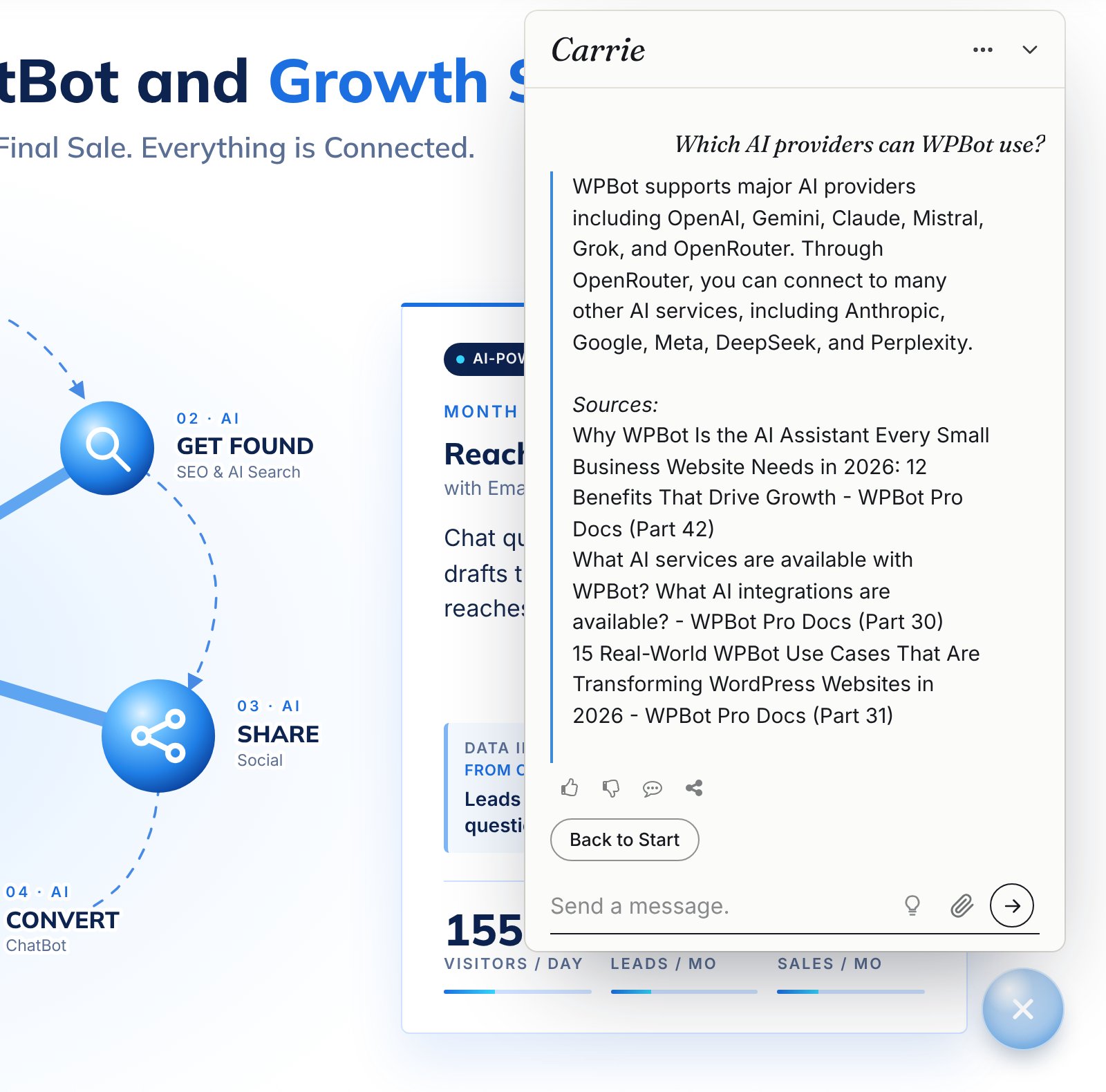
The chatbot answers from your own content and links to the pages it used.
If an answer is wrong or missing, add the missing facts to your pages, your FAQ or the knowledge base, and check AI / Settings → What the chatbot knows to see what the chatbot has learned. Type reset in the chat to start a test conversation again.
Step 5: Start the Growth Loop
The Growth Loop is how WPBot turns a few visitors into steady sales: each tool passes what it learned to the next. Switch the tools on in this order, because each step feeds the one after it:
| Order | Tool | Why now |
|---|---|---|
| 1 | ChatBot (Convert) | Your current visitors already ask questions. Answer them and collect their email. |
| 2 | SEO & AI Search (Get found) | Fix what stops Google and AI assistants from showing your pages. |
| 3 | AI Writer (Create) | Write articles about what visitors ask the chatbot and search for. |
| 4 | Social (Share) | Turn each new article into posts with tracked links. |
| 5 | AI Marketing (Reach / Sell) | Send new leads a welcome journey and offers. |
| 6 | Site Insight (Learn) | See where visitors come from, what they do and where they get stuck, and what to fix or write next. |
Read The Growth Loop: how WPBot's tools work together for how the data flows between them.
How to get the most traffic and sales from WPBot
- Fill in Business Context completely. Facts and "never say" rules stop AI from guessing. Better input gives better articles, posts and emails.
- Let the chatbot learn everything public. Include pages, posts, products and your FAQ, and keep Auto Sync on so new content is learned when you publish it.
- Turn on source links. Links under answers send visitors to your product and service pages, where they buy. See Control how the chatbot answers.
- Turn questions into content. Every question the chatbot could not answer appears in ChatBot → Train. Write an article for the common ones with AI Writer or the Help Center: the chatbot learns it, and the article brings visitors from Google and AI search.
- Capture every lead. Ask for an email when the visitor shows interest, and send them into an AI Marketing journey instead of leaving them in a spreadsheet.
- Set a spending limit on day one. AI costs stay predictable, and the chatbot keeps answering from saved answers, FAQ and site search if a limit is reached. See Set AI spending limits and alerts.
A 30-minute weekly routine
| When | What to do |
|---|---|
| Monday | Read the AI Insight email and ChatBot → Train. Pick the three most asked questions you could not answer. |
| Tuesday | Write one article about them with AI Writer, and check it in SEO & AI Search before you publish. |
| Wednesday | Let Social create posts for the article and schedule them. |
| Thursday | Approve the AI Marketing campaign for the week. |
| Friday | Check Social analytics for the posts that brought visits and sales, and Site Insight for where visitors got stuck. Note the next topic. |
Next steps
- First-day setup checklist
- Getting started with AI and Account Settings: the best answers at the lowest cost
- WPBot editions: Free, Starter, Professional and Master
Availability
This guide describes WPBot Pro Master. In other editions some steps use the basic version of a tool:
- Professional: AI Marketing and Social run their free versions (no Pro journeys, autopilot or Pro social features). Messenger, WhatsApp, Telegram, live chat and voice are not included.
- Starter: SEO & AI Search, Site Insight, AI Marketing and Social run their free versions, and the knowledge base uses the free sources only. Conversational Forms and the WooCommerce store tools are not included either.
- WPBot Free: the chatbot, Business Context and the free versions of the Growth Suite tools. No Pro modules, and no license or automatic Pro updates.
Was this article helpful?
Sorry about that. Get help another way:











