

Getting started with Site Insight: learn what visitors do, then fix and grow
On this page
Site Insight shows you how real visitors use your site: recordings you can replay, click and scroll heatmaps, frustration signals, funnels, form analytics and AI that groups problems into a short list of fixes. Everything is stored on your own server; nothing goes to an outside analytics service.
Open WPBot Pro → Site Insight.
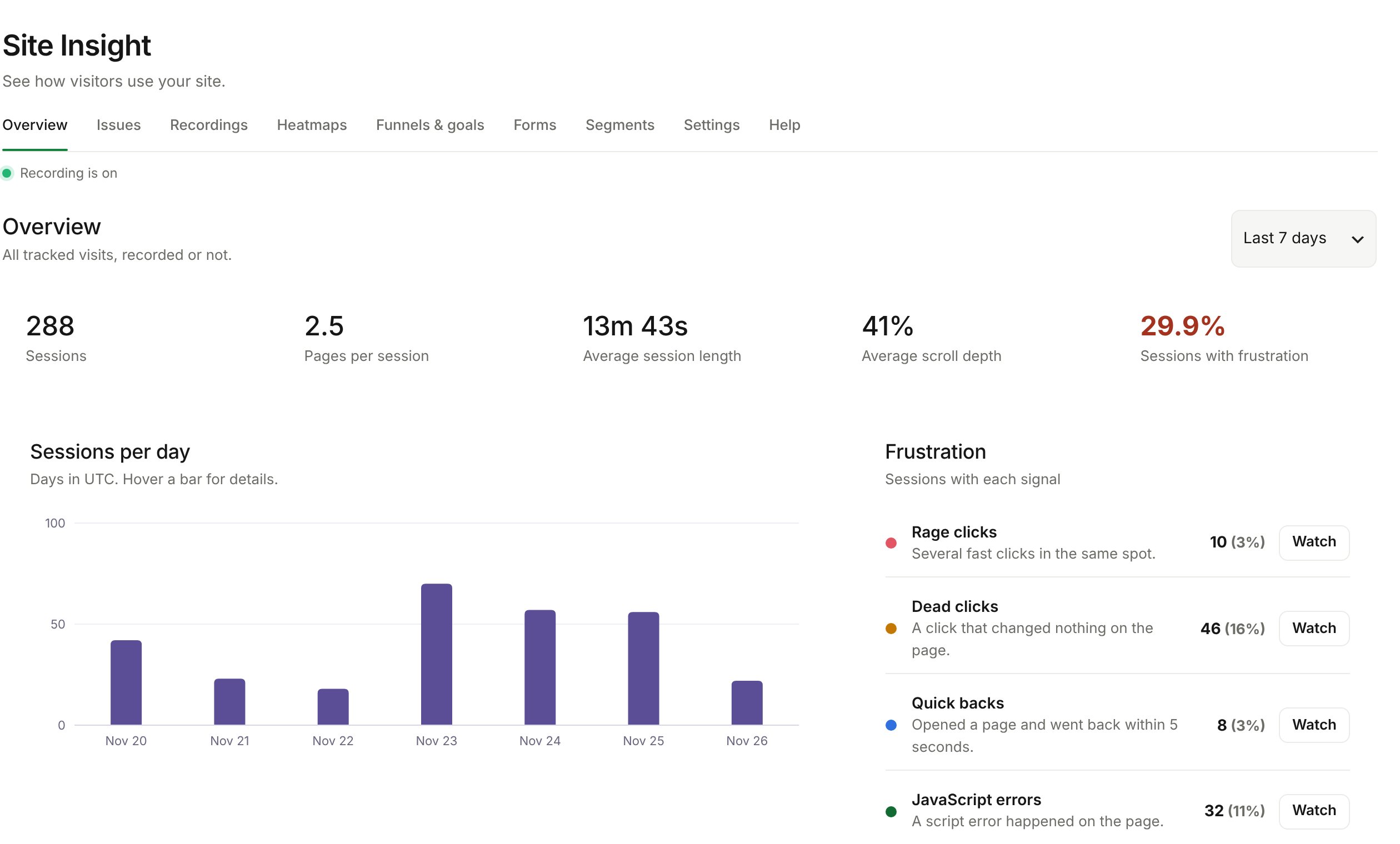
The Overview shows sessions, engagement and frustration for all tracked visits, recorded or not.
Where Site Insight fits in the Growth Loop
Site Insight is the Learn step of the Growth Loop. The other tools bring visitors, answer them and turn them into leads and customers. Site Insight shows where that journey breaks:
- Create and Get found: pages with low scroll depth or many quick backs need a better opening, clearer headings or a different promise in the search result.
- Share: a segment on
utm_sourceorutm_campaignshows how visitors from each campaign behave and whether they order. - Convert: rage clicks, dead clicks and form abandonment point at the buttons and forms that lose leads.
- Reach / Sell: the WooCommerce shop figures show carts left behind and checkouts not finished.
- Back to Create: what visitors struggle to find becomes your next article or help page.
Set it up in this order
- Turn on recording. Site Insight starts with 100% of sessions and keeps them for 30 days. See Turn on Site Insight recording.
- Check privacy. Choose how consent works, which roles and pages to skip, and which parts of pages to hide. See Privacy, consent and masking in Site Insight.
- Set storage limits that suit your server. See Recording, storage and retention settings.
- Turn on AI if you want issue reports, heatmap insights and visit summaries. It uses your WPBot Pro AI keys. See Site Insight AI settings: keys, features and cost limits.
- Create two or three funnels and goals for the actions that matter: a sign-up, a contact form, a checkout. See Funnels, goals and custom events.
- Choose who gets the email report. See Email reports and data export.
What to look at first
Give Site Insight a few days of visits, then start with the screens that point straight at lost leads and sales:
| Look at | What it tells you | Guide |
|---|---|---|
| Frustration on the Overview | Rage clicks, dead clicks, quick backs, JavaScript errors, excessive scrolling and form abandonment, with Watch links | Frustration signals: rage clicks, dead clicks and more |
| Issues | The last 7 days of frustration grouped by AI into problems, each with a likely cause and a fix to try | Issues: let AI find problems and suggest fixes |
| Funnels & goals | Where visitors drop off between pricing, sign-up and thank-you pages, with Watch who left | Funnels, goals and custom events |
| Forms | Which forms are started but not sent, and the field where people give up | Form analytics: find the field where people give up |
| Heatmaps | Whether visitors click your calls to action and how far they scroll | Click and scroll heatmaps |
Watch two or three recordings behind each finding before you change anything. A number tells you where; a recording tells you why.
Turn findings into fixes and content
- Fix what is broken first. A JavaScript error, a button that does nothing (dead clicks) or a form field people keep returning to costs you leads every day.
- Move what matters up. If the Scroll heatmap shows most visitors never reach your offer, move it above the average fold.
- Answer the question behind the frustration. Excessive scrolling and quick backs often mean visitors cannot find something. Write it into the page, or create a help article with the Help Center or a new post with AI Writer.
- Check the result. Use Compare on the heatmap or compare the funnel with the period before. On the Issues screen, Mark fixed an issue: if it shows up again in new visits, it opens again.
Privacy and consent in short
- Everything typed into forms is hidden in the browser before anything is sent.
- No IP addresses, names or emails are stored. For logged-in visitors only the user role and, with WooCommerce, whether they have bought before are kept.
- Site Insight follows consent plugins that support the WP Consent API, and respects Do Not Track and Global Privacy Control.
- Mention session recording in your privacy policy. Site Insight offers suggested text.
Details: Privacy, consent and masking in Site Insight.
A 20-minute weekly routine
| When | What to do |
|---|---|
| Monday | Read the Site Insight email report: visits, frustration, top pages and errors compared with the week before. |
| Monday | Open Issues. Watch the recordings behind the top issue and plan the fix. |
| Wednesday | Check Funnels & goals and Forms. Pick the step or field that loses the most people. |
| Friday | Check the heatmap of the page you changed with Compare, and Mark fixed what is solved. Note one topic visitors struggled with for next week's article. |
All Site Insight guides
- Start: Turn on Site Insight recording, The Site Insight Overview
- Recordings: Find the right recordings with filters, Watch a recording and get an AI summary, Notes, tags and shared links for recordings
- Heatmaps: Click and scroll heatmaps, Attention, areas, add to cart, compare and AI insight heatmaps
- Issues, funnels and forms: Frustration signals: rage clicks, dead clicks and more, Issues: let AI find problems and suggest fixes, Funnels, goals and custom events, Form analytics: find the field where people give up, Segments and plain-language search, WooCommerce insights: carts, checkouts and orders
- Settings: Recording, storage and retention settings, Privacy, consent and masking in Site Insight, Site Insight AI settings: keys, features and cost limits, Email reports and data export, Keep recordings in your own bucket or cloud drive, Site Insight troubleshooting
Availability
Site Insight is in every edition. Master and Professional include Site Insight Pro. Starter and WPBot Free have the free version: Overview, Recordings with AI visit summaries, click and scroll heatmaps, the four core frustration signals (rage clicks, dead clicks, quick backs and JavaScript errors), email reports and all recording, privacy and storage settings. Site Insight Pro adds Issues, Funnels & goals, Forms, Segments, the Excessive scrolling and Form abandonment signals, WooCommerce shop insights, the Attention, Areas, Add to cart, Compare and AI insight heatmap views, plain-language search, notes, tags and shared links, export, external storage, masking suggestions and the Pro parts of the email report. Your recordings stay when you move between editions.
Was this article helpful?
Sorry about that. Get help another way:











