

Getting started with Social: share every article and see which posts bring sales
On this page
WPBot Pro → Social writes on-brand posts for each social network from one idea, article or product, publishes or schedules them from WordPress, answers comments, and shows which posts brought visitors, leads and sales. It is the Share step of the Growth Loop.
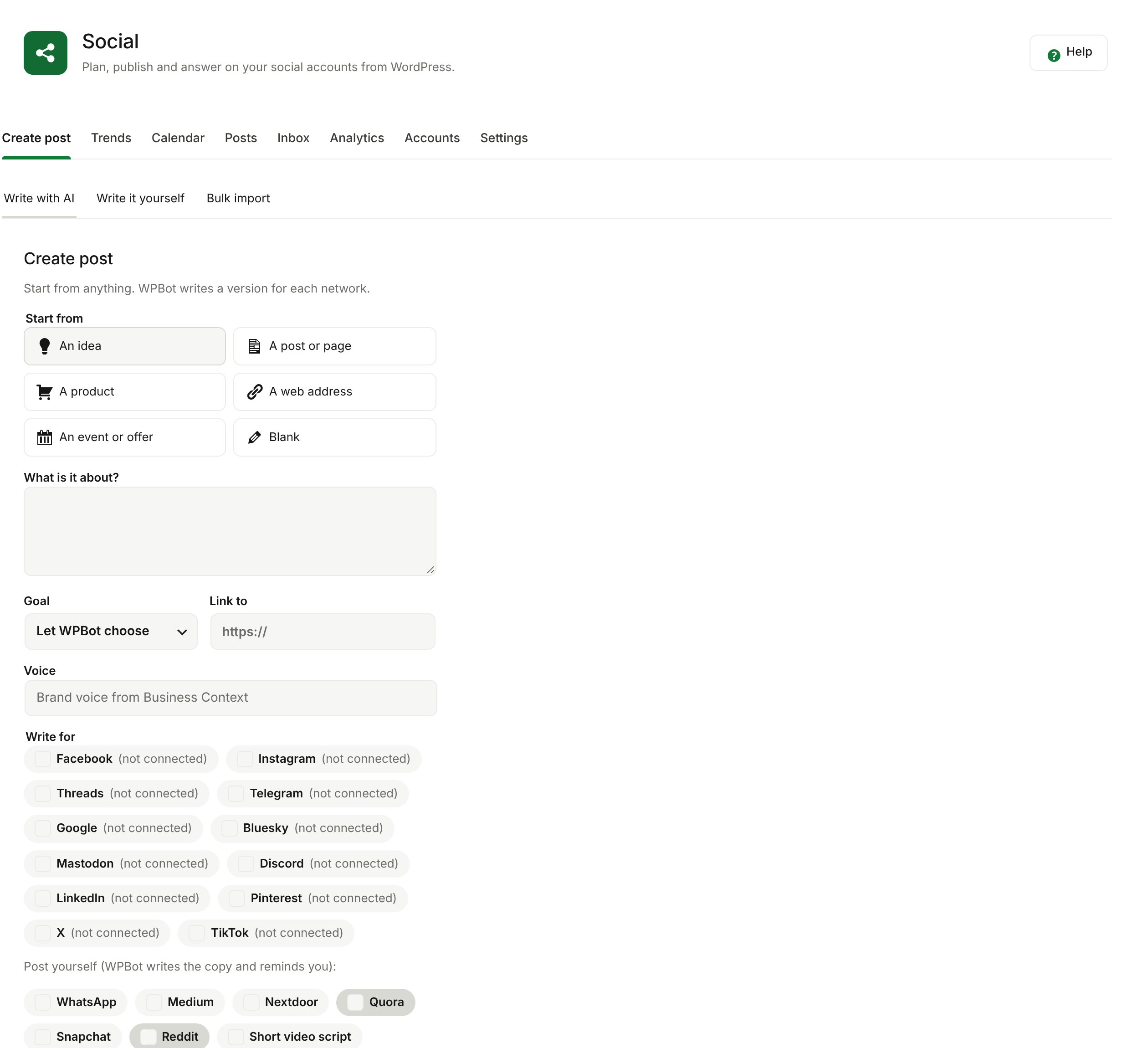
Create post: start from an idea, a post, a product, a web address or an event, and WPBot writes a version for each network.
What is on the Social screen
| Tab | What you do there | Guide |
|---|---|---|
| Create post | Write with AI, write it yourself, or import many posts from a CSV file | Write social posts with AI, Write and schedule a post yourself, Import many posts from a CSV file |
| Trends | Rising topics that fit your site, each with an angle | Find rising topics with Trends |
| Calendar | Every scheduled and published post by day | Plan posts on the Calendar |
| Posts | Status of every post, and the ones that need you | Posts: statuses, failed posts and missed posts |
| Inbox | Comments and Google reviews with a reply drafted by the ChatBot | Answer comments and reviews in the Inbox |
| Analytics | Reach, engagement, visits, leads and sales per post and network | See which posts bring visitors, leads and sales |
| Accounts | Your connected Pages, profiles, channels and brands | Connect your social accounts |
| Settings | Publishing, queue, writing, tracking, inbox, team and advanced options | Publishing settings: default time, late posts, retries and failure emails |
Set it up in this order
- Connect AI and fill in Business Context. Social uses the provider in AI / Settings and reads your facts, offers and "never say" list from Business Context. See Connect your AI with the AI Wizard and Business Context: tell every AI feature about your business.
- Connect your accounts. Start with the networks your customers use most. Each network has its own guide in Connect your social accounts.
- Turn on tracked links in Settings → Links & tracking, so every link to your site carries tracking tags. See Tracked links: UTM tags on every link to your site.
- Turn on auto-share for blog posts and new products, with Save as draft for me to check to start with. See Auto-share new posts, pages and products.
- Set your queue times and switch on Evergreen re-sharing. See Queue slots and evergreen re-sharing.
- Write your first post with Create post → Write with AI, check it, and schedule it.
- Set up the Inbox so the ChatBot drafts replies to comments. See Answer comments and reviews in the Inbox.
Share every new article
Social does the most for you when each new article, page or product becomes posts without extra work:
- From AI Writer: when AI Writer writes an article, it can write the social versions too. Send to Social puts them into Social as drafts with the suggested time; you open them in Posts, check them and schedule them.
- Auto-share: when you publish a blog post, page or product for the first time, Social writes a post for every account with auto-share on, and saves it as a draft or schedules it a few minutes later.
- By hand: in Create post → Write with AI, choose Start from → A post or page or A product, pick the networks and click Write. WPBot writes a version in each network's style, with your link.
Every link to your own site gets tracking tags (utm_source is the network, utm_campaign comes from the post title), so you can see which post brought each visitor.
How to get the most traffic, leads and sales
- Link to the page that sells. Choose the goal Visits to the site or Sales, and link to the article, product or offer page. Posts without a link to your site bring followers, not customers.
- Write one version per network. A LinkedIn post, an Instagram caption and a Google Business update need different lengths and tones. Write with AI does this for you; adjust the technique per network in Settings → Writing.
- Post at the times your audience is online. Set queue slots per account and use Add to queue instead of picking a time each time.
- Re-share what works. Mark your best evergreen posts Evergreen: Social shares them again from the queue, not more often than every 14 days and at most 4 times by default.
- Answer every comment. A quick, correct reply turns a question under a post into a visit or a sale. The Inbox drafts replies from your knowledge base.
- Use Trends and coming dates. Topics that are rising and fit your site, and dates such as Black Friday, give you posts people want to read now.
- Keep the honesty check on. It flags claims that are not in Business Context or the source, so every post stays accurate.
- Read Traffic & sales, not only likes. Analytics counts visits, chatbot leads and WooCommerce orders that came through your Social links.
A 20-minute weekly routine
| When | What to do |
|---|---|
| Monday | Open Trends and the weekly trend digest. Save two topics and send the best one to AI Writer as an article idea. |
| Tuesday | Open Posts and Calendar. Check the drafts from AI Writer and auto-share, then schedule them or Add to queue. |
| Daily, 5 minutes | Open Inbox → Needs you and approve or edit the drafted replies. |
| Friday | Open Analytics → Traffic & sales. Note which network and which kind of post brought visits, leads and orders, and mark the winners Evergreen. |
How Social works with the other tools
- Business Context gives every post your facts, offers and voice. Brands can add their own voice.
- AI Writer (Create) writes the article and its social versions; Social publishes them. Saved trend topics appear in AI Writer's Topic Finder as ideas.
- SEO & AI Search (Get found) makes sure the page you link to is ready for visitors from search and social.
- ChatBot (Convert) answers visitors who arrive from your posts, and its knowledge base drafts your Inbox replies.
- AI Marketing (Reach / Sell): the Inbox can ask commenters whether they want your news, so interested people can join your email list.
- Site Insight (Learn) shows what visitors from social did on your site.
Next steps
- Connect your social accounts
- Write social posts with AI
- See which posts bring visitors, leads and sales
Availability
This guide describes WPBot Pro Master. Social needs an active Master license there: while the license is expired or not activated, Social pauses (menus, screens and scheduled publishing switch off) and keeps all its data, and it resumes when the license is active again.
Starter, Professional and WPBot Free run the free version of Social: Create post with Write with AI (one network at a time) and Write it yourself, the Calendar, Posts, auto-share, tracked links, the Settings tabs Publishing, Writing, Links & tracking and Advanced, Post yourself for WhatsApp, and accounts on Facebook, Instagram, Threads, Google Business Profile and Telegram.
Master only: Trends, Inbox, Analytics, brands, writing for all networks at once with other versions to choose from, carousels, threads, first comments, Reels, Stories and video, the queue and evergreen re-sharing, bulk import, team approval, the networks Bluesky, Mastodon, Discord, LinkedIn, Pinterest, X, TikTok and YouTube Shorts, and Post yourself for Medium, Nextdoor, Quora, Snapchat, Reddit and short video scripts.
Was this article helpful?
Sorry about that. Get help another way:











