

Activate your license
Your license key turns on automatic updates from your WordPress dashboard and professional support.
Activate
- Open WPBot Pro → Master License (the menu item carries your edition's name).
- Paste your license key into the field.
- Click Activate License.
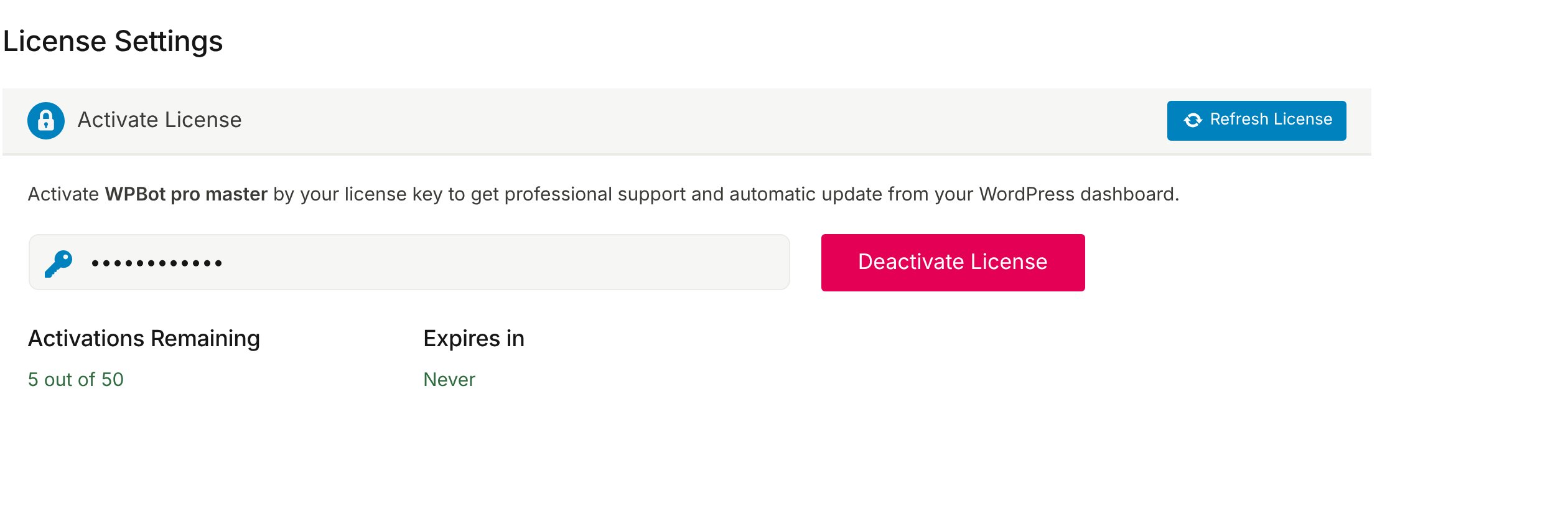
The license screen shows how many activations remain and when the license expires.
After activation the screen shows:
- Activations Remaining: how many more sites can use this key.
- Expires in: when the license ends, or Never for a lifetime license.
Refresh or deactivate
- Refresh License checks the key again, for example after you renewed or upgraded it in your account.
- Deactivate License frees this site's activation so you can use the key on another site. Deactivate before you move or delete a site.
Where to find your key
Your key is in your account on wpbot.pro (Customer Area → My Account) and in your purchase email.
Troubleshooting
| Problem | What to do |
|---|---|
| "Invalid key" | Copy the key again without spaces, and check it is for the edition you installed. A Master key activates the Master zip. |
| No activations left | Deactivate the key on a site you no longer use, or contact support. |
| Updates do not appear | Click Refresh License, then check Dashboard → Updates. Your server must be able to reach the license server. |
Availability
Every WPBot Pro edition has a license screen named after it (Starter License, Professional License, Master License). WPBot Free needs no license.
Was this article helpful?
Sorry about that. Get help another way:











