

Plan your content with the Content Calendar
On this page
The Content Calendar shows everything you publish, plan and draft, by day. It is where Topic Finder ideas become dated drafts.
Open WPBot Pro → AI Writer → Content Calendar.
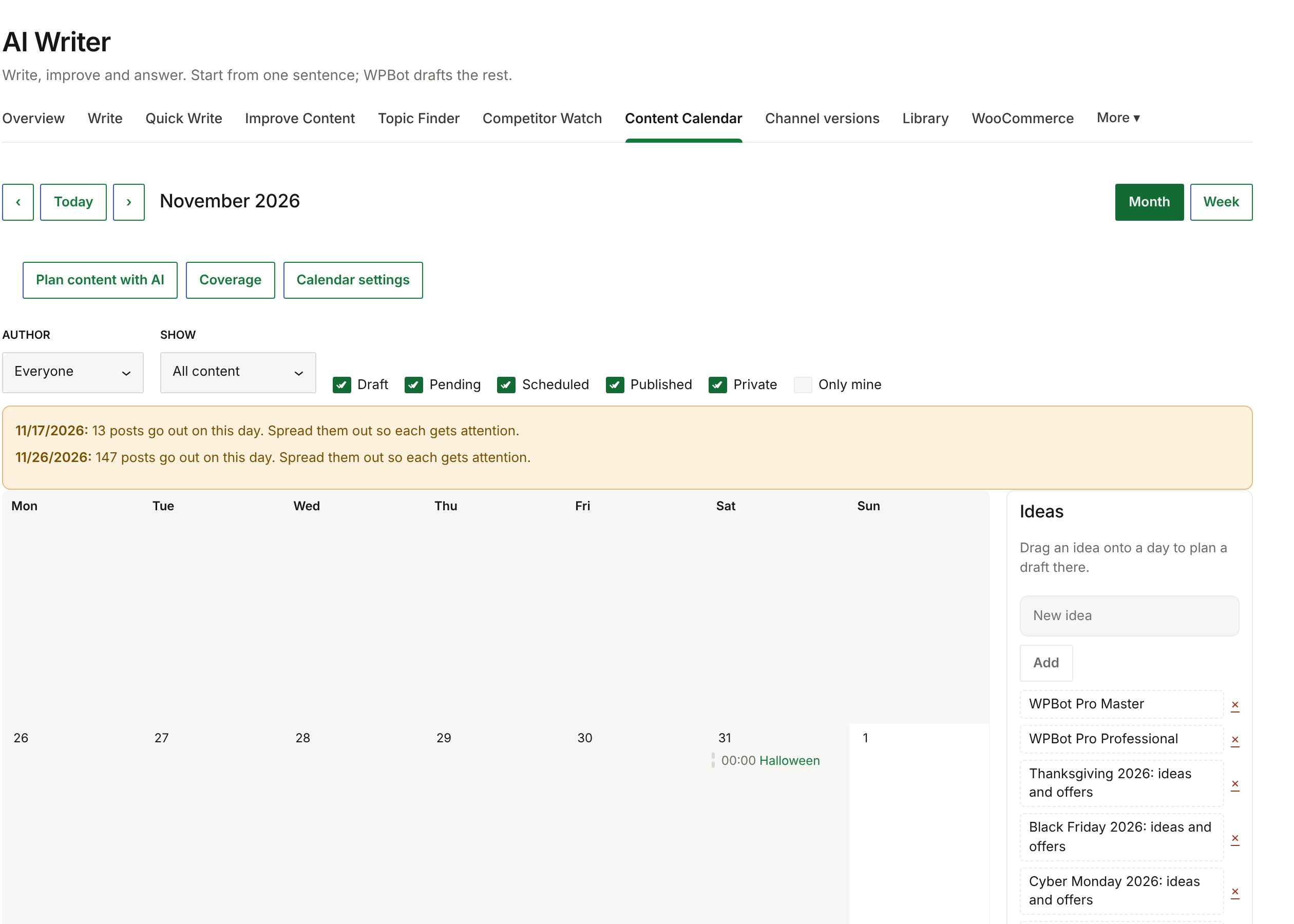
The Content Calendar with filters, a spread warning and the Ideas list.
Find your way
- ‹, Today and › move between periods; Month and Week switch the view.
- AUTHOR and SHOW filter by author and content type. Tick Draft, Pending, Scheduled, Published and Private, or Only mine.
- Seasonal and store events, for example Black Friday, show on their day.
- A warning appears when many posts go out on one day: "Spread them out so each gets attention."
Ideas
The Ideas list on the right holds ideas you added from Topic Finder (Add to calendar) or typed under New idea and Add. Drag an idea onto a day to plan a draft there. Opening a planned day starts a brief dated for that day ("The draft will be dated … on your calendar").
Plan content with AI (Pro)
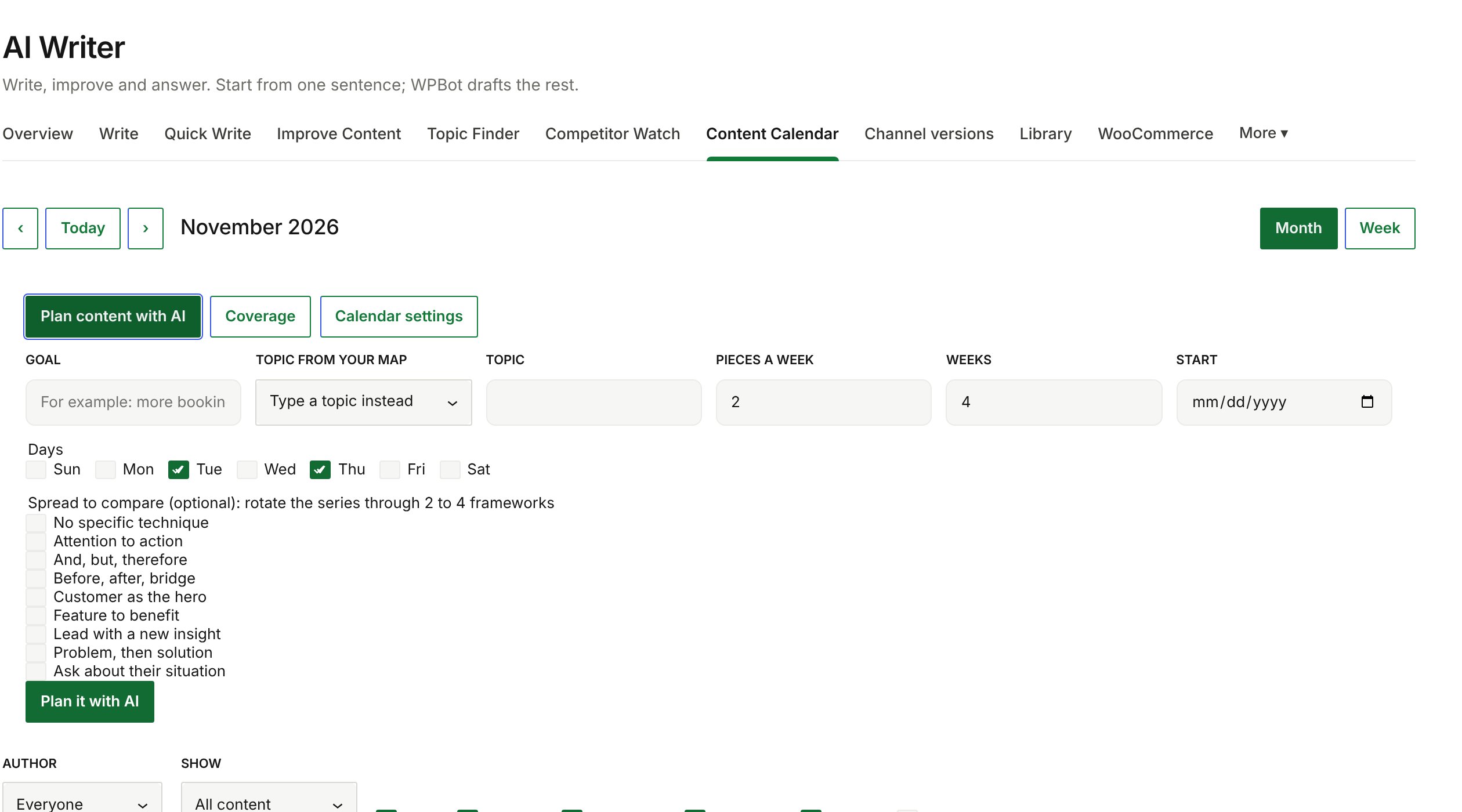
Plan content with AI: a goal, a topic, pieces a week and weeks.
- Click Plan content with AI.
- Enter the GOAL, for example "more bookings for bike fitting".
- Choose a TOPIC FROM YOUR MAP or Type a topic instead.
- Set PIECES A WEEK, WEEKS, START and the Days to publish.
- Optionally Spread to compare: rotate the series through 2 to 4 frameworks, to learn which works best.
- Click Plan it with AI.
Check the plan: change titles, remove what you do not want, pick a Format and Technique per piece, then Add to the calendar. Each piece becomes a dated draft on the calendar. The first title is the pillar page of the series.
Coverage lists your topics with their pillar page and published and planned counts, and Plan a series for each. See Coverage and topic clusters.
Calendar settings (Pro)
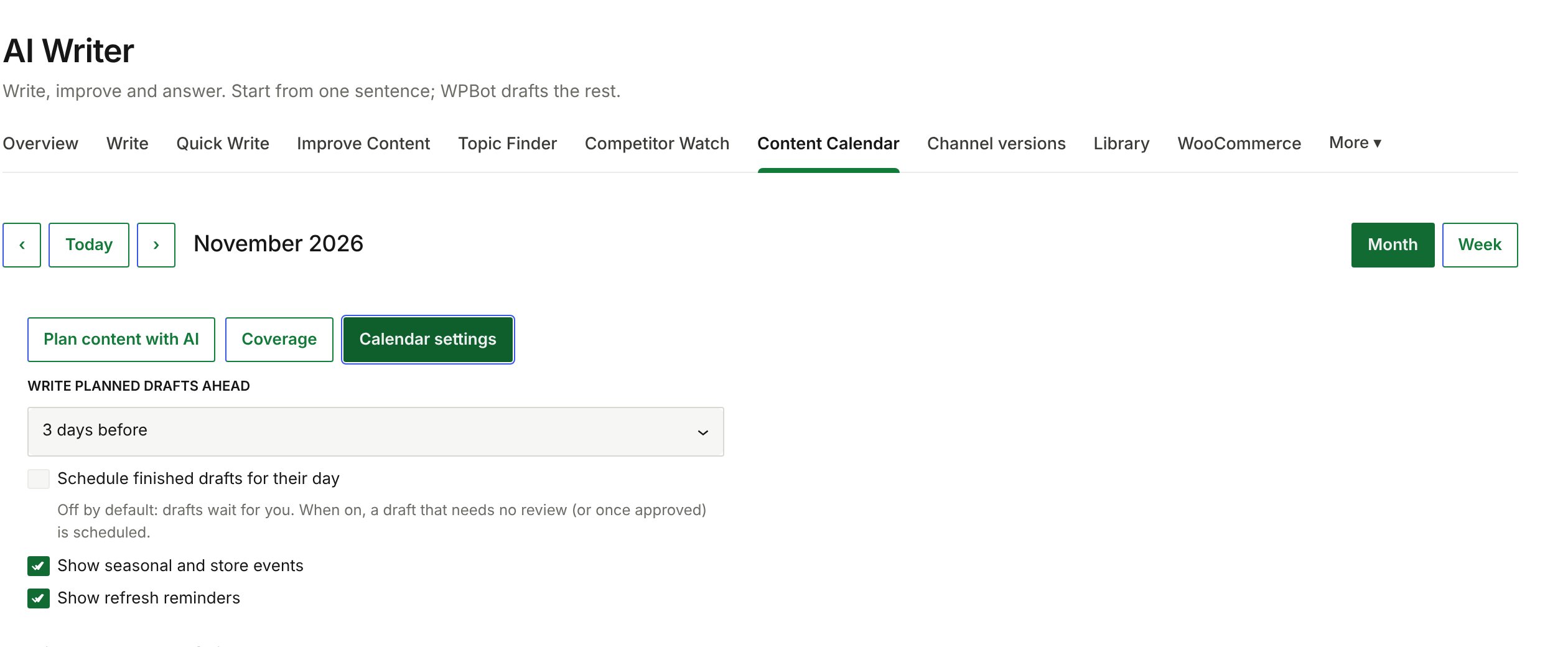
Calendar settings.
| Setting | What it does |
|---|---|
| WRITE PLANNED DRAFTS AHEAD | Off, or 1, 2, 3, 5, 7 or 14 days before their day. AI Writer writes each planned draft in time for you to review it. Write … due draft now writes those due at once. |
| Schedule finished drafts for their day | Off by default: drafts wait for you. When on, a draft that needs no review (or once approved) is scheduled for its day. |
| Show seasonal and store events | Holidays and your store events on the calendar. |
| Show refresh reminders | Reminders to refresh older content. |
Tip
Seasonal content needs time to be found. Plan it two to four weeks before the date, and set WRITE PLANNED DRAFTS AHEAD to 7 days so you have time to review.
Channel posts on the calendar
Quick Write pieces and scheduled channel versions also appear on the calendar, so you see your posts next to the articles they promote. See Channel versions and campaigns: share every piece everywhere.
Availability
The calendar, the Ideas list and dated drafts are in every edition, including WPBot Free. Plan content with AI, Coverage, Calendar settings (drafts ahead and scheduling) and scheduled channel versions are AI Writer Pro, in Starter, Professional and Master.
Was this article helpful?
Sorry about that. Get help another way:











