

Email reports and data export
Email reports
Open Site Insight → Settings → Email reports. Reports are on by default.
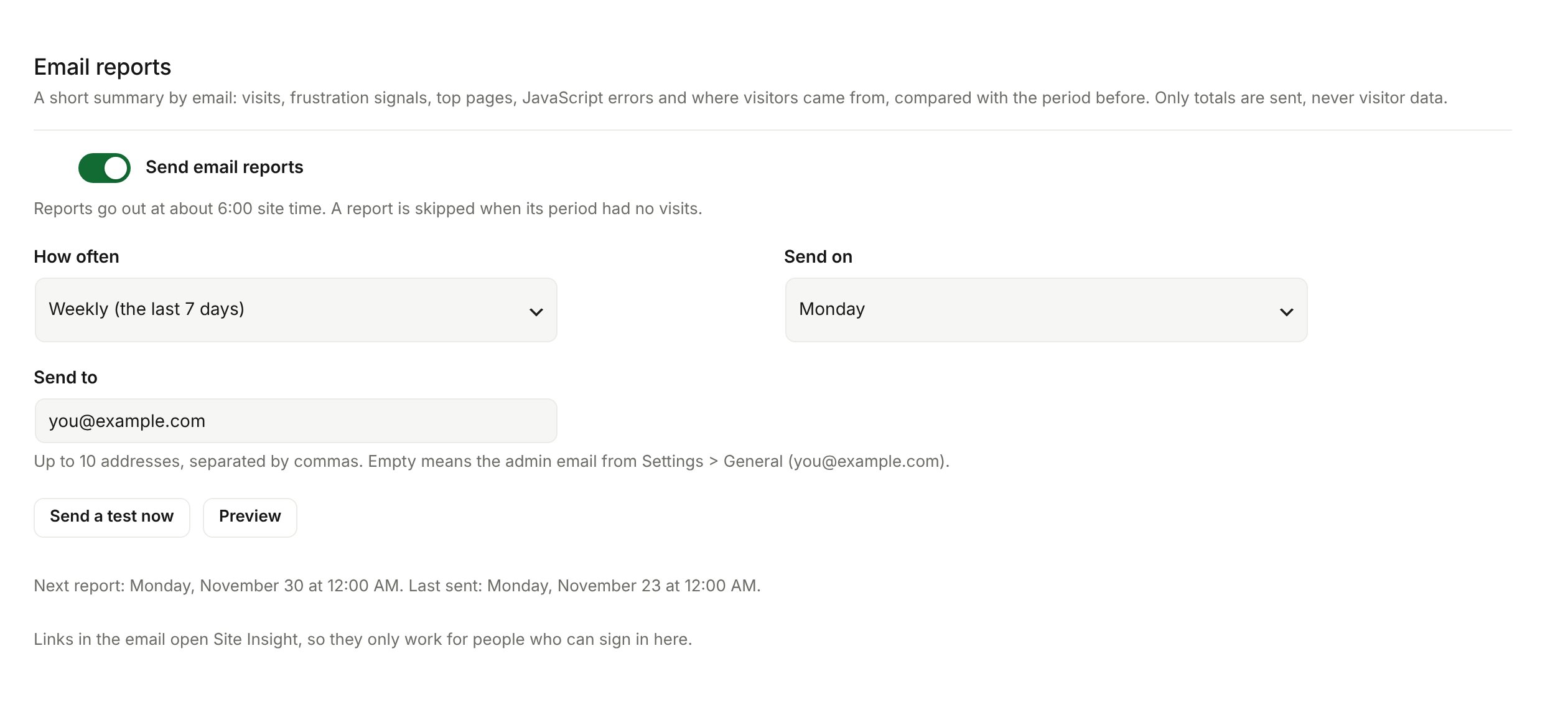
Email reports: frequency, day, recipients, test and preview.
| Setting | Choices |
|---|---|
| Send email reports | On or off |
| How often | Weekly (the last 7 days) or Monthly (the previous month, sent on the 1st) |
| Send on | The weekday for weekly reports (default Monday) |
| Send to | Up to 10 addresses, separated by commas. Empty means the admin email from Settings → General. |
Reports go out at about 6:00 site time. A report is skipped when its period had no visits. The screen shows when the next report is due and when the last one was sent.
- Send a test now sends a report to the addresses above, even before you save. It shows the sender address, or the mailer's error if sending fails.
- Preview opens the report in a new tab.
What the report contains
The period compared with the one before: visits, recorded visits, pages per visit, average visit length and scroll depth, visits with frustration and each frustration signal (with links to the matching recordings), the top 5 pages (with heatmap links), the top 3 JavaScript errors, devices, new and returning visitors, the top 3 traffic sources and countries, the busiest day, and warnings such as tracking turned off, storage at 80% or more, or background jobs not running. Only totals are sent, never visitor data.
With Site Insight Pro the report also lists open issues, funnels and shop figures, has a CSV file of your pages attached, and can start with a short AI note (top problems, what changed, three things to do) when AI summary in email reports is on. If the AI cannot answer, the report still goes out with the numbers.
Links in the email open Site Insight, so they only work for people who can sign in to your site.
Tip
If test emails do not arrive and the screen says your site sends email with PHP mail(), install an SMTP plugin. See Notification emails and digests for WPBot's other emails.
Export data
Open Site Insight → Settings → Export data to download your data as a CSV file (Excel, Google Sheets) or JSON. Up to 50,000 rows per file.
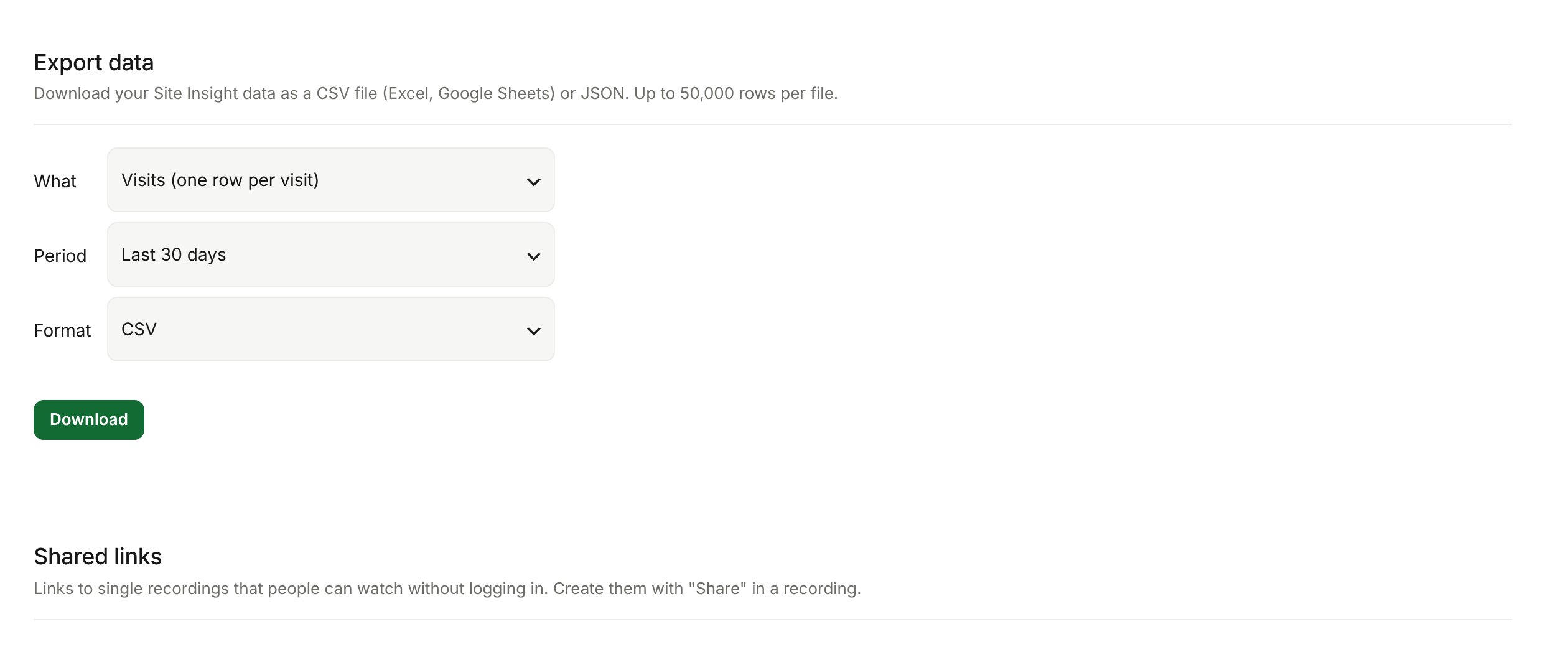
Export data: what, period and format.
- Choose What: Visits (one row per visit), Pages (views, time, scroll), Frustration signals, Funnels (one row per step) or Click heatmap of one page (then choose the Page and Device).
- Choose the Period and, optionally, a Segment.
- Choose the Format: CSV or JSON, and click Download.
Use exports to build your own reports or to keep figures longer than your retention period.
Availability
Email reports, the test and the preview are in every edition, including WPBot Free. The Pro parts of the report (open issues, funnels, shop figures, CSV attachment and AI summary) and Export data need Site Insight Pro (Professional or Master).
Was this article helpful?
Sorry about that. Get help another way:











