

Privacy, consent and masking in Site Insight
On this page
Site Insight is built to record behaviour, not people. Open Site Insight → Settings → Privacy to choose the rest.
What is always protected
- Everything typed into forms is hidden in the visitor's browser before anything is sent. Password, email, phone and card fields are hidden in every case.
- No IP addresses, names or emails are stored. The country comes from your server or CDN, and only the country code is kept.
- Logged-in visitors are anonymous too. Site Insight Pro keeps only their user role and, with WooCommerce, whether they have bought before.
- Account pages, order details, customer details and checkout address fields of WooCommerce, and every
addresselement, are masked by default. - All data stays on your server (unless you choose external storage). Nothing is sent to an analytics service.
Privacy settings
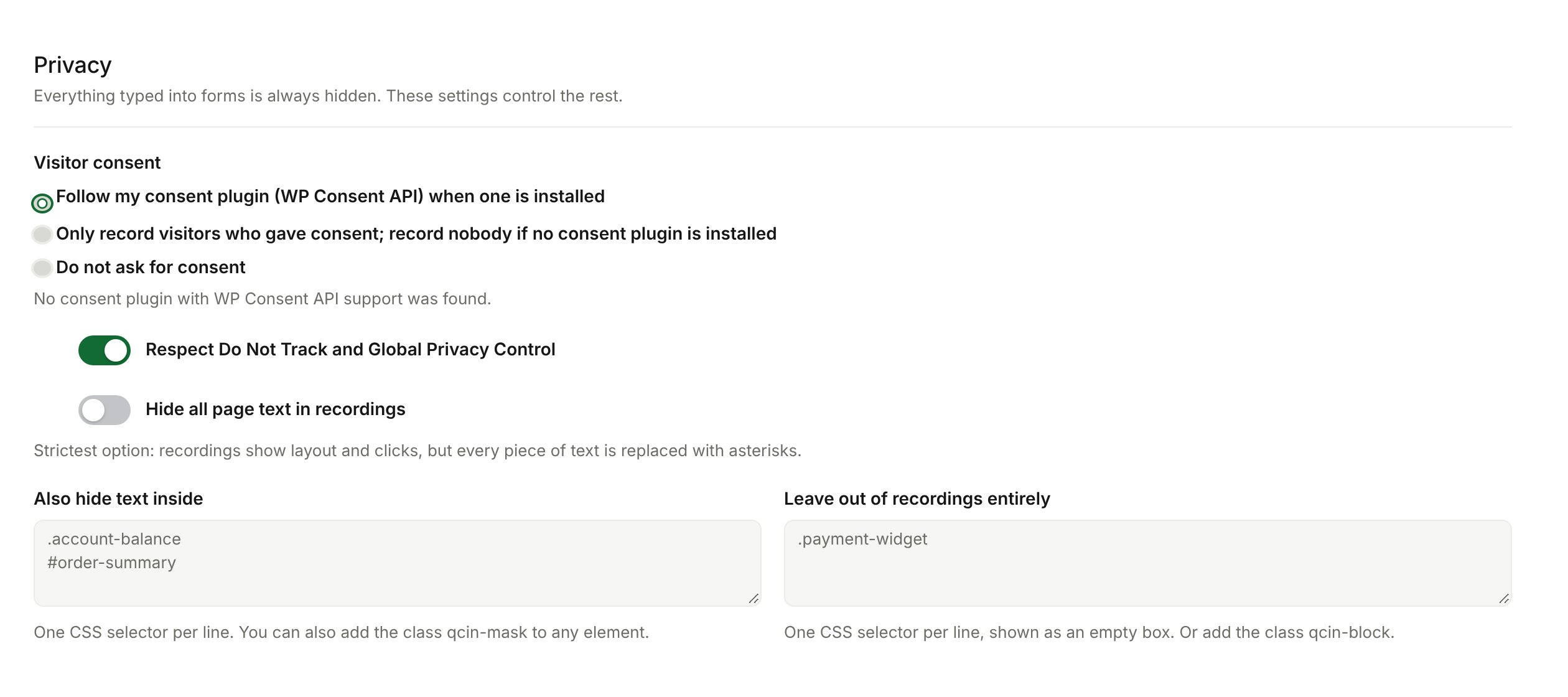
Visitor consent, Do Not Track and masking.
Visitor consent
| Option | What happens |
|---|---|
| Follow my consent plugin (WP Consent API) when one is installed (default) | With a consent plugin that supports the WP Consent API, visitors are recorded only after they accept the "statistics" category. Without such a plugin, visitors are recorded. |
| Only record visitors who gave consent; record nobody if no consent plugin is installed | The strictest choice. Without a consent plugin, nothing is recorded. |
| Do not ask for consent | Everyone is recorded (except Do Not Track below). Visitors in the EU, UK and similar regions usually must give consent first. |
Under the options, Site Insight tells you whether it found a consent plugin with WP Consent API support.
Other settings
- Respect Do Not Track and Global Privacy Control (on by default): browsers that send these signals are never recorded.
- Hide all page text in recordings: the strictest option. Recordings show layout and clicks, but every piece of text is replaced with asterisks.
- Also hide text inside: one CSS selector per line, for example
.account-balance. The text is shown as asterisks. You can also add the classqcin-maskto any element in your theme. - Leave out of recordings entirely: one CSS selector per line, shown as an empty box, for example
.payment-widget. Or add the classqcin-block.
Tip
Chatbot conversations are page text, so they appear in recordings. To hide them, add #wp-chatbot-messages-container to Also hide text inside.
A developer can add the class qcin-unmask to a field that holds nothing private, such as a site search box, to show what was typed there. Password, email, phone and card fields stay hidden even then.
Masking suggestions (Site Insight Pro)
After 50 recordings, AI looks at the structure of your recorded pages (element types, ids and classes, never their text) and suggests parts to hide, such as account names or order details. Tick the ones you want and click Hide selected in recordings; they are added to Also hide text inside and apply to new recordings. Check pages now runs the check at once. It needs Masking suggestions switched on in the AI settings.
Who and what to skip
Under Who and what to skip, choose the roles that are never recorded (Administrator and Editor by default) and the pages that are never recorded, such as /my-account/*. See Recording, storage and retention settings.
Your privacy policy
Site Insight adds suggested text to Settings → Privacy → Policy guide in WordPress. Copy it into your privacy policy and adjust it. If you use external storage, a paragraph naming your storage service is added too.
Personal data requests
Site Insight registers with Tools → Export Personal Data and Tools → Erase Personal Data. Because recordings hold no names or emails, these tools report that nothing is stored for a person.
Availability
In every edition, including WPBot Free. Masking suggestions need Site Insight Pro (Professional or Master) and AI.
Was this article helpful?
Sorry about that. Get help another way:











