

Site Insight AI settings: keys, features and cost limits
Open Site Insight → Settings → AI. AI is off by default: when it is off, nothing is ever sent to an AI provider.
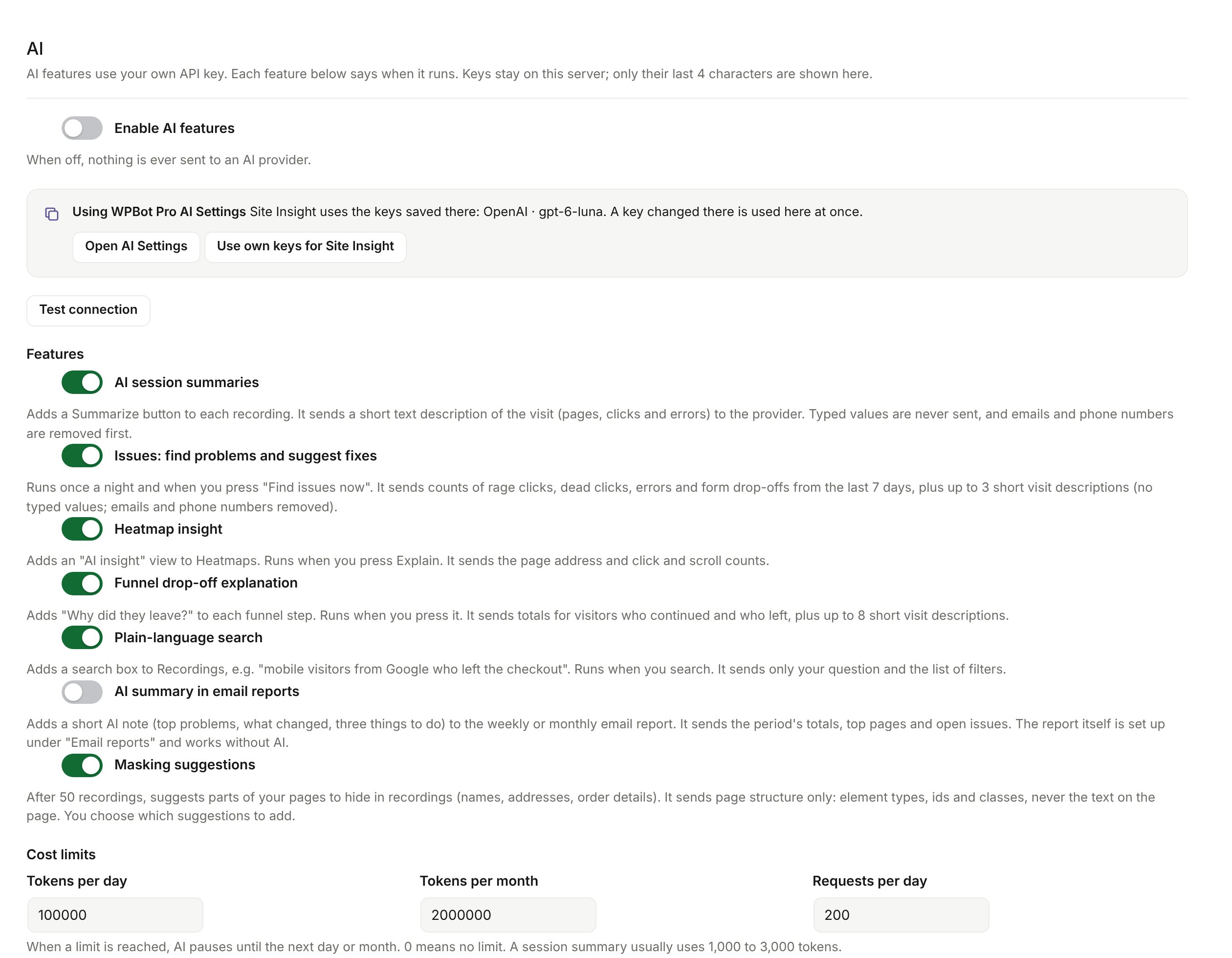
AI settings: the AI Settings in use, the feature switches and their help.
Turn it on
- Turn on Enable AI features.
- Check the keys. By default Site Insight shows Using WPBot Pro AI Settings: it uses the provider, key and model saved in WPBot Pro → AI / Settings, and a key changed there is used here at once. Open AI Settings takes you there.
- Click Test connection.
- Choose the features below and click Save settings.
Use separate keys
Click Use own keys for Site Insight to give Site Insight its own Provider, Model and API key, for example a cheaper model or a separate key for billing. The keys start as a copy of your AI Settings; later changes there no longer affect Site Insight. Use WPBot Pro AI Settings instead switches back.
Providers: OpenAI, Claude, Gemini, Grok, OpenRouter, Mistral and Ollama (your own server: enter its address instead of a key). For Model, pick a suggestion or type any model your account can use; smaller models cost less and are enough for summaries.
Keys stay on your server; the screen only shows their last 4 characters.
Features
Each feature has its own switch and says when it runs and what it sends.
| Feature | When it runs | What is sent |
|---|---|---|
| AI session summaries | When you click Summarize visit in a recording | A short text description of the visit (pages, clicks, errors) |
| Issues: find problems and suggest fixes | Every night and with Find issues now | Counts of frustration signals from the last 7 days and up to 3 short visit descriptions |
| Heatmap insight | When you click Explain this heatmap | The page address and click and scroll counts |
| Funnel drop-off explanation | When you click Why did they leave? | Totals for visitors who continued and who left, and up to 8 short visit descriptions |
| Plain-language search | When you search on Recordings | Only your question and the list of filters |
| AI summary in email reports (off by default) | With each email report | The period's totals, top pages and open issues |
| Masking suggestions | After 50 recordings, and with Check pages now | Page structure only (element types, ids and classes), never page text |
Typed values are never sent, and emails and phone numbers are removed from visit descriptions first.
Cost limits
Under Cost limits set Tokens per day, Tokens per month and Requests per day. When a limit is reached, AI pauses until the next day or month. 0 means no limit. A session summary usually uses 1,000 to 3,000 tokens.
Usage shows today's tokens and requests, and a table by feature with Requests, Tokens in and Tokens out.
Note
These limits are separate from the spending limits in WPBot Pro → AI / Settings. See Set AI spending limits and alerts for the limits of the other AI features.
Recommended setup
- Keep Using WPBot Pro AI Settings unless you need separate billing.
- Turn on Issues, Heatmap insight and Funnel drop-off explanation: they run only when you ask, except the nightly issue check.
- Set Requests per day to 200 or so as a safety net.
- Turn on AI summary in email reports if you want three things to do in each report.
Availability
Enable AI features, the keys, cost limits, usage and AI session summaries are in every edition, including WPBot Free. The other six features need Site Insight Pro (Professional or Master).
Was this article helpful?
Sorry about that. Get help another way:











