

Segments and plain-language search
On this page
A segment is a saved group of visits, such as "mobile visitors from Google" or "visitors who left items in the cart". Choose it in the segment menu on the Overview, Heatmaps, Recordings, Funnels & goals and Forms screens. The choice stays when you move between screens.
Create a segment
- Open Site Insight → Segments and click New segment.
- Enter a Name, for example "Mobile visitors from Google".
- Add rules with Add rule. Visits must match every rule.
- Check the count under the rules, for example "60 visits in the last 30 days (14.5%)".
- Click Save segment.
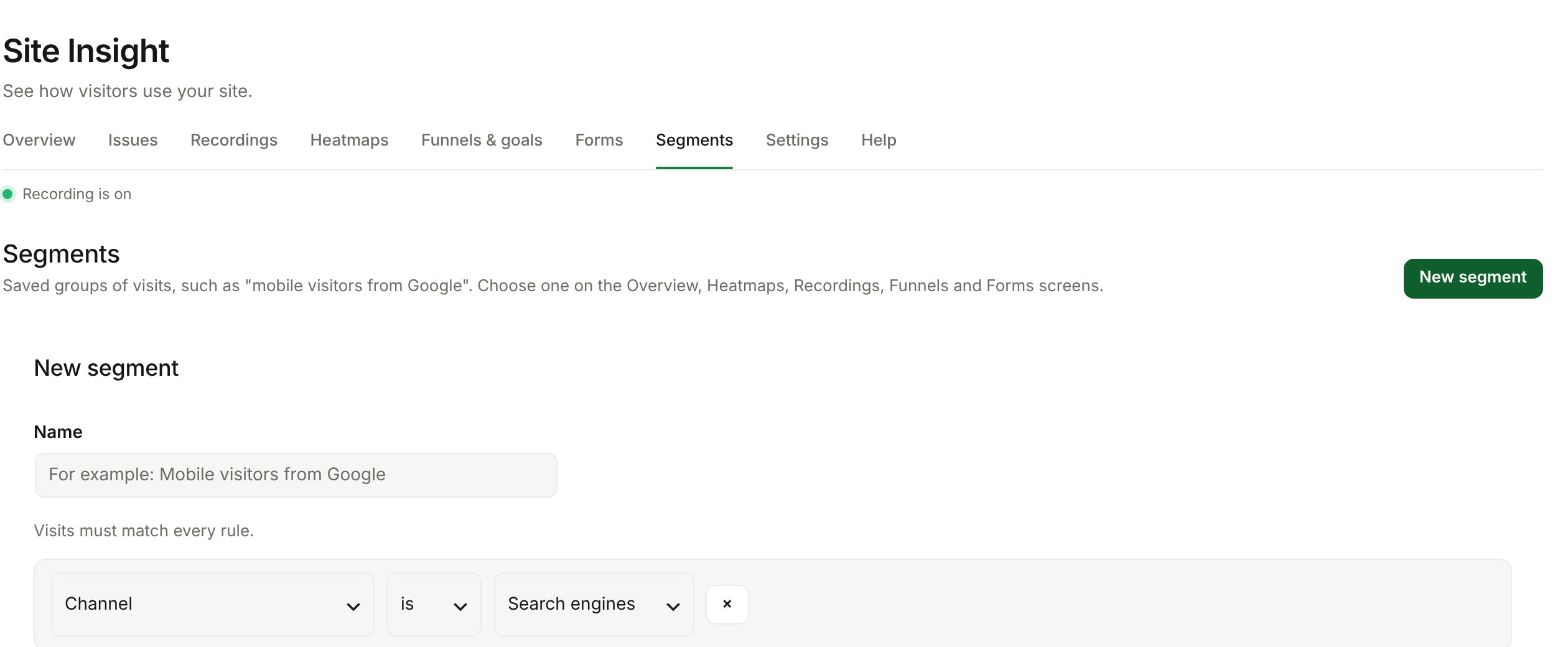
The segment editor with one rule: Channel is Search engines.
Rules you can use
| Group | Rules |
|---|---|
| Traffic | Channel (Direct, Search engines, Social networks, Other websites, Campaigns (UTM)), utm_source, utm_medium, utm_campaign, Referring site |
| Visitor | Country (two-letter codes), Device, new or returning, Logged in, User role, Has bought before (WooCommerce) |
| Pages | Landing page, Visited a page, did not visit a page, Visited page A, then page B |
| Actions | Custom event, WooCommerce steps (viewed a product, added to cart, started checkout, placed an order), Frustration |
| Engagement | Visit length (seconds), Pages viewed, Has a recording |
Only the user role and "has bought before" are kept for logged-in visitors; never their name or email. Visitors who are not logged in stay anonymous.
Note
Click heatmaps for a segment are built from detailed click data, which is kept for 31 days. Scroll depth, the Overview and the other reports cover the whole range you choose.
Segments that help you grow
| Segment | Question it answers |
|---|---|
| Channel is Social networks + placed an order | Do your social posts bring buyers? |
| utm_campaign is your newsletter campaign | How do email readers behave on your site? |
Channel is Search engines, landing page contains /blog/ | Do readers from Google go on to your offer? |
| Device is Mobile + any frustration | Where does your site break on phones? |
| Has bought before | What do returning customers look at? |
Use Compare on Heatmaps to put two segments side by side. See Attention, areas, add to cart, compare and AI insight heatmaps.
Plain-language search on Recordings
With Plain-language search switched on in the AI settings, the Recordings screen has a box: Describe the visits you want to see. Ask in your own words, for example "first-time visitors from Facebook who added to cart but did not buy", and click Search with AI.
AI turns your question into filters, which are checked before use. Only your question and the list of filters are sent; no visitor data. Save as segment keeps the filters as a segment, and Clear removes them.
Availability
Segments and plain-language search need Site Insight Pro: Professional and Master. Plain-language search also needs AI turned on. Starter and WPBot Free do not have them.
Was this article helpful?
Sorry about that. Get help another way:











