

Keep recordings in your own bucket or cloud drive
On this page
Recordings are stored on your server by default. With Site Insight Pro you can keep them in your own storage instead. Open Site Insight → Settings → External storage.
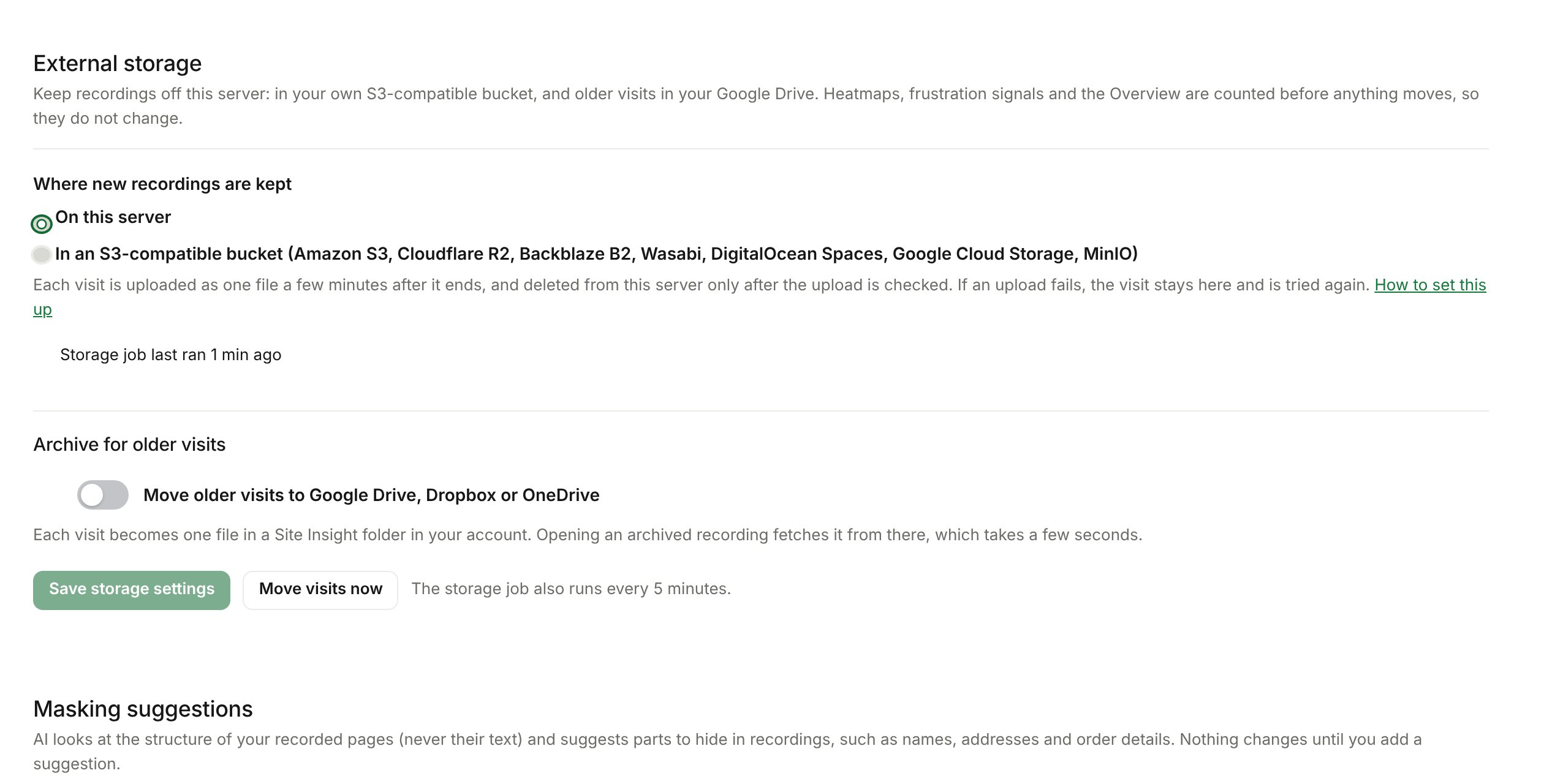
External storage: where new recordings are kept, and the archive for older visits.
How it works
- Recordings are first saved on your server, as usual.
- About every 5 minutes a background job packs each visit that has ended into one file and uploads it.
- It reads the file back to check its size and checksum. Only then is the copy on your server removed. If an upload fails, the visit stays on your server and is tried again later.
Heatmaps, frustration signals and the Overview are counted when the visit happens, so moving recordings does not change them. Watching a moved recording works as before.
Where new recordings are kept
Choose On this server or In an S3-compatible bucket (Amazon S3, Cloudflare R2, Backblaze B2, Wasabi, DigitalOcean Spaces, Google Cloud Storage, MinIO). For a bucket:
- Pick the Service; the preset fills in the Region and Endpoint.
- Enter the Bucket, the Folder in the bucket and the Access key ID and Secret access key of a key that may read, write and delete in that bucket.
- Leave Use path-style addresses as the preset sets it (MinIO and Cloudflare R2 need it).
- Click Test connection, then Save storage settings.
Keep the bucket private: Site Insight signs every request with your key. You do not need CORS, public access or lifecycle rules; Site Insight deletes old files itself.
How to set this up opens step-by-step guides for each service in Site Insight → Help.
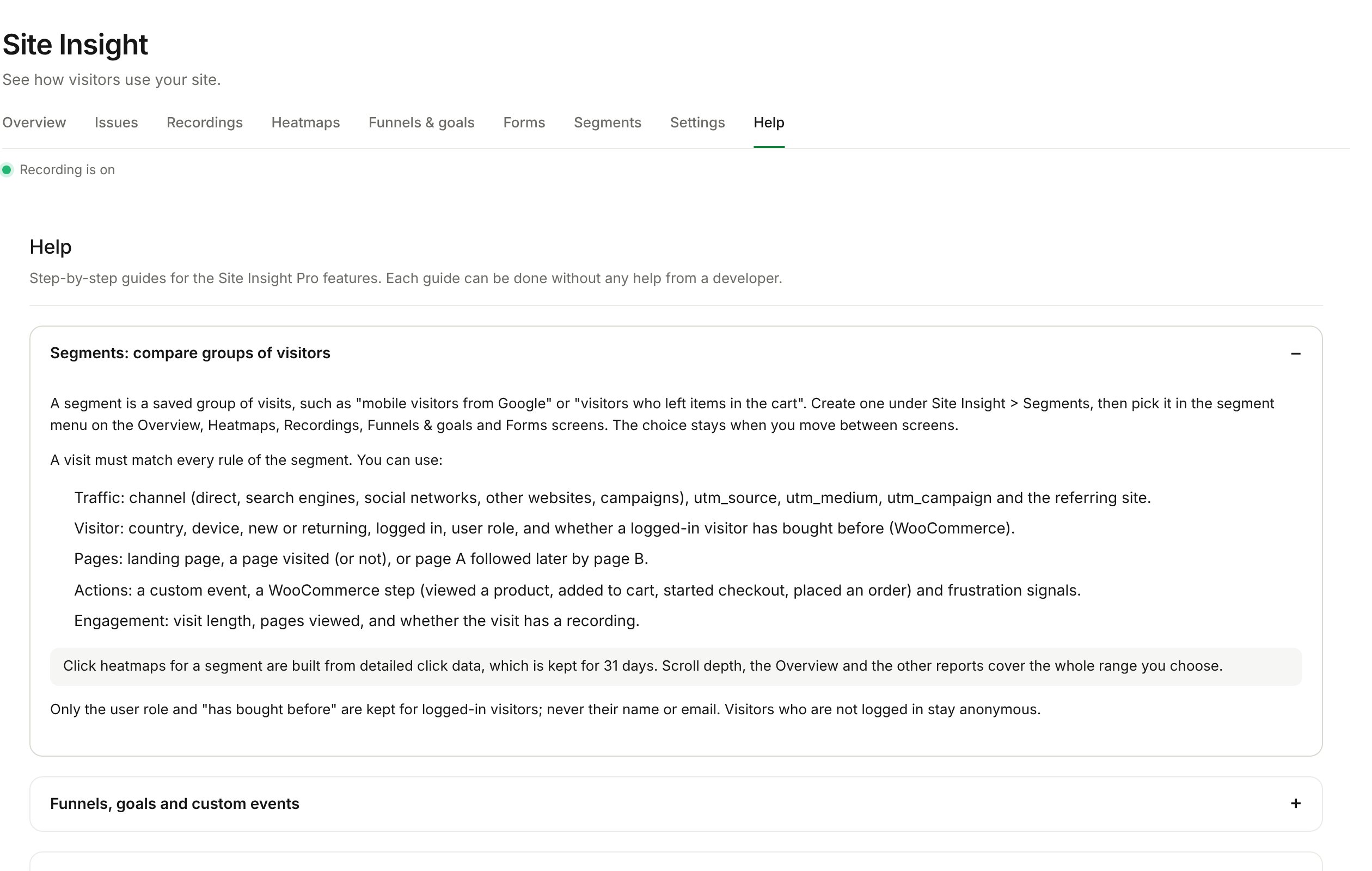
The Help screen has step-by-step guides for every storage service and Pro feature.
Archive for older visits
Turn on Move older visits to Google Drive, Dropbox or OneDrive, choose the Archive service, connect it with your own app (the Help screen has a guide for each: about 5 minutes for Dropbox, about 10 for Google Drive and OneDrive) and set Move visits older than a number of days. Each visit becomes one file in a Site Insight folder in your account. Opening an archived recording takes a few seconds.
Site Insight asks only for the files it creates (Google Drive) or its own app folder (Dropbox and OneDrive), never the rest of your drive. Disconnect removes the saved sign-in; archived visits cannot be replayed until you connect the same account again.
Note
Visits are deleted after the days set in Storage → Keep recordings for. Set that higher than Move visits older than, or nothing reaches the archive.
Good to know
- The storage limit in Settings counts only what is still on your server.
- Deleting a recording, Delete all data now and the retention setting also delete the copies in your bucket and archive.
- Keys are stored encrypted; only their last 4 characters are shown.
- You pay your storage provider directly. A visit is typically 20 to 200 KB.
- Move visits now runs the job at once; it also runs every 5 minutes.
- For GDPR, use a business account with a data processing agreement, and add the paragraph Site Insight puts in Settings → Privacy → Policy guide to your privacy policy.
Warning
Deleting WPBot Pro does not delete files in your bucket or archive. To remove everything, first use Delete all data now, wait 5 minutes (or click Move visits now), then delete the plugin.
Availability
External storage needs Site Insight Pro: Professional and Master. Starter and WPBot Free keep recordings on your server.
Was this article helpful?
Sorry about that. Get help another way:











