

Connect Dialogflow ES or CX
On this page
Dialogflow is Google's tool for building conversation flows with intents and entities. If you already have a Dialogflow agent, WPBot can use it to understand visitors and answer with its intents. Open WPBot Pro → ChatBot → Dialogflow (under Advanced).
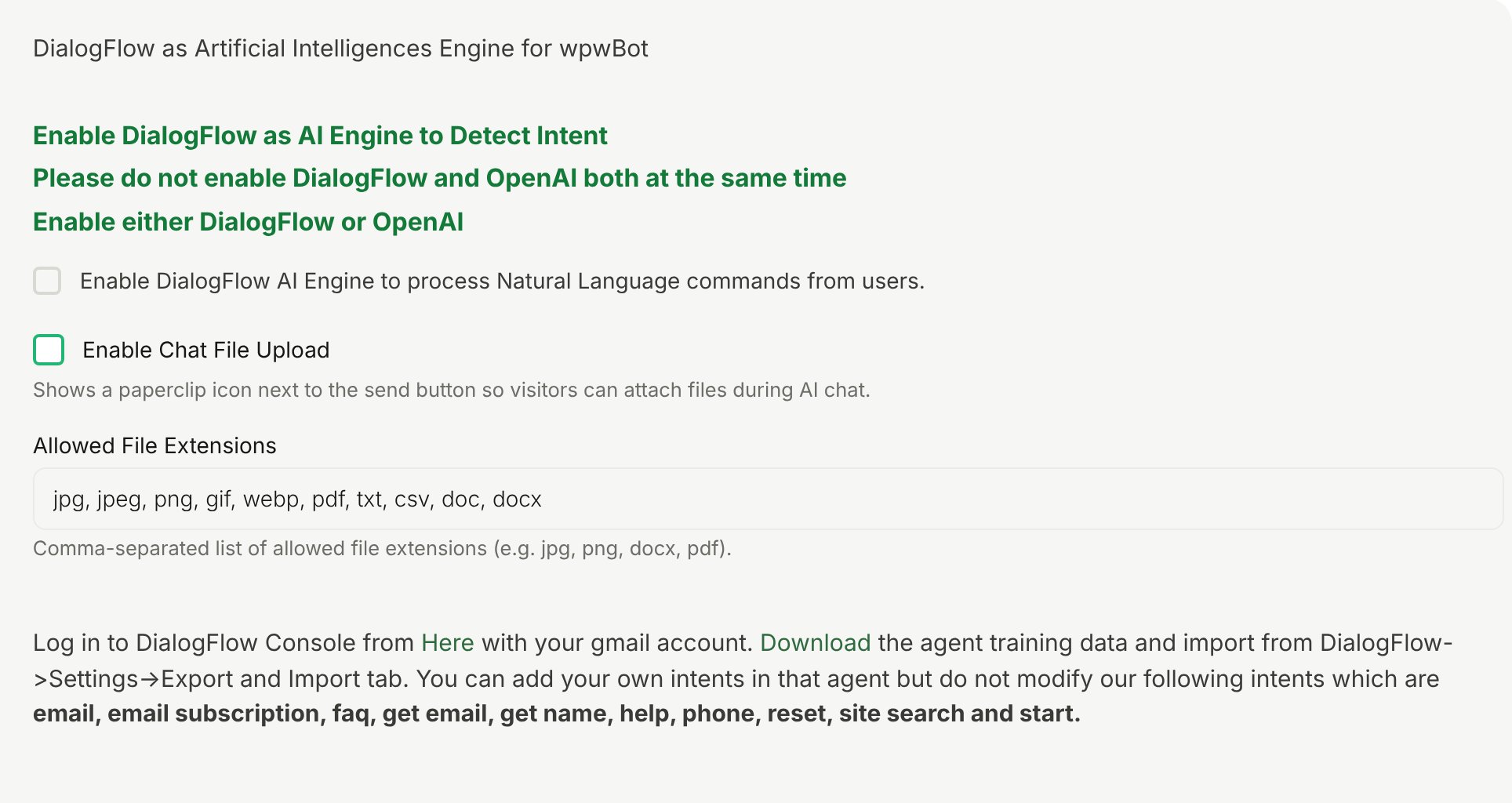
The Dialogflow tab.
Note
Most sites do not need Dialogflow: an AI provider with your knowledge base answers free-form questions without building intents. The screen asks you to use either Dialogflow or the AI, not both at the same time.
The tab also shows Enable Chat File Upload and Allowed File Extensions: a paperclip next to the send button so visitors can attach files during AI chat. This is the same setting as Chat file upload in AI / Settings → Answers (Control how the chatbot answers).
Connect your agent
- Tick Enable DialogFlow AI Engine to process Natural Language commands from users.
- Check that the screen says Google Client Package is Installed on Your Website. Dialogflow V2 needs this package (about 10 MB). If it is missing, click Download and Install the Google Client; it is saved in your
wp-contentfolder, which must be writable. The screen also explains how to upload it by FTP instead. - Enter the DialogFlow Project ID of your Google Cloud project.
- Paste the Private Key: the JSON key of a Google service account that has owner permission on the agent.
- Set the DialogFlow Defualt reply (used when the agent returns no text) and the DialogFlow Agent Language (Ex: en).
- For a CX agent, tick Enable Dialogflow CX. WPBot uses the first agent of the project.
- Click Save Settings, then Test Dialogflow Connection.
The key stays on your server. WPBot talks to Dialogflow from the server, never from the visitor's browser.
Use WPBot's starter agent
The tab links to the Dialogflow console and to WPBot's agent training data. Import it in your agent under Settings → Export and Import. You can add your own intents, but do not change WPBot's intents: email, email subscription, faq, get email, get name, help, phone, reset, site search and start.
Fulfillment webhook
The DialogFlow Webhook URL is the address to enter as the fulfillment webhook in your agent. To protect it, tick Enable Authentication for Dialogflow fulfillment Webhook URL and set an Auth Username and Auth Password; enter the same in Dialogflow. The saved password is not shown again.
Where Dialogflow sits
Dialogflow answers after your Simple Text Responses and before site search and the AI (see How the chatbot chooses an answer). Its intents can be used anywhere you pick an intent: the start menu, Chat Icon Messages and shortcodes. CX intents appear under Dialogflow CX in Available menu items (Build the start menu). Links in Dialogflow answers open as set in Bot Response Options (Chat window and bot response options).
Availability
In every edition, including WPBot Free.
Was this article helpful?
Sorry about that. Get help another way:











