

Posts: statuses, failed posts and missed posts
Open WPBot Pro → Social → Posts. It lists every post with its accounts and the status of each one. The badge on Posts in the menu counts posts that failed, need checking or are waiting for you to post them yourself.
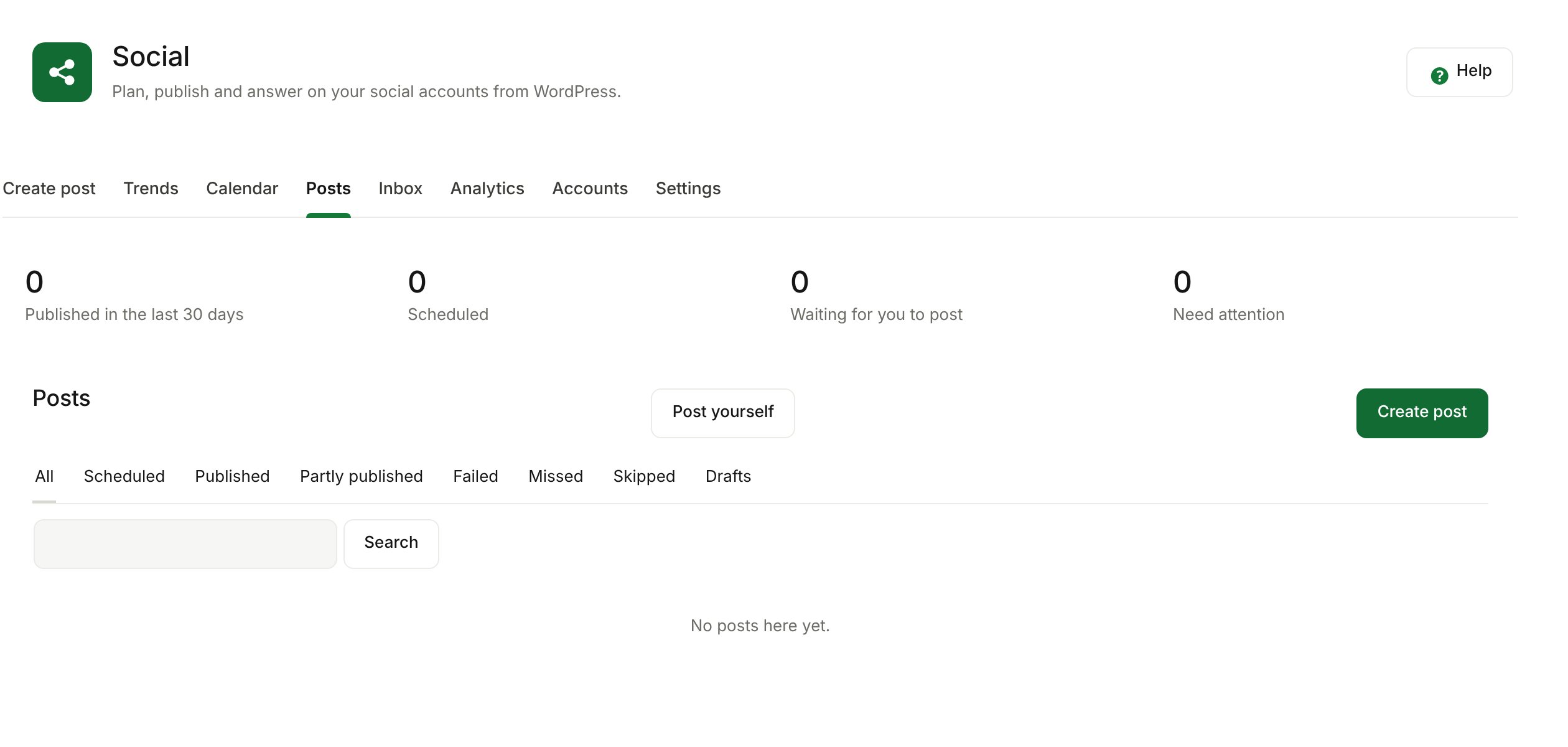
Posts: overview tiles, filters and search.
Overview tiles
Published in the last 30 days, Scheduled, Waiting for you to post and Need attention. Below them, filter by All, Scheduled, Published, Partly published, Failed, Missed, Skipped or Drafts, or search.
Statuses per account
| Status | What it means | What you can do |
|---|---|---|
| Draft | Saved, not scheduled | Open it and schedule it |
| Scheduled | Waiting for its time | Open to change it |
| Publishing… | Being sent now | Wait |
| Will retry | A rate limit or network error; the next try time is shown | Nothing: WPBot retries |
| Checking | WPBot is checking whether the post went out | Wait |
| Published | Live on the network | View opens it |
| Failed | The network refused it; the reason is shown | Fix & retry |
| Check and confirm | WPBot could not tell whether it went out | Look on the network, then click It went out or Fix & retry |
| Missed | It came due while Social could not run | Post now, Reschedule or Skip |
| Post yourself | A copy for you to post | Open Post yourself |
| Skipped | You skipped it | — |
Note
WPBot never retries blindly. When the outcome is unclear, it checks the network first, so a post is never published twice.
When something goes wrong
- Failure emails: one email per post when it fails or needs you to check (Settings → Publishing → Failure email).
- An expired login pauses its account; reconnect it in Accounts and retry.
- Images not reachable: Instagram, Threads and TikTok download images from your site. Check Settings → Publishing → Public media check.
Delete removes a post from WPBot. Posts already published stay on the networks.
Availability
In every edition, including WPBot Free.
Was this article helpful?
Sorry about that. Get help another way:











