

Error log and support reports
On this page
Open WPBot Pro → AI / Settings → Error log. It shows errors from every part of WPBot, not only AI. A red number on the WPBot menus counts new errors.
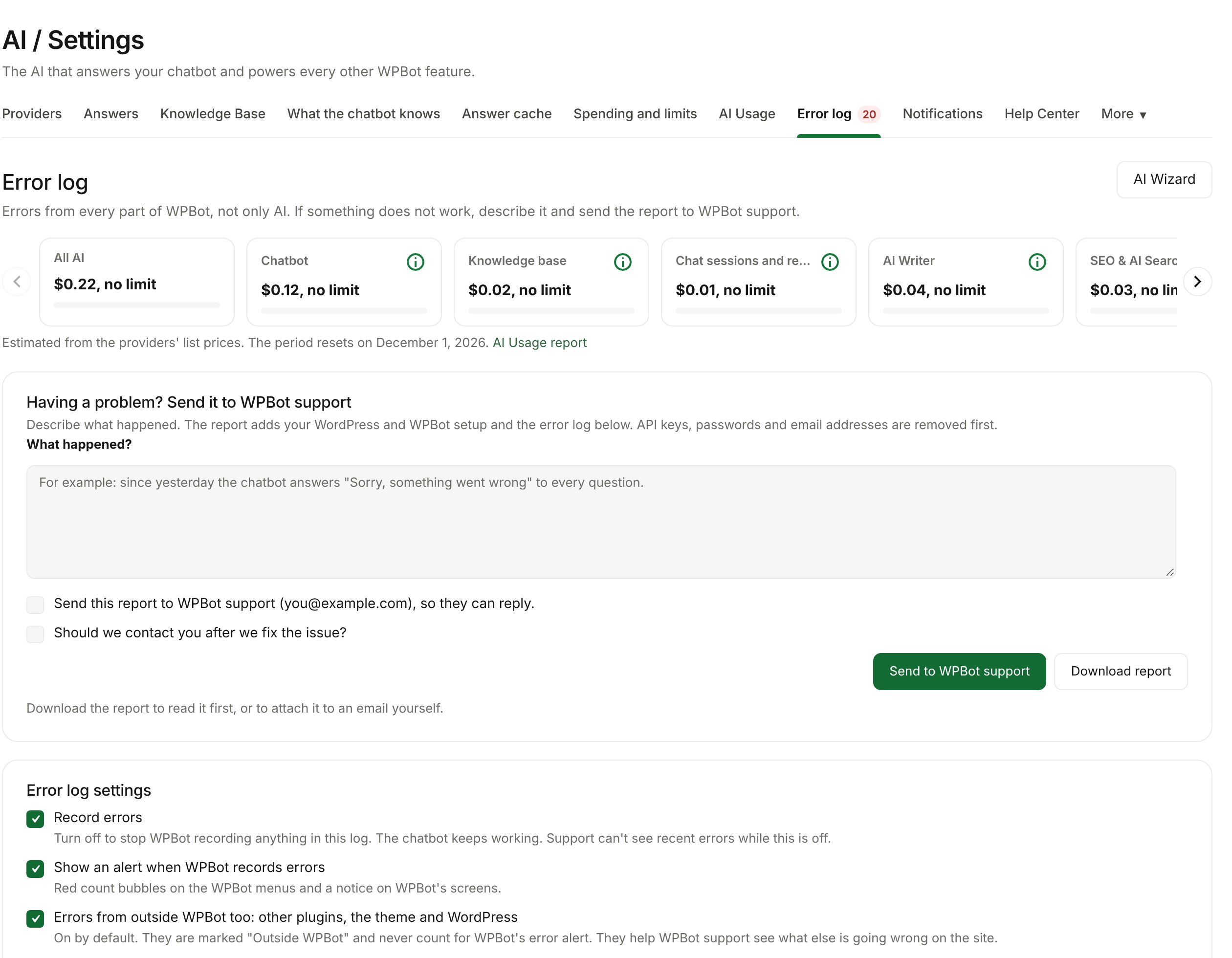
Send a report to support, and choose what the log records.
Send a report to WPBot support
- Describe the problem in What happened?
- Tick Send this report to WPBot support, so they can reply.
- Tick Should we contact you after we fix the issue? and enter your email if you want an answer.
- Click Send to WPBot support.
The report adds your WordPress and WPBot setup and the error log. API keys, passwords and email addresses are removed first. Download report saves it so you can read it first or attach it to your own email.
Error log settings
| Setting | What it does |
|---|---|
| Record errors | Turn off to stop WPBot recording anything. The chatbot keeps working, but support can't see recent errors. |
| Show an alert when WPBot records errors | Red count bubbles on the WPBot menus and a notice on WPBot's screens |
| Errors from outside WPBot too | On by default. Errors from other plugins, the theme and WordPress, marked "Outside WPBot". They never count for WPBot's alert, but help support see what else is going wrong. |
| Browser errors of the chat widget and WPBot's admin screens | Only errors of WPBot's own scripts; nothing a visitor typed. At most 100 a site per hour. |
| Minor PHP notices and deprecation messages too | Off by default: they rarely break anything. Turn on when support asks. |
When recording is on, WPBot always records PHP warnings, errors and crashes in its files, failed requests to AI providers and other services, emails it could not send, and failed background jobs. Errors are kept 30 days.
Read the log
Filter by where errors came from (From WPBot, From outside WPBot, Origin not known) and by kind (PHP, Crash, Request to a service, AI, Background job, Email, Browser, Other). Each row shows when it was last seen, its level, where it came from, what happened and how many times. Repeats are counted, not listed again. Click Details for more. Clear the log empties it.
Common entries and what to do
| Entry | Meaning | Fix |
|---|---|---|
| "HTTP 429 from api.openai.com … spend limit" | Your provider stopped you at your budget | Raise the budget with the provider, or rely on your Set a backup AI provider |
| "HTTP 401" from a provider | The key is wrong or was revoked | Paste a new key in Providers and click Test |
| Email could not be sent | WordPress email failed | Use an SMTP plugin |
| "Outside WPBot" errors | Another plugin or the theme | Not a WPBot problem; tell that plugin's developer |
Availability
In every edition, including WPBot Free.
Was this article helpful?
Sorry about that. Get help another way:











