

Language Center: change every text the chatbot says
On this page
The Language Center holds every text the chatbot itself says: the greeting, its questions, the thank-you lines, button labels, error messages and the keywords visitors can type. Open WPBot Pro → ChatBot → Language Center.
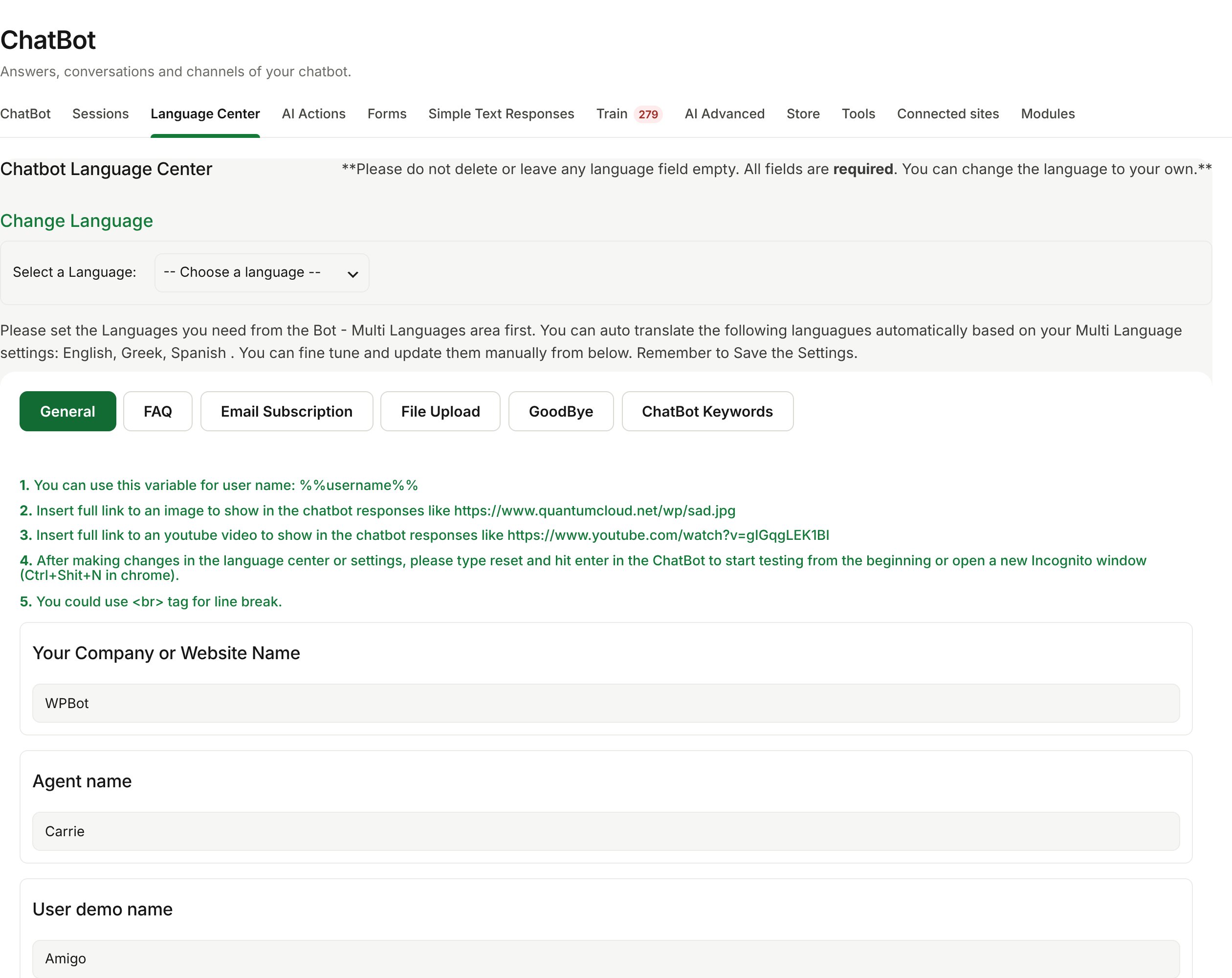
The Language Center.
Translate everything at once
Under Change Language, choose your language in Select a Language (Arabic, Bulgarian, Chinese, Danish, Dutch, English, French, German, Greek, Hebrew, Hindi, Japanese, Korean, Polish, Portuguese, Spanish, Turkish and others, 34 in all). Every field is filled with a ready translation; your company or website name is kept. Check the texts, change what you like and save.
If your language is not in the list, choose My language is not here and translate the fields yourself.
Warning
Do not leave a field empty: every text is used somewhere in the chat.
The tabs
| Tab | What it holds |
|---|---|
| General | Your company or website name, the agent name, the greeting (Welcome to, Welcome back, Hi There!), the name, email and phone questions and their thank-you lines, Sorry, I did not understand that, the message box placeholder (Send a message), "is typing…", search result texts, email subjects, the source links heading (Check the relevant pages for more details and up to date information:), the AI Action invalid answer message and the rate limit message. |
| FAQ | The texts around the FAQ. |
| Email Subscription | The subscribe and unsubscribe questions and confirmations, and the subject and content of the Email Subscription Offer email. |
| File Upload | Upload success and error messages. |
| GoodBye | The goodbye message and the offer to email the transcript. |
| ChatBot Keywords | Words visitors can type to jump: Start Keyword, FAQ Keyword, the keyword that clears the conversation history, and GoodBye Keywords. |
Tips for writing
- Use
%%username%%for the visitor's name, for example "Hi %%username%%, what are you looking for?". - Paste the full address of an image or a YouTube video to show it in the message.
- Use
<br>for a line break. - Add several versions of a message: the chatbot picks one at random, so the chat feels less robotic.
- After saving, type
resetin the chat (or open a private window) to test from the beginning.
Write texts that convert
- Greeting: say what the chat can do: "Hi! I can answer questions about our products, delivery and returns, or get you a quote."
- Name question: give a reason: "What should I call you?" works better than "May I know your name?".
- "Sorry, I did not understand that": offer a way forward: "I'm not sure about that one. Pick an option below or leave your email and we'll answer you."
- Source links heading: invite the click: "Read more here:".
Several languages
One set of texts serves one language. To run the chatbot in several languages, with a set of texts per language, use the Multi-Language module: see Multi-Language: one chatbot in several languages. The AI can also reply in the visitor's language: see AI Advanced: chatbot skills and connections to your API.
Availability
In every WPBot Pro edition. In WPBot Free the same texts are on the Change Language tab of the ChatBot settings. Several languages at once need the Multi-Language module (Master).
Was this article helpful?
Sorry about that. Get help another way:











