

Embed the chatbot and add Click to Chat buttons
On this page
Open WPBot Pro → ChatBot → Embed & Click to Chat. The tab lists every shortcode with its parameters, and the code to embed the chatbot on another website.
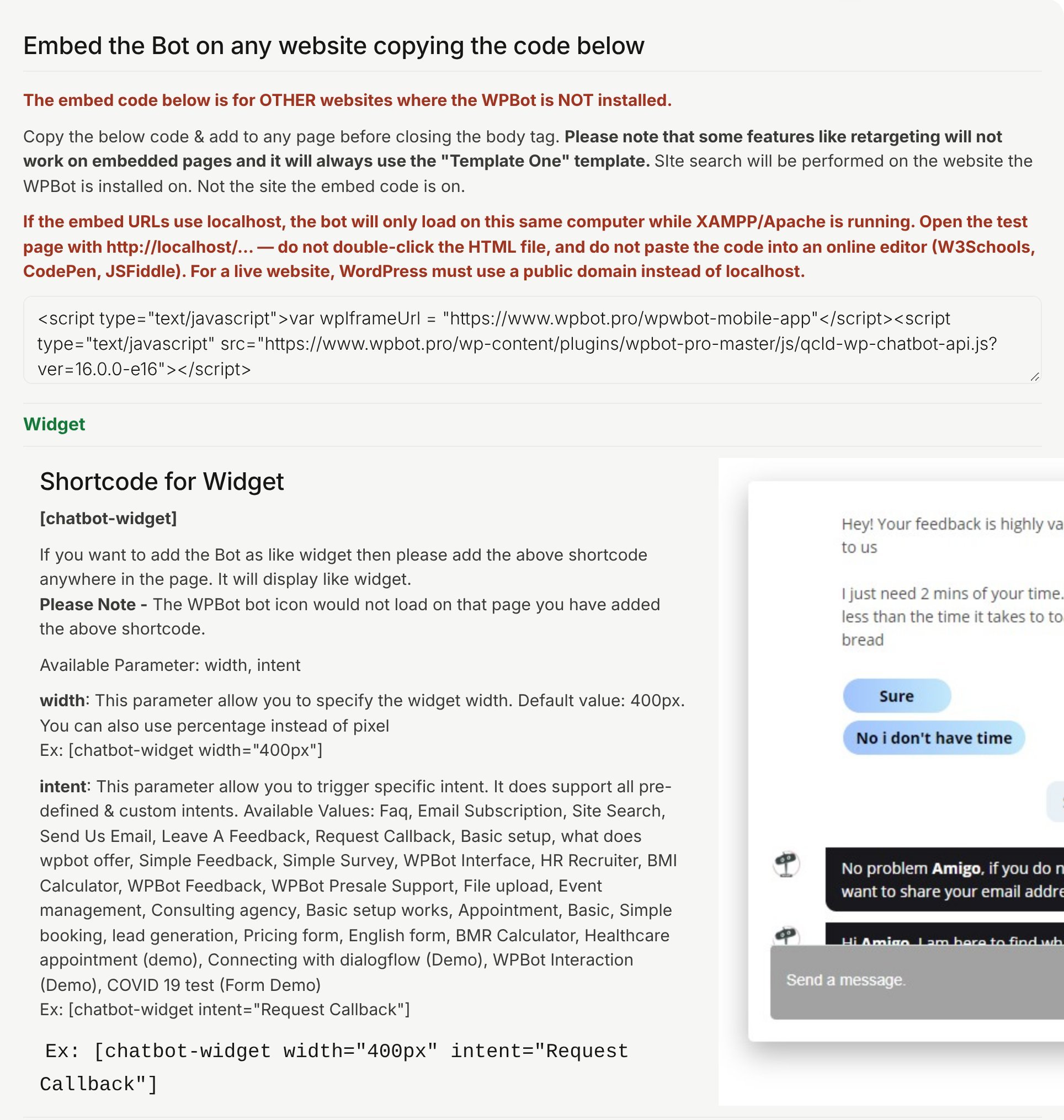
Embed & Click to Chat lists the shortcodes and the embed code.
Shortcodes
| Shortcode | What it shows | Parameters |
|---|---|---|
[chatbot-widget] | The chat as a widget in the page content. The floating icon does not load on that page. | width (default 400px, or a percentage), intent |
[wpbot-click-chat text="Click to Chat"] | A link or button that opens the chat. | text, bot_visibility, intent, display_as, bgcolor, textcolor |
[wpbot-page] | The chat on a page of its own, for example a "Chat with us" page. | intent |
Click to Chat parameters
text: the link or button text.bot_visibility:show(default) orhidethe floating icon on that page.intent: start an intent when the chat opens, for exampleintent="Email Subscription".display_as:link(default) orbutton.bgcolorandtextcolor: the button's colours, for examplebgcolor="#3389a9" textcolor="#fff".
Example: [wpbot-click-chat text="Get a quote" display_as="button" intent="Request Callback"]
Which intents you can start
The intent parameter takes the intent's name exactly as the tab lists it:
- Predefined intents: Faq, Email Subscription, Site Search, Send Us Email, Leave A Feedback.
- WooCommerce intents: Product Search, Catalog, Featured Products, Products on Sale, Order Status.
- Custom intents: the exact name of a Conversational Form or a Dialogflow intent. The tab lists the ones your site has.
More about intents: Intents: the things your chatbot can do.
Embed the chatbot on another website
The embed code at the top of the tab is for other websites where WPBot is not installed, for example a shop on another platform or a static landing page. Copy it and paste it before the closing </body> tag of that site.
- The chatbot answers from the site where WPBot is installed. Site search also searches that site, not the site the code is on.
- Some features, such as retargeting, do not work on embedded pages.
- The code must point to a public address. If your WordPress uses
localhost, the chat only loads on the same computer.
Note
On a site that runs WPBot, use the shortcodes instead of the embed code.
To show the chatbot on other WordPress sites as part of one network of sites, see Connected sites: one chatbot and knowledge base for all your sites. For Messenger, WhatsApp and Telegram, see Channels: answer customers on Messenger, Instagram, WhatsApp and Telegram.
Ideas that bring leads
- A "Get a quote" button on service pages that starts your quote AI Action or form: one click, and the visitor is answering your questions.
- A "Chat with an expert" page with
[wpbot-page], linked from your menu and your emails. - An "Ask about this product" link under the price, with
[wpbot-click-chat]. With Use the current page on in AI / Settings, the bot knows which product the visitor means.
Availability
The shortcodes and the embed code are in every WPBot Pro edition. The WooCommerce intents need the WooCommerce module (Professional and Master). WPBot Free does not have this tab; there, any link or button with the class wpbot-click-chat opens the chat.
Was this article helpful?
Sorry about that. Get help another way:











