

Choose where the chatbot shows
On this page
By default the chatbot loads on every page. Open WPBot Pro → ChatBot → Basics and expand Page Control Bot Loading Options to choose where it shows.
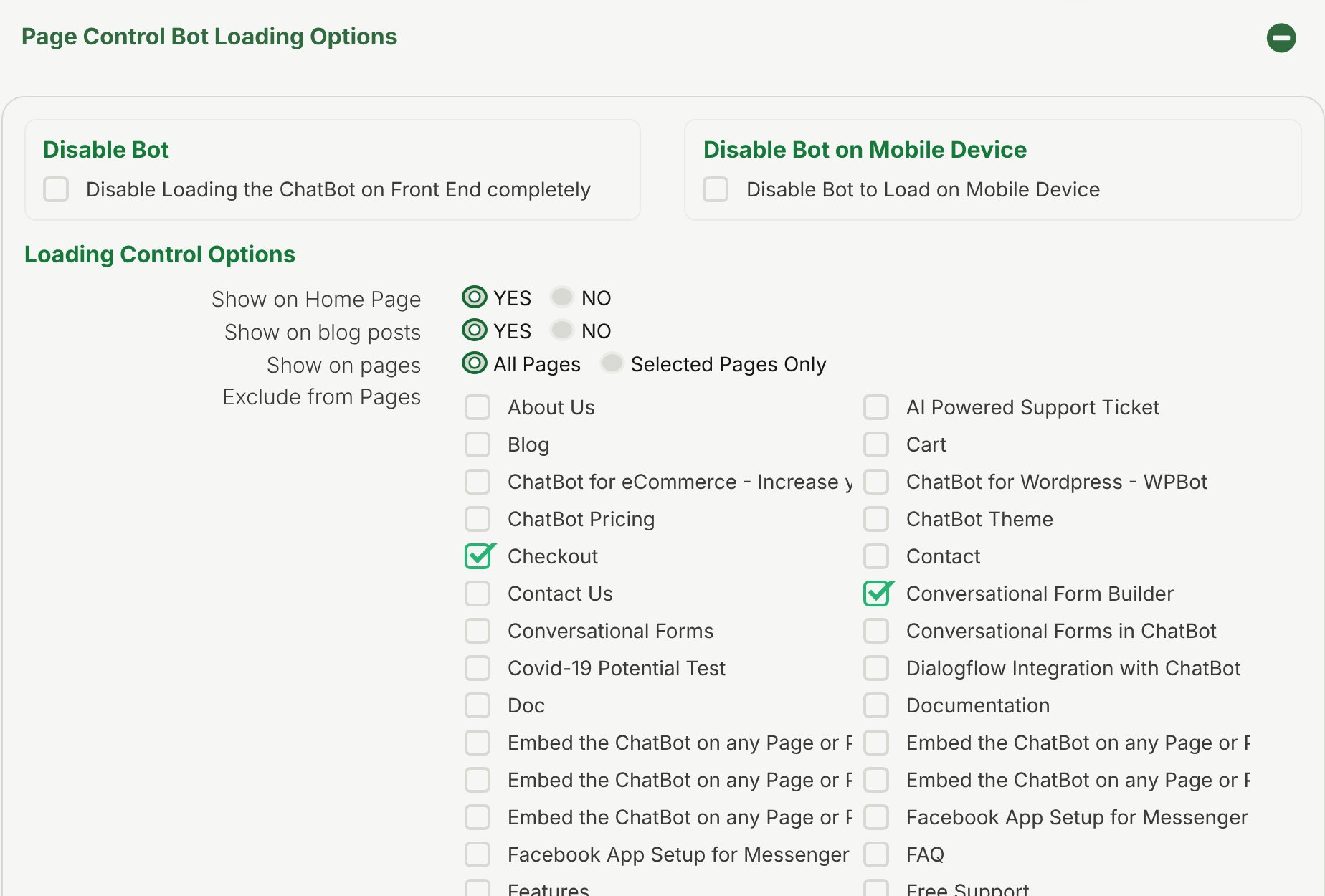
Page Control Bot Loading Options.
Turn it off
- Disable Bot: stops the chatbot from loading on the front end completely. Use it while you set things up, then switch it off again.
- Disable Bot on Mobile Device: the chatbot does not load on phones.
Loading Control Options
| Setting | Choices |
|---|---|
| Show on Home Page | YES or NO |
| Show on blog posts | YES or NO |
| Show on pages | All Pages, or Selected Pages Only and tick the pages |
| Exclude from Pages | Tick pages where the chatbot never shows |
| Exclude from Custom Post Types | Tick post types (for example products or templates) where the chatbot never shows |
Tip
Exclude pages where a chat window gets in the way, such as the checkout, a page with its own contact form or a landing page with one call to action. Keep it on product, pricing and help pages: that is where visitors have questions before they buy.
Misc. Options
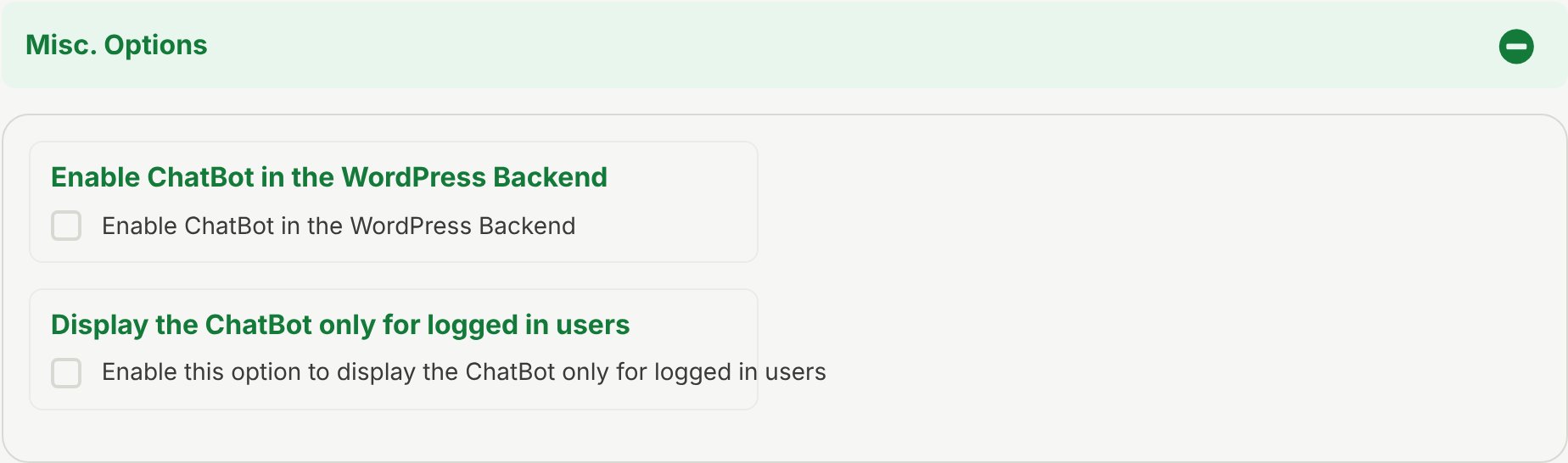
Misc. Options.
- Enable ChatBot in the WordPress Backend: shows the chatbot on admin screens too, for example as a helper for your editors.
- Display the ChatBot only for logged in users: for members' areas, customer portals and intranets.
Show the chat on one page only
To put a chat in the page content instead of the floating icon, use the shortcodes in Embed the chatbot and add Click to Chat buttons. Retargeting (open the chat on exit intent, after scrolling or after a time) is explained in Retargeting: open the chat at the right moment.
Availability
In every WPBot Pro edition. WPBot Free has Disable WPbot on Mobile Device and WPBot Loading Control Options (home page, blog posts, pages, excluded post types) on its Basics tab, without Disable Bot, Exclude from Pages or the Misc. Options.
Was this article helpful?
Sorry about that. Get help another way:











