

Watch a recording and get an AI summary
On this page
Open Site Insight → Recordings and click Play on a visit.
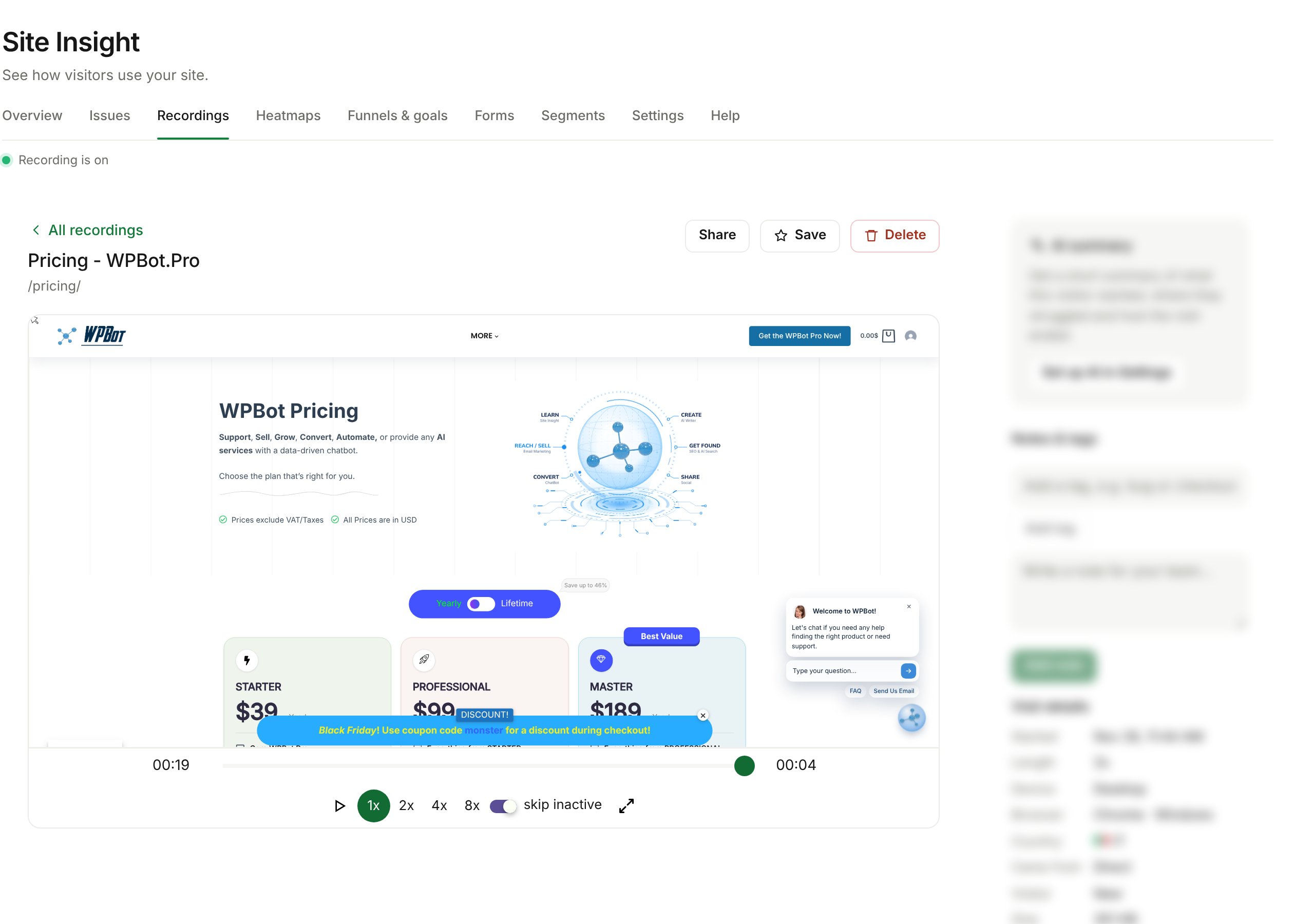
The player: the replay with its timeline, and the visit panel on the right (blurred here).
The player
- Play and the speed buttons (1x, 2x, 4x, 8x) control the replay. skip inactive jumps over idle time.
- The timeline shows markers for frustration moments. Under the player, Frustration on this page (or Moments on this page when other events are included, such as custom events or shop steps) lists each one; click it to jump there.
- A visit with several pages has Previous page and Next page, with Page 1 of 3 and so on.
- A quick back is explained in words: the visitor left the page within 5 seconds and went back to the previous page.
What visitors typed into forms is never shown: every field appears as asterisks. Parts of the page you chose to hide appear masked or as empty boxes. See Privacy, consent and masking in Site Insight.
Visit details
The panel on the right lists Started, Length, Device, Browser, Country, Came from (or Direct), Visitor (New or Returning), Size and the Pages visited with how far each was scrolled.
Save or delete
- Save keeps the recording past the retention period, for example a bug report you still need. Saved recordings show a Saved badge.
- Delete removes the recording at once. This cannot be undone.
AI summary
With AI session summaries turned on, the AI summary box offers Summarize visit. AI writes two or three sentences about what the visitor wanted (Goal), where they struggled and how the visit ended (Outcome), plus a frustration level: No frustration, Some frustration or High frustration. Write again creates a fresh summary.
The provider receives a short text description of the visit (pages, clicked elements, fields used, frustration signals and errors), never the replay data or typed values. Emails, phone numbers and card-like numbers are removed first. A summary usually uses 1,000 to 3,000 tokens and is saved, so opening the recording again costs nothing.
If you see Set up AI in Settings or AI session summaries are turned off., see Site Insight AI settings: keys, features and cost limits.
More actions (Site Insight Pro)
- Notes & tags and Share sit in the same panel. See Notes, tags and shared links for recordings.
- A recording moved to external storage shows where it is kept; archived recordings take a few seconds to load. See Keep recordings in your own bucket or cloud drive.
Get the most from recordings
- Watch at 2x with skip inactive on.
- Jump straight to the frustration markers.
- Note the element and page, then check the heatmap of that page to see how many other visitors hit the same problem.
Availability
The player, Save, Delete and AI session summaries are in every edition, including WPBot Free. Notes & tags, Share and external storage need Site Insight Pro (Professional or Master).
Was this article helpful?
Sorry about that. Get help another way:











