

Connect a Discord channel
On this page
Discord posts go to a channel through a webhook. Open WPBot Pro → Social → Accounts and click Connect on the Discord channel card.
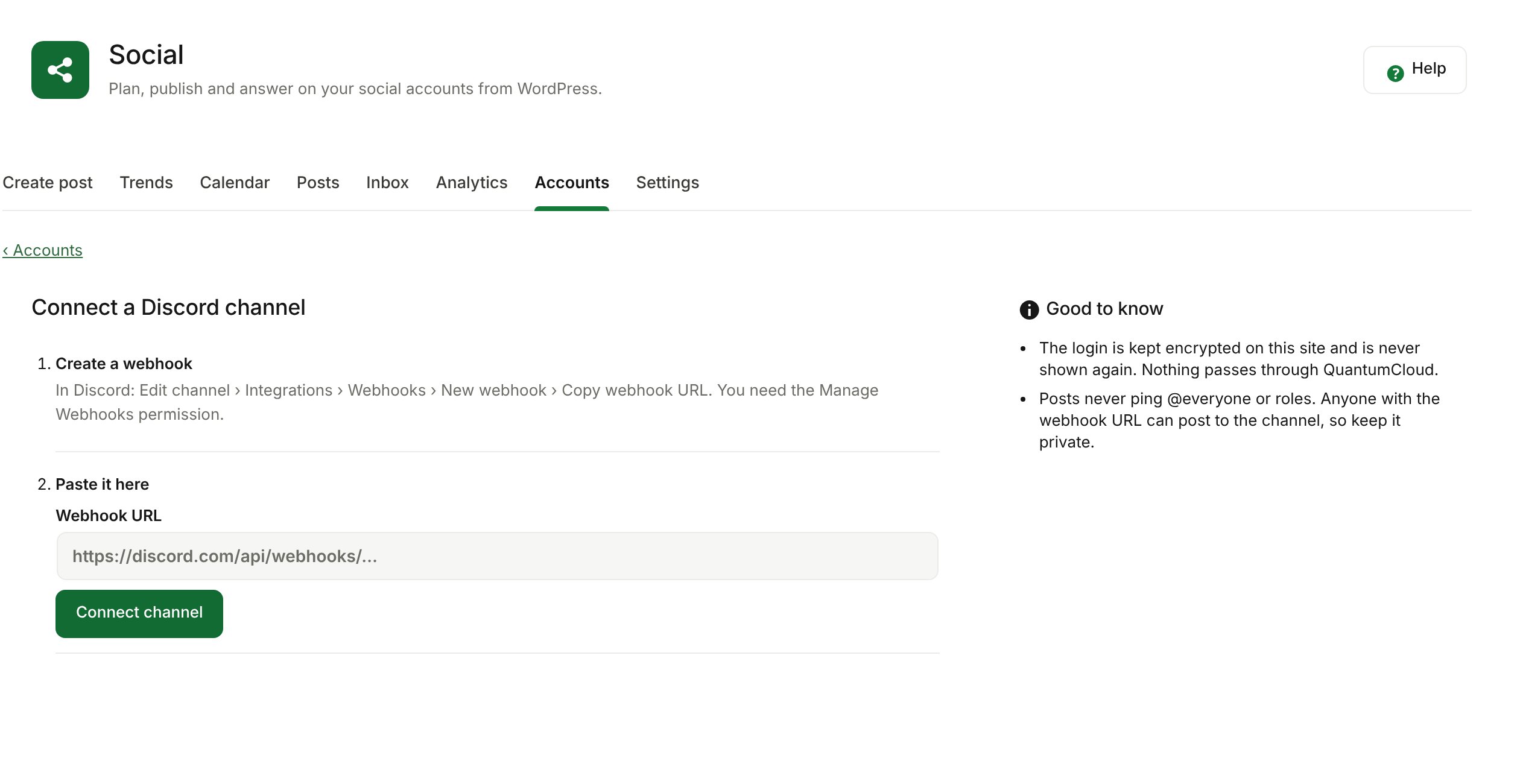
Connect a Discord channel with a webhook URL.
Steps
- In Discord, open Edit channel → Integrations → Webhooks → New webhook → Copy webhook URL. You need the Manage Webhooks permission.
- Paste it in Webhook URL and click Connect channel.
Good to know
- Posts never ping @everyone or roles.
- Anyone with the webhook URL can post to the channel, so keep it private. WPBot stores it encrypted and never shows it again.
- Discord gives WPBot no post numbers, so Analytics shows "—" for reach and engagement. Visits, leads and sales from your tracked links are still counted.
Availability
Master only.
Was this article helpful?
Sorry about that. Get help another way:











