

Connect Threads
On this page
Threads uses its own app and sign-in, separate from Facebook and Instagram. Open WPBot Pro → Social → Accounts and click Set up app on the Threads card.
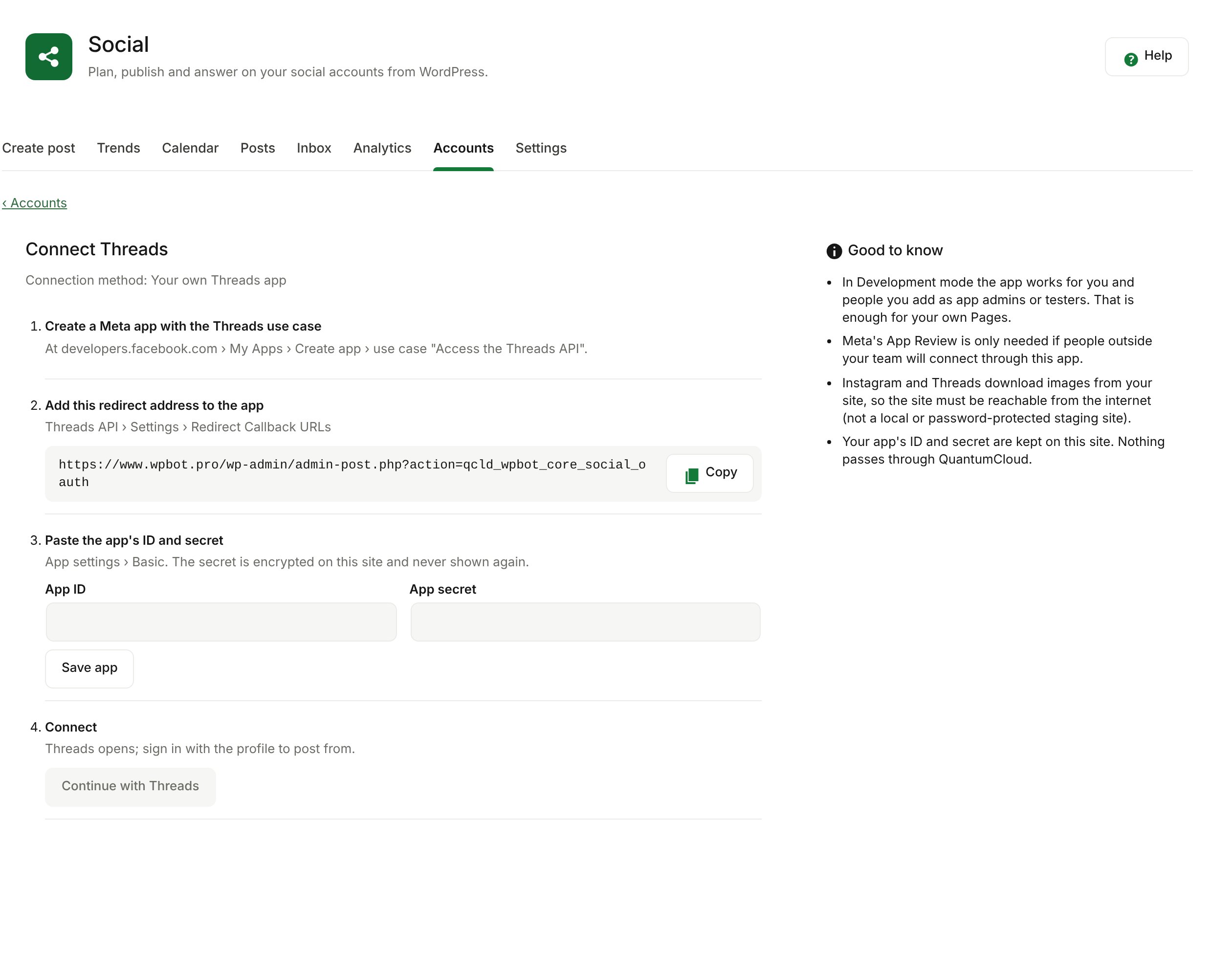
Connect Threads with your own Threads app.
Steps
- Create a Meta app with the Threads use case. At developers.facebook.com, open My Apps → Create app and choose the use case Access the Threads API.
- Add the redirect address. Copy the address on the screen and add it under Threads API → Settings → Redirect Callback URLs.
- Paste the app's ID and secret from App settings → Basic, then click Save app. The secret is encrypted and never shown again.
- Connect. Click Continue with Threads and sign in with the profile you want to post from.
Note
In Development mode the app works for you and the people you add as app admins or testers. Meta's App Review is only needed if people outside your team will connect through this app.
Good to know
- Threads downloads images from your site, so your site must be reachable from the internet.
- With Master, a post can Continue as a thread: each paragraph becomes a follow-up post in a reply chain.
- Comments on your Social posts on Threads can come into the Answer comments and reviews in the Inbox, and Threads numbers appear in See which posts bring visitors, leads and sales (Master).
Availability
Threads posting is in every edition, including WPBot Free. Threads (follow-up posts), the Inbox and Analytics are Master only.
Was this article helpful?
Sorry about that. Get help another way:











