

Questions Not Answered: find the gaps in your chatbot
Open WPBot Pro → ChatBot → Sessions → Questions Not Answered. It lists the queries from visitors that the chatbot could not answer, with how many times each one was asked.
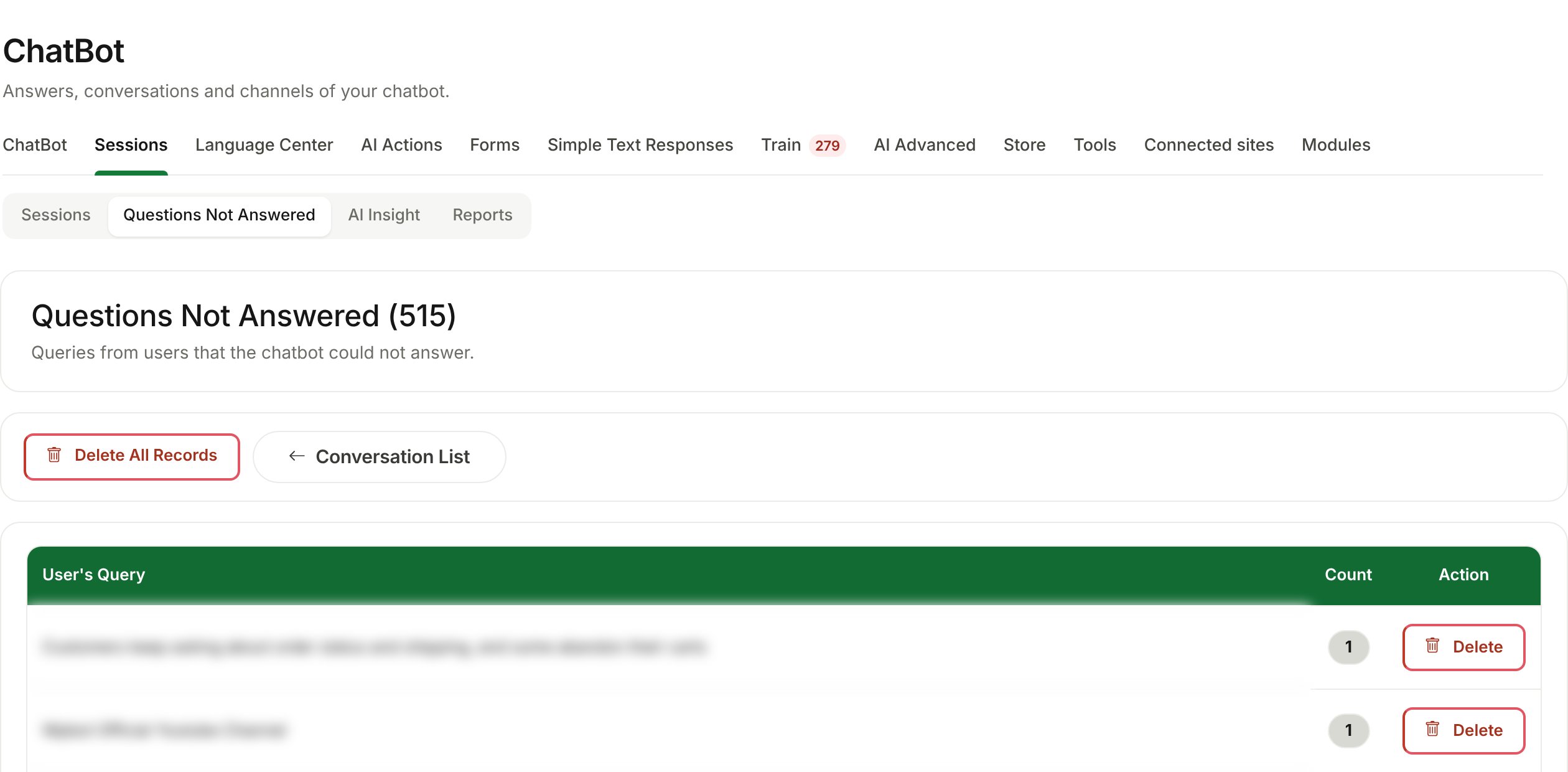
Questions Not Answered, with a count for each question. The questions are blurred here.
- Count shows how often a question came up. Start with the highest counts.
- Delete removes one question when you have dealt with it. Delete All Records empties the list.
- Conversation List goes back to the sessions.
Turn gaps into answers
Each question is a sign that a visitor wanted something and left without it.
- Group similar questions. "price plugin", "starter plan details" and "how much" are one topic: pricing.
- Answer it where the chatbot reads. Add the answer to a page, a product description, your FAQ or a Help Center article, or add a fact to Business Context.
- Train the chatbot. ChatBot → Train lists unanswered questions with tools to answer them directly. See Train and improve.
- Delete the question here once it is answered, so the list shows only open gaps.
Tip
Questions that show buying intent ("do you offer…", "can I pay…", "discount") deserve a sales answer with a link to the product page or a form. Questions in other languages tell you which languages your visitors speak; see Multi-Language: one chatbot in several languages.
Questions Not Answered in the Growth Loop
The most asked questions are also what people search for. Write an article about each big topic with AI Writer, check it in SEO & AI Search, and the chatbot learns it as soon as it is published. That is the Learn → Create step of the Growth Loop.
Availability
In every edition, including WPBot Free.
Was this article helpful?
Sorry about that. Get help another way:











