

Chat shopping and Store Settings: search, cart and checkout in the chat
On this page
Open WPBot Pro → ChatBot → Store → Chat shopping.
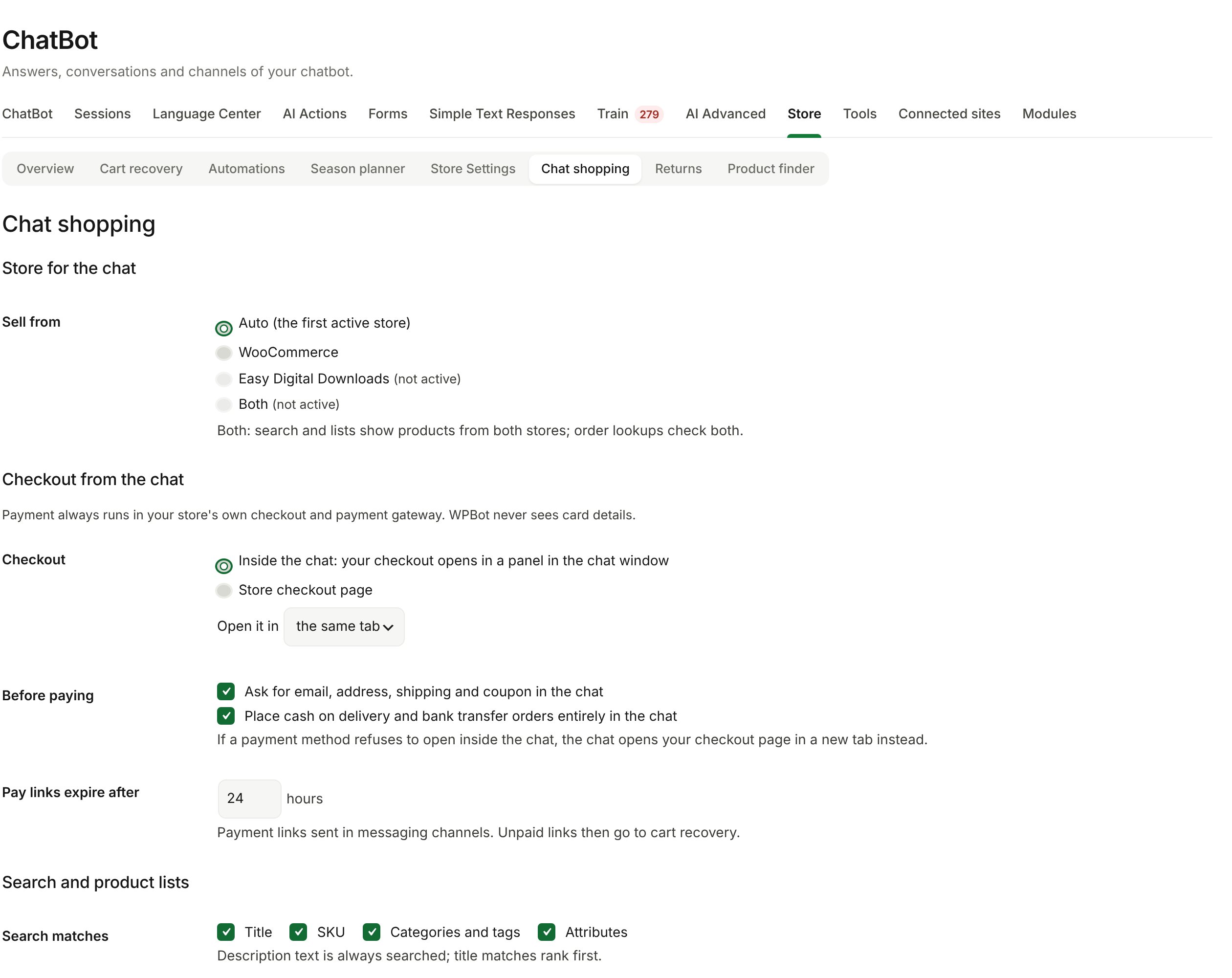
Chat shopping: the store, checkout and product lists.
Store for the chat
Sell from: Auto (the first active store), WooCommerce, Easy Digital Downloads or Both. With Both, search and lists show products from both stores, and order lookups check both.
Checkout from the chat
Payment always runs in your store's own checkout and payment gateway. WPBot never sees card details.
- Checkout: Inside the chat: your checkout opens in a panel in the chat window, or Store checkout page, opened in the same tab or a new tab.
- Before paying: Ask for email, address, shipping and coupon in the chat, and Place cash on delivery and bank transfer orders entirely in the chat.
- If a payment method refuses to open inside the chat, the chat opens your checkout page in a new tab instead.
- Pay links expire after … hours: payment links sent in messaging channels. Unpaid links then go to cart recovery.
Tip
Checkout inside the chat keeps shoppers in the conversation. Test it once with each payment method you offer.
Search and product lists
- Search matches: Title, SKU, Categories and tags, Attributes. Description text is always searched; title matches rank first.
- Products per search answer and Products per list page.
- Hide Out-of-stock products.
- Theme "Add to cart": Open the chat's cart when a visitor adds a product with the theme's own button.
Store Settings
ChatBot → Store → Store Settings holds the store options of the classic chat, in the tabs General SETTINGS, Bottom ICON SETTINGS, Predefined Intents, Language Center and Conversion Report.
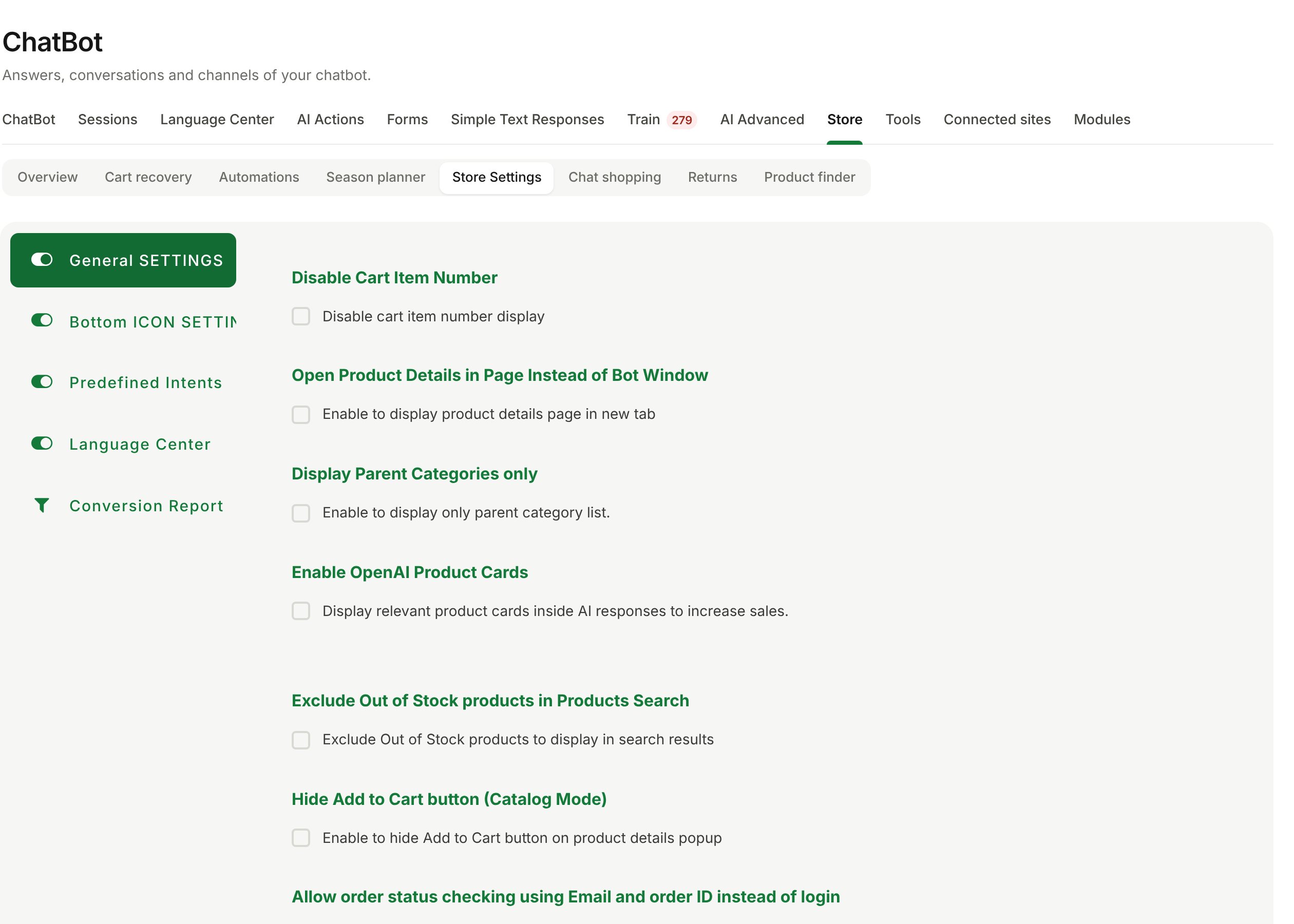
Store Settings, General settings tab.
Useful options on the general tab:
| Option | What it does |
|---|---|
| Enable OpenAI Product Cards | Shows relevant product cards inside AI answers. |
| Allow order status checking using Email and order ID instead of login | Guests can check an order with its email and order number. |
| Exclude Out of Stock products in Products Search | Leaves them out of search results. |
| Hide Add to Cart button (Catalog Mode) | For shops that take orders another way. |
| Open Product Details in Page Instead of Bot Window | Opens product pages instead of the chat's product view. |
| Display Parent Categories only | Shorter category lists. |
| Product Per Page, Products display orderby, order and Exclude Product category | How lists are built. |
Predefined Intents turns the start-menu buttons Product Search, Catalog, Featured Products, Sale Products and Order Status on or off, and Language Center holds their texts.
How shoppers use it
- Type what they want ("blue running shoes size 42") or tap Product Search or Catalog.
- Pick options such as size and colour, add to the cart and check out in the chat.
- Ask "Where is my order?": logged-in customers see their own orders; guests give the order's billing email.
For security, guests can look up at most 10 orders an hour, so order numbers cannot be guessed.
Availability
In Master and Professional, with the WooCommerce module. Not in Starter or WPBot Free.
Was this article helpful?
Sorry about that. Get help another way:











