

Product finder: guide shoppers to the right product
A product finder is a short quiz in the chat: "What is it for?", "What size?", "What is your budget?". Then the chatbot shows the products that match. Shoppers who are unsure what to choose get a recommendation instead of leaving.
Open WPBot Pro → ChatBot → Store → Product finder.
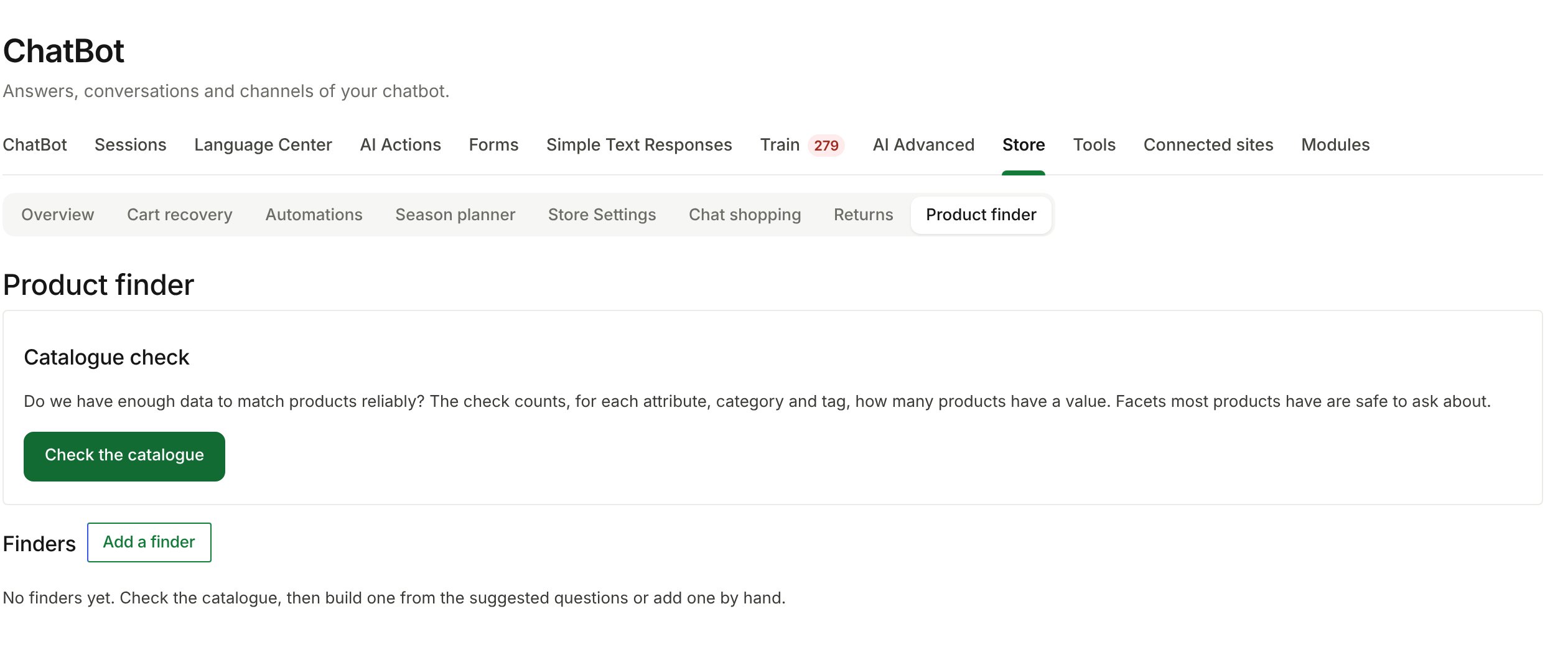
Product finder: the catalogue check and your finders.
Step 1: Check the catalogue
Click Check the catalogue. The check counts, for each attribute, category and tag, how many products have a value. Questions about facets most products have are safe to ask. It also shows price bands from your real prices, and the gaps to fill.
Tip
If an attribute such as "Material" is filled in for only a few products, fill it in first. A finder can only match on data your products have.
Step 2: Build a finder
Click Add a finder, or build one from the suggested questions after the check. Suggestions come from the AI or, without AI, from the catalogue check. A new finder is not enabled until you turn it on.
In the question builder you set:
- Questions: single choice, multiple choice or a range (for example a price range).
- Answer mapping: what each answer matches: categories, attribute values, price bands, tags or "any".
- Conditions: ask a question only after certain answers.
- Results: how matching products are shown, and a fallback message when nothing matches.
- Trigger phrases that start the finder, and a start menu label.
Step 3: Offer it
- Add the finder to the start menu with its label.
- Shoppers who type a trigger phrase start it.
- The AI can also start the finder when a shopper asks for advice.
Orders from shoppers who used the finder count as Chat-assisted sales in the Store overview.
Availability
In Master and Professional, with the WooCommerce module. Not in Starter or WPBot Free.
Was this article helpful?
Sorry about that. Get help another way:











