

Live chat settings: when to offer a person, departments, Slack, Telegram and Teams
On this page
Open Live Chat → Settings in the WordPress admin sidebar. The tabs are General, When to offer a person, Chat window, Departments & hours, Saved replies & AI, Slack, Telegram and Microsoft Teams.
General
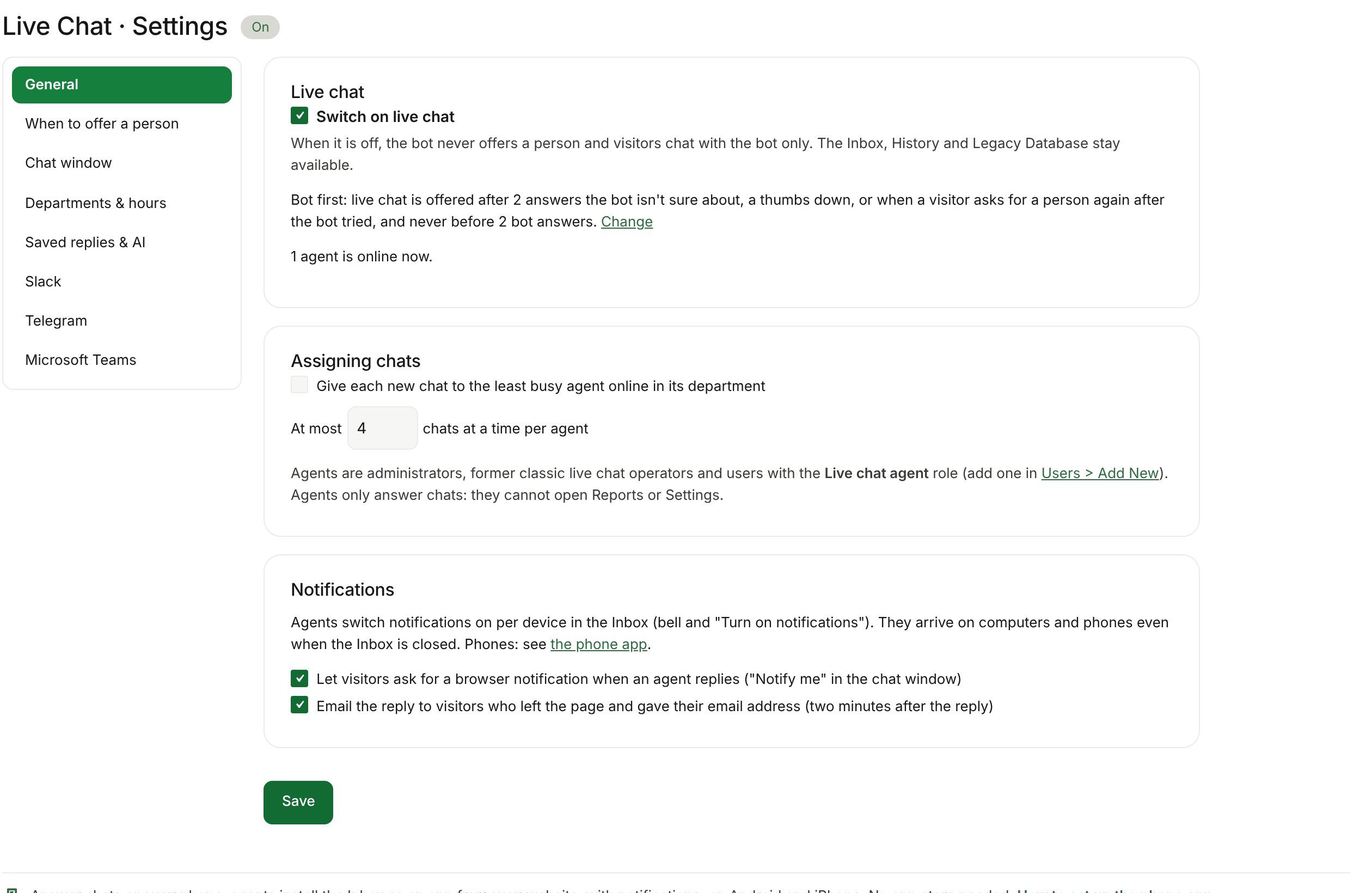
General: switch live chat on, assign chats and choose notifications.
- Switch on live chat: when it is off, the bot never offers a person. The Inbox, History and Legacy Database stay available.
- Give each new chat to the least busy agent online in its department, and At most … chats at a time per agent.
- Let visitors ask for a browser notification when an agent replies ("Notify me" in the chat window).
- Email the reply to visitors who left the page and gave their email address (two minutes after the reply).
When to offer a person
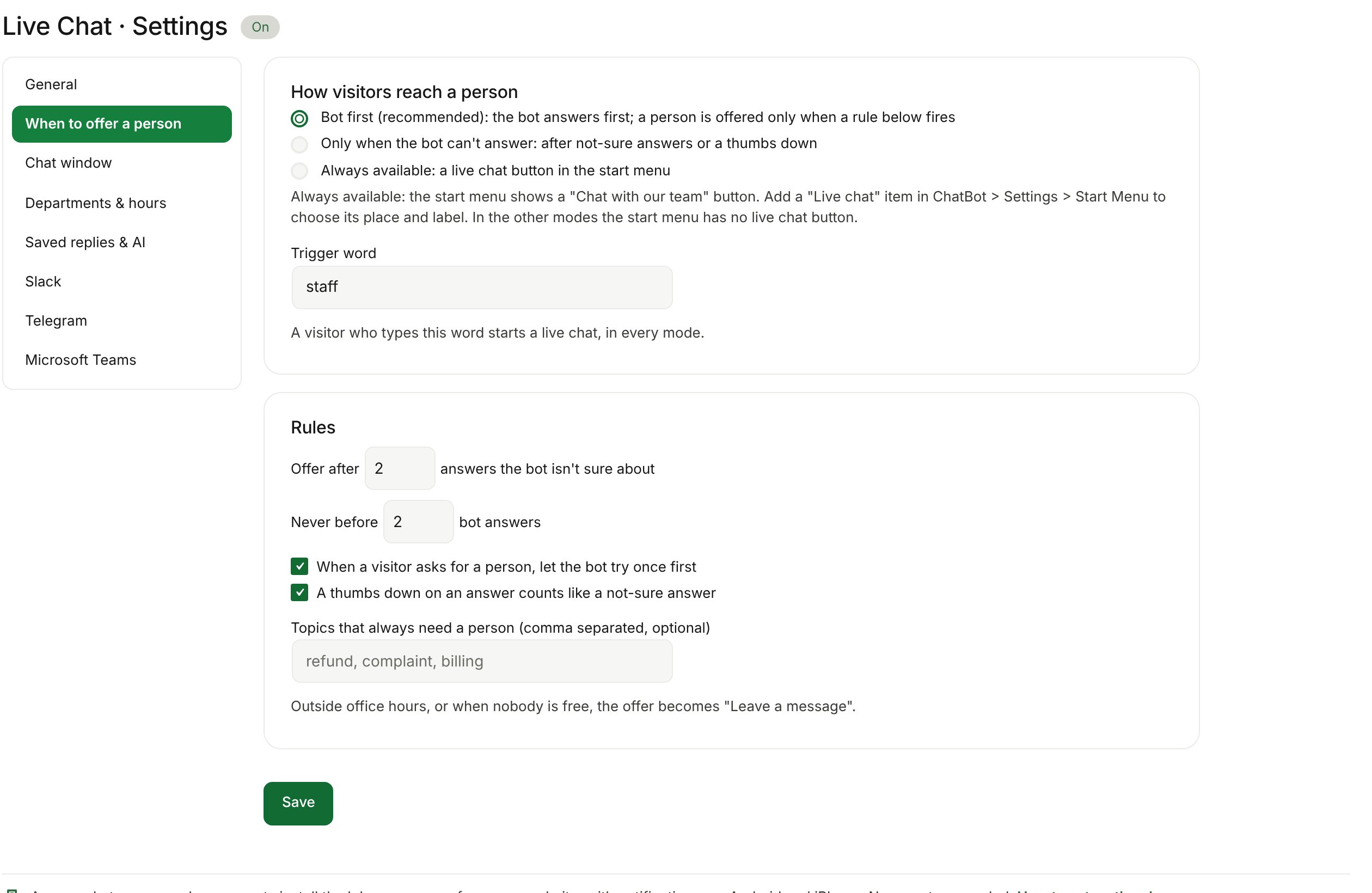
When to offer a person: the mode, the trigger word and the rules.
| Mode | What happens |
|---|---|
| Bot first (recommended) | The bot answers first; a person is offered only when a rule below fires. |
| Only when the bot can't answer | A person is offered after not-sure answers or a thumbs down. |
| Always available | The start menu shows a "Chat with our team" button. |
- Trigger word: a visitor who types this word starts a live chat, in every mode.
- Rules: Offer after … answers the bot isn't sure about, Never before … bot answers, When a visitor asks for a person, let the bot try once first, and A thumbs down on an answer counts like a not-sure answer.
- Topics that always need a person: for example
refund, complaint, invoice.
Outside office hours, or when nobody is free, the offer becomes Leave a message.
Tip
"Bot first" keeps your team free for the chats that matter. Add buying topics such as bulk order, quote, enterprise to Topics that always need a person so those visitors reach a person straight away.
Chat window
- Show the live chat icon on the chat window border: an icon that starts a live chat straight away, whatever When to offer a person says. Leave it off if the bot should answer first. Optionally upload a 50 x 50 pixel Icon.
- Show a live chat button in the start menu, with its Button label.
- Another live chat service (optional): the chat link of another service, used only while this live chat is off.
Departments & hours
Optional. Without departments, every agent answers every chat, at any hour.
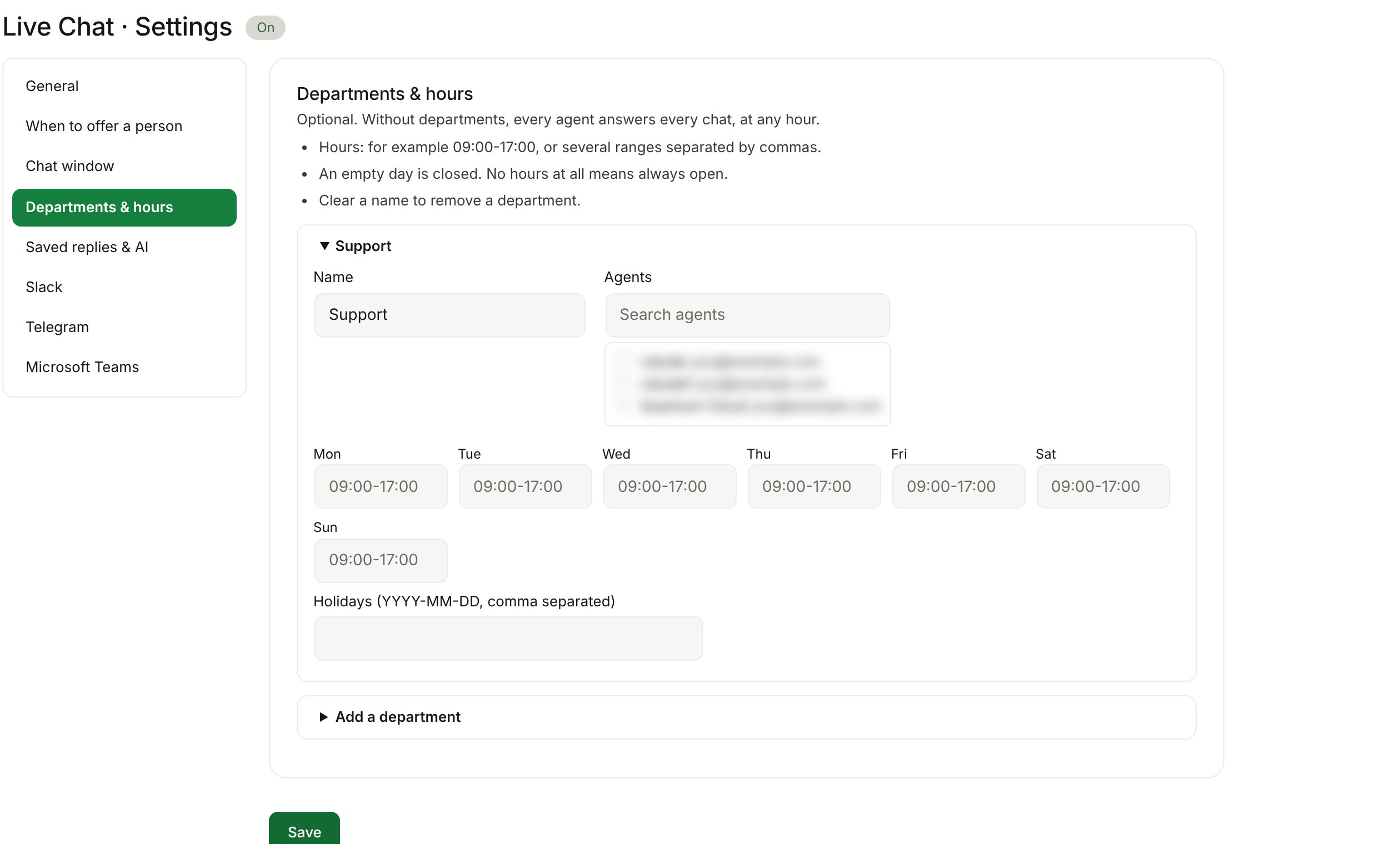
Departments with their agents and office hours.
- Give each department a Name and tick its Agents.
- Enter hours per day, for example
09:00-17:00, or several ranges separated by commas. An empty day is closed. No hours at all means always open. - Holidays (YYYY-MM-DD, comma separated).
- Add a department; clear a name to remove one.
Each department can send its chats to its own Slack channel, Telegram group or Teams channel.
Saved replies & AI
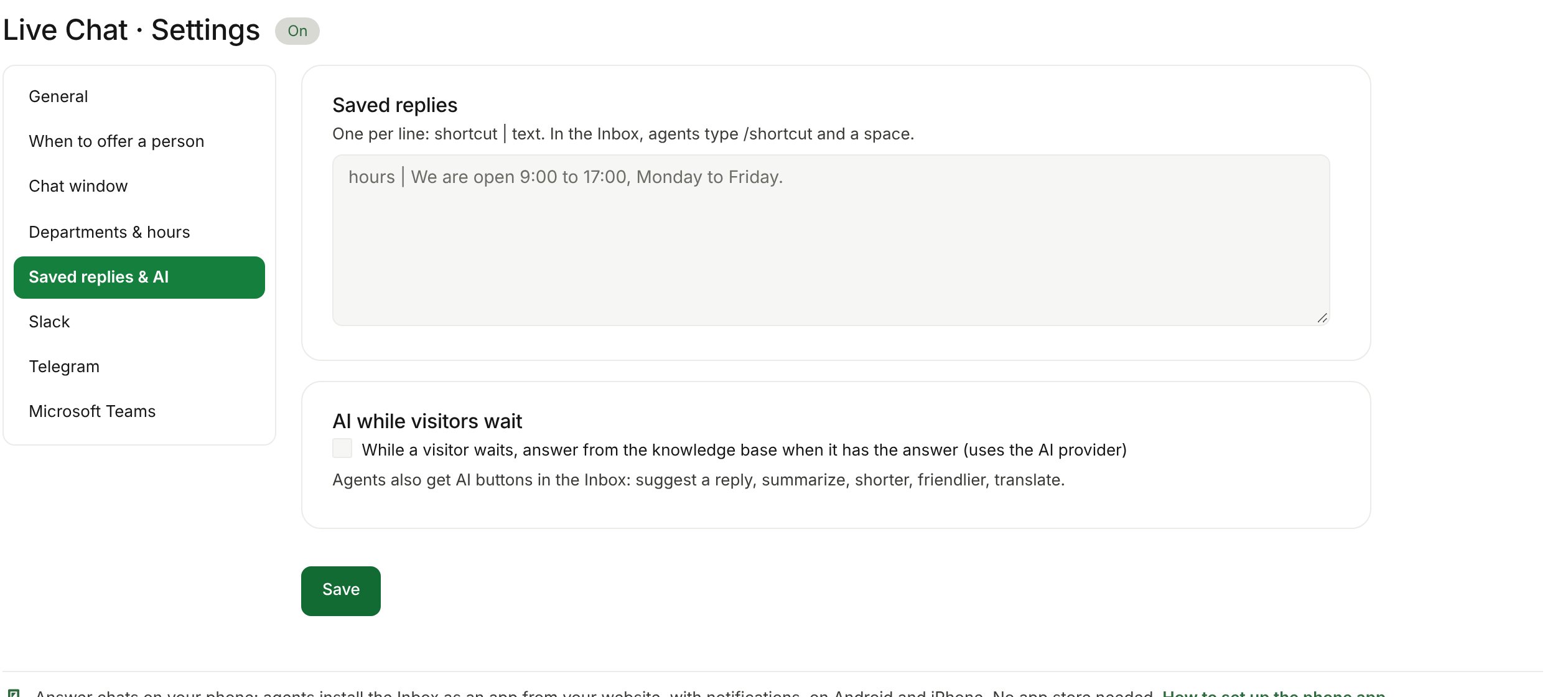
Saved replies and AI while visitors wait.
- Saved replies: one per line, as
shortcut | text. Agents type/shortcutand a space in the Inbox. - While a visitor waits, answer from the knowledge base when it has the answer: uses your AI provider.
Answer in Slack, Telegram or Microsoft Teams
Agents can answer live chats in these apps as well as in the Inbox, on computers and phones. Each tab has step-by-step help; the main steps are:
| App | What you need | How chats arrive |
|---|---|---|
| Slack | An app created from the manifest shown in the tab: Bot token (xoxb-…), Signing secret and Default channel id (C…). Invite the app to the channel, save, then press Test Slack. | Each new chat appears in the channel with Claim and Close buttons; agents reply in its thread. |
| Telegram | An Agent bot token (from @BotFather) and a group with Topics on, where the bot is an administrator with "Manage topics". Paste the Default group id, save, then press Connect Telegram. | Each chat gets its own topic in the group. |
| Microsoft Teams | An Azure Bot with the messaging endpoint shown in the tab: Microsoft App ID, Client secret, Tenant id for single-tenant bots and the Default channel id. Then download the Teams app package and upload it in Teams. | New chats are posted to the channel; agents reply in the conversation. |
Note
Slack, Telegram and Teams limit how fast a bot may post. Telegram suits small teams (roughly 10 to 20 busy chats per group). For busy teams, give each department its own channel or group. On low-traffic sites, messages to these apps can arrive late without a real server cron job or Action Scheduler (WooCommerce includes it).
Availability
Live chat is in Master only.
Was this article helpful?
Sorry about that. Get help another way:











