

Form fields, branching and calculations
On this page
Each field in a conversational form is one step of the conversation. Choose the Field Type on the right of the Layout tab.
Field types
| Field Type | What the visitor sees or does |
|---|---|
| Simple Text | Types a short answer. Set Minimum Length and Maximum Length if needed. |
| Email Address | Types an email address. |
| Phone Number (Basic) | Types a phone number in the format (999)999-9999. |
| Number | Types a number. Good for quantities and ages. |
| URL | Types a website address. |
| Select Option | Taps one of several answers shown as buttons. Tick Show as Menu or Show as Dropdown for other layouts. |
| Checkbox | Ticks one or more answers. |
| DateTime Picker | Picks a date and time. |
| File | Uploads a file, such as a photo or a document. |
| HTML | Reads a message: text, links or HTML. No answer needed. Use it for welcome and thank-you messages. |
| Calculation | Sees a result worked out from earlier answers, for example a price or a score. |
| Payment | Pays with Stripe at this step. See Take payments in conversational forms with Stripe. |
| Hidden | Nothing. Stores a value with the entry. |
| OpenAI Instructions | Nothing (not visible for user). Gives the AI instructions when Connect the Form with the OpenAI is on. |
| Google Calendar | Picks a free time in your Google Calendar. Shown only after you switch Google Calendar on (see below). |
Tip
Buttons beat typing. A Select Option question gets more answers, and the answers are clean for reports and your CRM.
Branch with a field's Condition
The simplest branching: ask a question only when the visitor gave a certain answer to an earlier Select Option field.
- Add a Select Option field, for example "What do you need?" with Website, Shop and Other.
- Click a later field and choose an answer in its Condition, for example Shop.
- That field is asked only to visitors who chose Shop.
The Conditions tab
For more complex rules, open the Conditions tab and click Add Conditional Group.
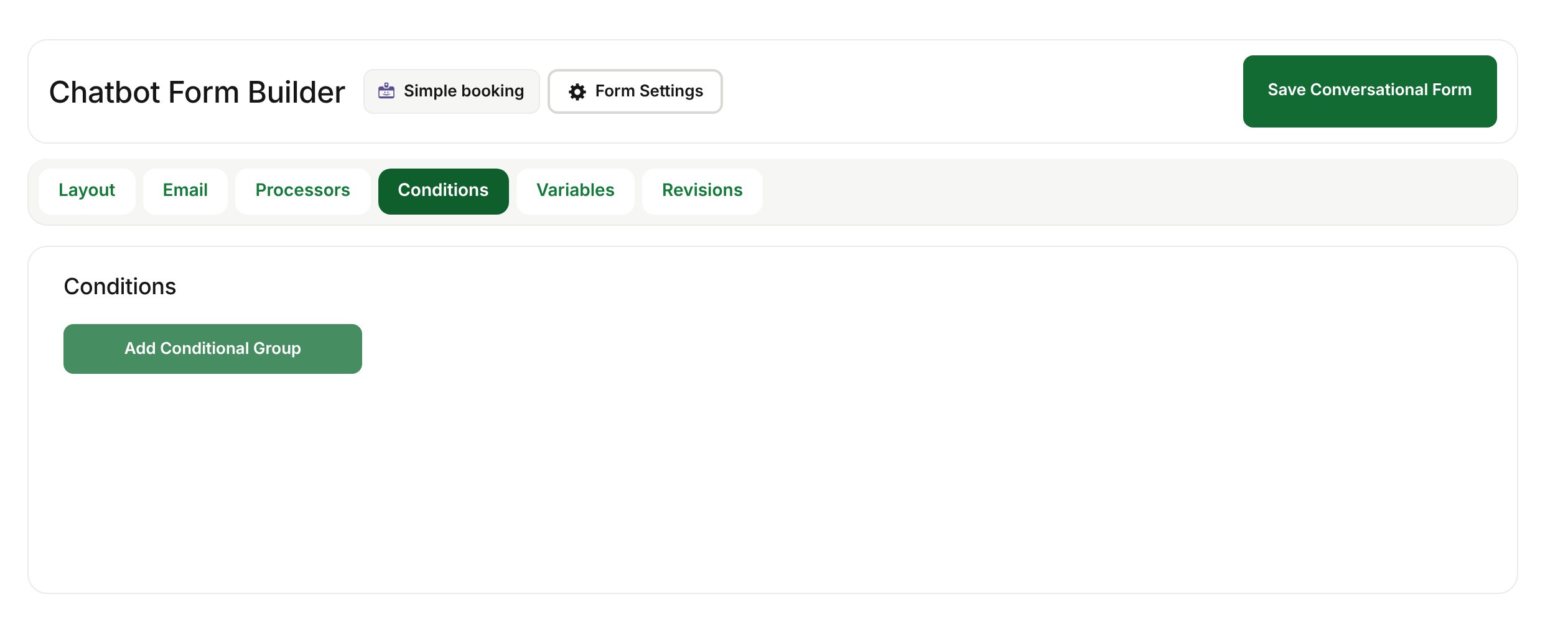
The Conditions tab: groups of rules that show or hide fields.
- Type: Show or hide the fields when the rule matches.
- Add Conditional Line: a rule such as "budget is greater than 1000". Operators: is, is not, is greater than, is less than, contains.
- All lines in a group use AND. Separate groups use OR.
- Applied Fields: the fields this condition shows or hides.
Start another intent from a form
A Select Option answer can start something else instead of the next question: another conversational form, a Simple Text Response (give it an intent name) or live chat. Add the intent's name as the option's value.
Calculations
Add a Calculation field to show a price, a quote or a score.
- Build the formula with Add Operator Group, or switch to Manual Formula and use
%field_slug%for the value of an earlier answer, for example%rooms% * 49 + %nights% * 20. - Before and After add text around the result, for example a currency sign.
The example forms BMI Calculator, BMR Calculator and Pricing form show how it works.
Google Calendar bookings
Visitors can book a time that is added straight to your Google Calendar.
- Open ChatBot → Forms → Google Calendar and tick Enable Google Calendar.
- Paste the JSON key of a Google service account in Private Key. Follow Get Google Calendar Private Key or the guide WPBot Google Calendar API setup.
- In Google Calendar, share your calendar with the service account's email and give it "Make changes to events".
- Add a Google Calendar field to the form and enter the Google Calendar ID (Google Calendar → Settings → Integrate calendar → Calendar ID).
The chat shows the calendar with busy times, and the visitor picks a free slot.
Note
Google Calendar needs PHP 8.3 or later on your server. The settings page tells you if the Google Client package is missing.
Availability
In Master and Professional. Not in Starter or WPBot Free.
Was this article helpful?
Sorry about that. Get help another way:











