

Quick Write and templates: social posts, emails, ads and more
Quick Write is for short pieces: a LinkedIn post, a newsletter blurb, an ad, a review reply. Each template asks for two to four details and writes three variations in your brand voice.
Open WPBot Pro → AI Writer → Quick Write.
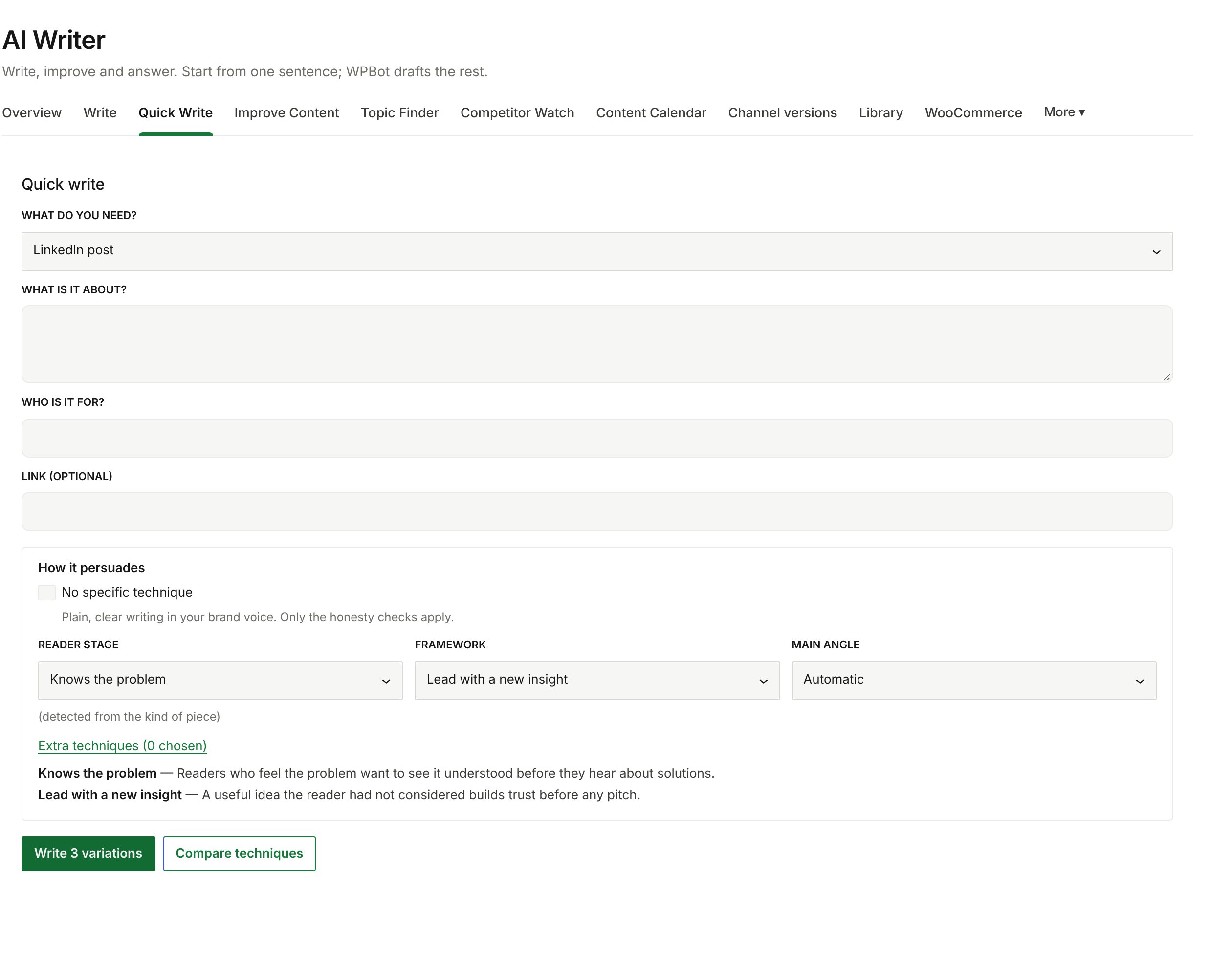
Quick Write: choose what you need, fill in the details and write three variations.
Write a short piece
- Under WHAT DO YOU NEED?, choose a template.
- Fill in its fields, for example WHAT IS IT ABOUT?, WHO IS IT FOR? and LINK (OPTIONAL).
- Optionally change How it persuades (see How it persuades: reader stage, frameworks and Compare techniques).
- Click Write 3 variations. Each one shows its character count against the network's limit.
- Copy the one you like, or Save to Library to keep it. Write 3 more gives new variations.
Compare techniques writes the same piece with different techniques side by side. For emails, Compare subject lines does the same for subject lines.
In the block editor, the Quick write panel of the AI Writer sidebar can Start from this post (saved version), for example to announce a new article on LinkedIn.
The templates
Open AI Writer → Templates to see them all.
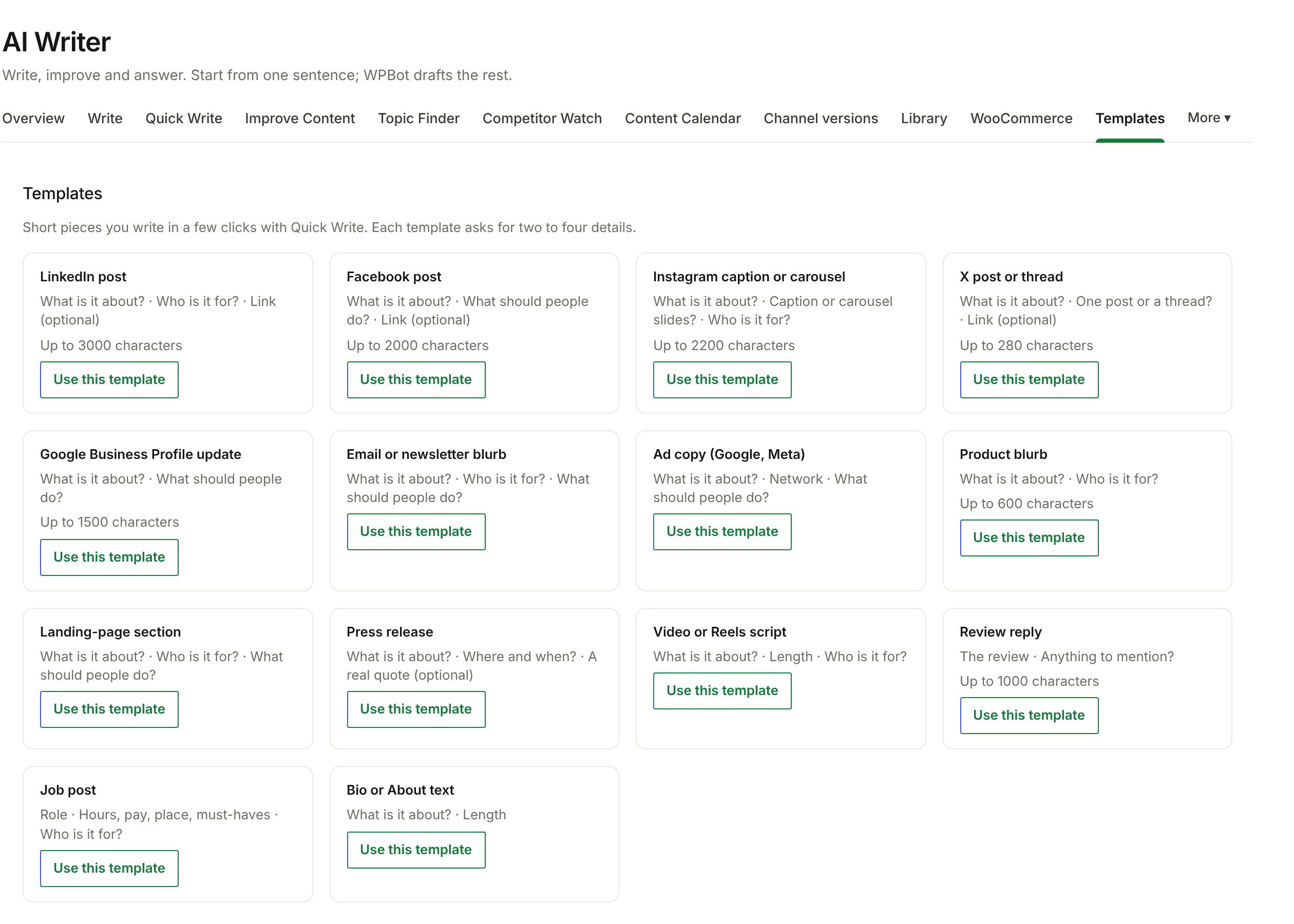
The Quick Write templates with the details each one asks for.
| Template | Asks for | Limit |
|---|---|---|
| LinkedIn post | What is it about? · Who is it for? · Link (optional) | 3000 characters |
| Facebook post | What is it about? · What should people do? · Link (optional) | 2000 characters |
| Instagram caption or carousel | What is it about? · Caption or carousel slides? · Who is it for? | 2200 characters |
| X post or thread | What is it about? · One post or a thread? · Link (optional) | 280 characters |
| Google Business Profile update | What is it about? · What should people do? | 1500 characters |
| Email or newsletter blurb | What is it about? · Who is it for? · What should people do? | — |
| Ad copy (Google, Meta) | What is it about? · Network · What should people do? | — |
| Product blurb | What is it about? · Who is it for? | 600 characters |
| Landing-page section | What is it about? · Who is it for? · What should people do? | — |
| Press release | What is it about? · Where and when? · A real quote (optional) | — |
| Video or Reels script | What is it about? · Length · Who is it for? | — |
| Review reply | The review · Anything to mention? | 1000 characters |
| Job post | Role · Hours, pay, place, must-haves · Who is it for? | — |
| Bio or About text | What is it about? · Length | — |
Click Use this template to open it in Quick Write.
Your own templates
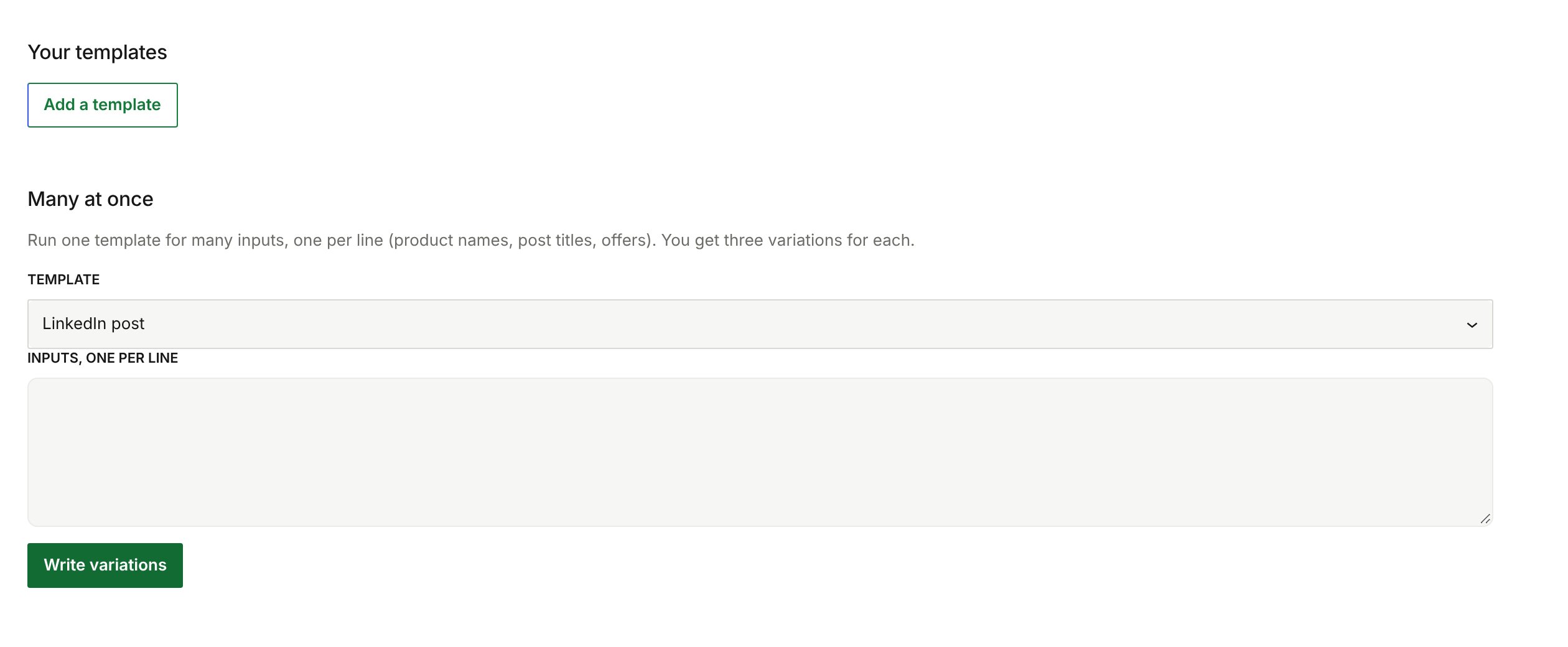
Your templates and Many at once.
Click Add a template under Your templates and enter:
- Template name
- What to ask for (one question per line, up to 4)
- Rules the AI follows, for example "Always end with our booking link."
- Character limit (0 for none)
Click Save template. It appears in Quick Write with the built-in ones.
Many at once
Run one template for many inputs, one per line: product names, post titles, offers. Choose the TEMPLATE, type the INPUTS, ONE PER LINE and click Write variations. You get three variations for each, and Download CSV saves them all.
Saved texts
Texts you save are in AI Writer → Library → Quick write items. Only you see your items. See The Library and the review workflow.
Tip
For posts about a new article, use Channel versions instead: it writes a version for every network at once, each with a tracked link back to the article. See Channel versions and campaigns: share every piece everywhere.
Availability
Quick Write, the 14 templates, Compare techniques and saved texts are in every edition, including WPBot Free. Your templates and Many at once are AI Writer Pro, in Starter, Professional and Master.
Was this article helpful?
Sorry about that. Get help another way:











