

Connect Claude Code or Claude Desktop to your Help Center
On this page
WPBot Pro → Help Center → AI & GitHub connects Claude to your help center. Claude reads your GitHub repository with its own access and writes the knowledge bases, categories and articles on your site, through the Help Center's built-in MCP server. Your site never needs a GitHub token.
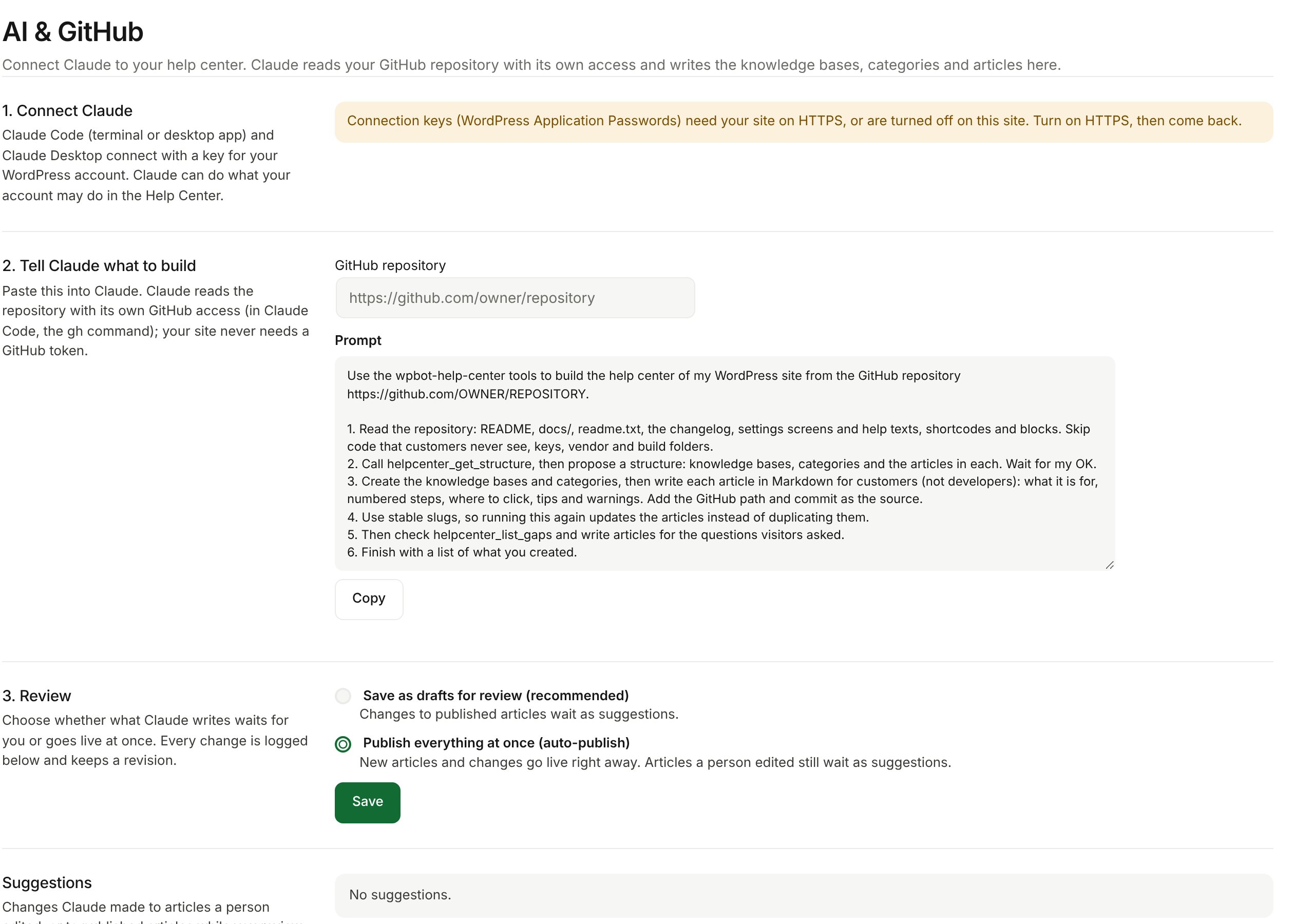
AI & GitHub: 1. Connect Claude, 2. Tell Claude what to build, 3. Review. This site shows the Application Passwords warning.
1. Create a connection key
Claude Code (terminal or desktop app) and Claude Desktop connect with a key for your WordPress account. Claude can do what your account may do in the Help Center: write drafts, publish, or manage categories, depending on your permissions.
- Click Create a connection key.
- The page shows Your connection key is ready. It is shown only now: copy it into Claude before you leave the page.
The key is a WordPress Application Password named for the Help Center. You can see and revoke keys in your WordPress profile (Users → Profile → Application Passwords). The page also shows the server address, which ends in /wp-json/wpbot-help/v1/mcp.
2. Add the server to Claude
The page gives ready commands with your key filled in:
- Claude Code: run this in a terminal. A
claude mcp add --transport http wpbot-help-center …command with your server address and an Authorization header. - Claude Desktop: add this to claude_desktop_config.json (needs Node.js). A configuration block that connects through
mcp-remote.
Then restart Claude and ask it to list the wpbot-help-center tools. Next, give it the prompt from step 2 of the screen. See Let Claude build your docs from GitHub: prompt, drafts, suggestions and change log.
Warning
Treat the connection key like a password. Anyone with it can change your help articles with your account's rights. Revoke it in your profile when you no longer need it.
Troubleshooting: "Connection keys (WordPress Application Passwords) need your site on HTTPS, or are turned off on this site."
Instead of Create a connection key, the screen shows this warning when WordPress Application Passwords are not available for your account:
- Your site is not on HTTPS. WordPress allows Application Passwords only on HTTPS (or a local development site). Turn on HTTPS, then come back.
- Application Passwords are turned off. Security plugins often have an option that disables them (Wordfence, for example), and some hosts or code snippets turn them off. Allow Application Passwords in that plugin or snippet, at least for the account you connect with, then reload AI & GitHub.
See also Connection keys need HTTPS or are turned off (Application Passwords) and Security plugins and firewalls.
Developers who want to connect another MCP client find the protocol details in Help Center MCP server: let AI assistants write your docs and WordPress Abilities for the chatbot and the Help Center.
Availability
In every edition, including WPBot Free.
Was this article helpful?
Sorry about that. Get help another way:











