

Design the chat button and floating box
On this page
Open WPBot Pro → ChatBot → Customize ChatBot Icons. The chat button designer shows your own site in a live preview, so you see each change on your real pages before you save.
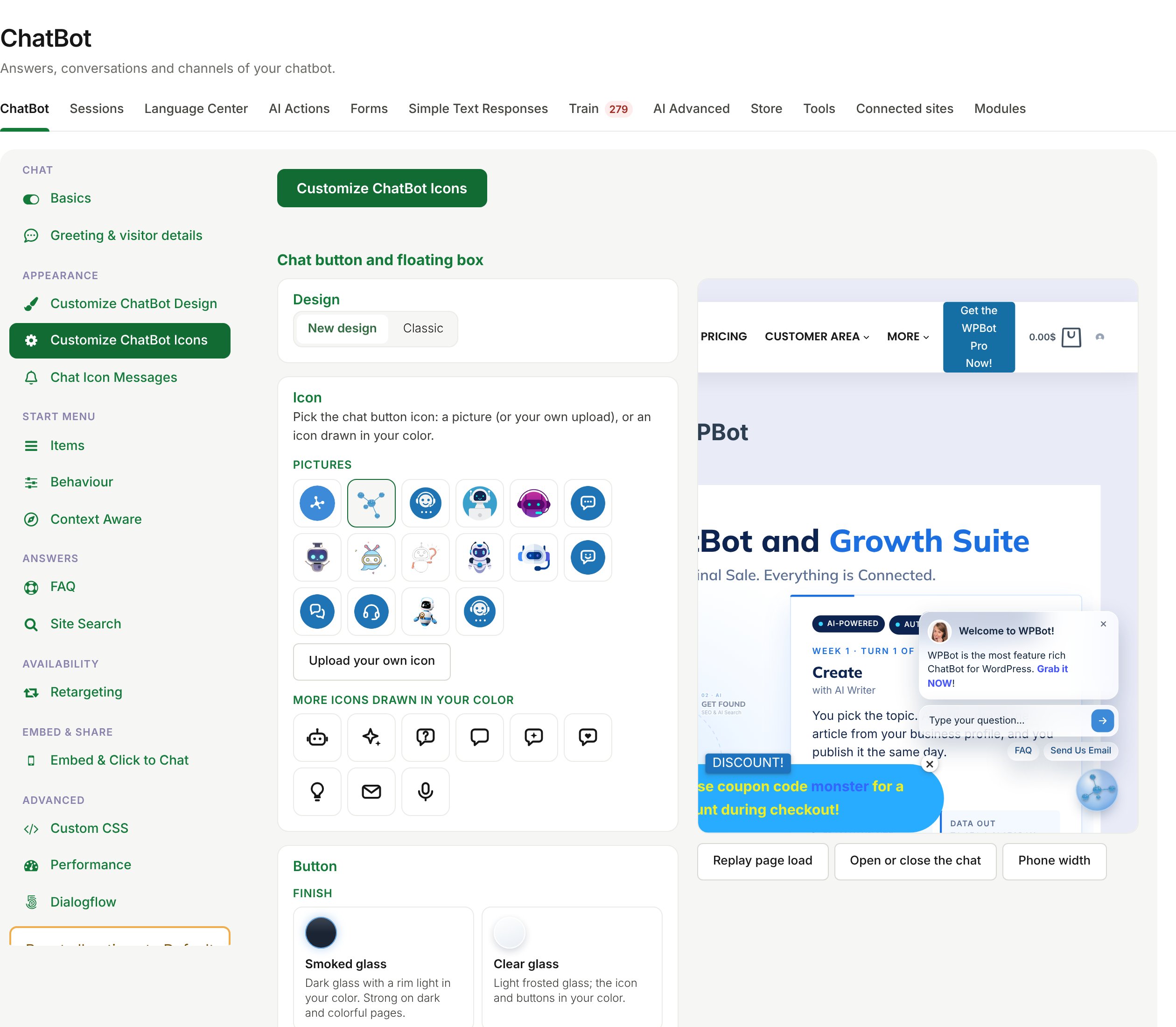
The chat button designer with the live preview of your site.
Under the preview, Replay page load plays the button's entrance again, Open or close the chat opens the window, and Phone width shows the preview at phone size.
Design
- New design: the options below: glass finishes, motion and floating box styles.
- Classic: the chat button WPBot always had. Picking any new-design option switches to the new design.
Icon
Pick a picture from PICTURES, Upload your own icon, or choose one of the MORE ICONS DRAWN IN YOUR COLOR, which follow the button colour.
Button
| Option | Choices |
|---|---|
| FINISH | Smoked glass, Clear glass, Glossy sphere, Glass marble, Soap bubble, Frosted, Liquid glass, Glass bezel, Aurora, Flat |
| STYLE | Solid (the button in the finish, the icon in white), White (a white button, the icon in your colour), No button (just the icon) |
| COLOR | Your brand colour |
| SIZE | 52 px, 60 px or 68 px |
Position
SIDE OF THE SCREEN (Right or Left), FROM THE SIDE and FROM THE BOTTOM in pixels. The chat window opens on the same side. Phones use the distances in Override Icon's Position for Mobile Phone on the Basics tab (Floating icon, notification box and chat bar).
Motion
Tick Animate the chat button, then choose:
- PAGE LOAD: Rise, Pop, Drop and bounce, Spin in, Roll in, Fade or None.
- WHILE IT WAITS: None, Liquid, Breathing glow, Gentle float, Orbit, Light sweep, Shine, Heartbeat, Bounce, Chat label ("Chat with us" slides out), Typing, Hello wave, Flip to "Hi!" or Alive.
- OPEN AND CLOSE: Turn, Zoom, Flip, Slide or Soft square.
Visitors who turned off animations on their device always see a still button.
Floating box
The floating box shows your Chat Icon Message and quick menu next to the button:
| Style | Looks like |
|---|---|
| Chat preview | The greeting and message as chat bubbles, the quick menu under them |
| Card with quick replies | Greeting, message and quick menu in one card |
| Floating pills | The message card, each quick menu item a pill |
| Ask bar | The message, a "Type your question" bar and the quick menu |
| Side menu | The message above the button, the quick menu beside it |
| Speech bubble | A bubble straight from the button |
| Compact | One short line next to the button |
| Off | No floating box |
Typing dots before the message shows typing dots for a moment before the box appears. The message itself is set in Chat Icon Messages: invite visitors to chat.
Agent picture and other icons
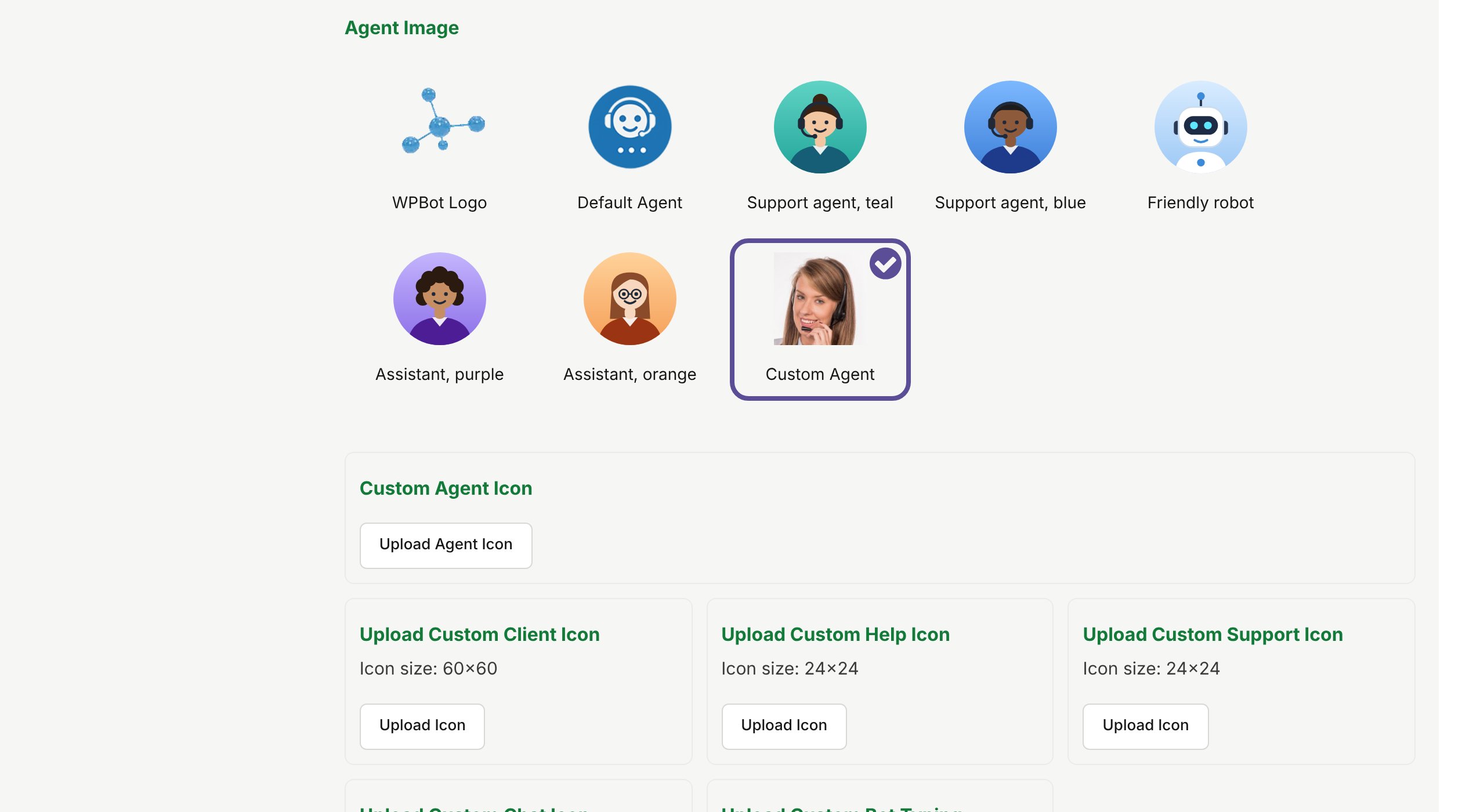
The agent picture and the custom icons.
- Agent Image: the picture shown for the bot inside the chat window: WPBot Logo, Default Agent, one of the illustrated agents, or Custom Agent with Upload Agent Icon. A real face or your logo builds trust.
- Upload Custom Client Icon (60×60), Upload Custom Help Icon and Upload Custom Support Icon (24×24), Upload Custom Chat Icon (35×35) and Upload Custom Bot Typing Animation Icon replace the small icons inside the window where your design uses them.
Click Save Settings to publish your changes.
Tips for more chats
- A button that moves now and then gets noticed. Chat label or Hello wave while it waits invites the first click without being loud.
- Use a floating box with quick replies (Card with quick replies or Floating pills): visitors click a ready question more readily than they type one.
- Match your brand colour, so the chat looks like part of your site, not a third-party widget.
Availability
The chat button designer and the agent picture are in every edition, including WPBot Free. The custom client, help, support, chat and typing icons are in the WPBot Pro editions.
Was this article helpful?
Sorry about that. Get help another way:











