

Form emails, processors and entries
On this page
When a visitor finishes a form, WPBot can email the entry to you, reply to the visitor, and store the answers. Open the form in WPBot Pro → ChatBot → Forms and click Edit.
Email tab: get the entry by email
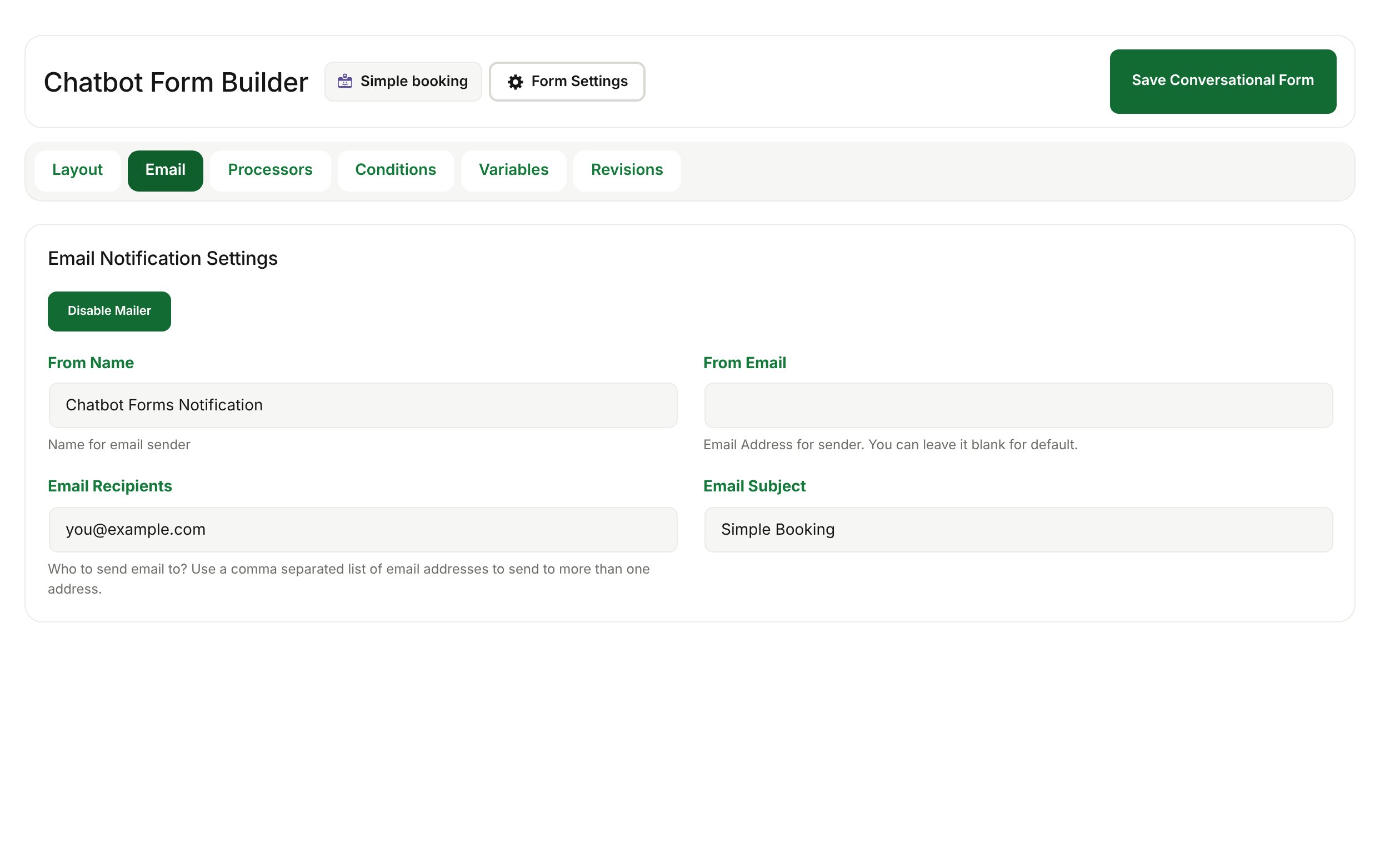
The Email tab sends each entry to your team.
| Setting | What to enter |
|---|---|
| Enable Mailer / Disable Mailer | The button at the top of Email Notification Settings switches the entry email on or off. |
| From Name | The sender name, for example your business name. |
| From Email | The sender address. Leave it blank for the default. Use an address on your own domain, so emails are not marked as spam. |
| Email Recipients | Who gets the entry. Separate several addresses with commas. |
| Email Subject | The subject line, for example "New quote request". |
Tip
Send leads straight to the person who follows up. A reply within the first hour wins far more sales than a reply the next day.
Processors: what happens after the last answer
Open the Processors tab and add a processor.
| Processor | What it does |
|---|---|
| Auto Responder | Sends an automatic email to the visitor, for example "Thanks, we will call you tomorrow." |
| Conditional Recipient | Sends the email to different people depending on the answers, for example sales or support. |
| Redirect | Sends the visitor to a page after a successful submit, for example a thank-you or booking page. |
| Payment Processor | Takes a Stripe payment when the form is submitted. See Take payments in conversational forms with Stripe. |
| Increment Value | Adds one to a value per entry, for example an order or ticket number. |
| Akismet | Filters spam with Akismet. |
Entries
The forms list shows Entries (number) next to each form. Click it to see the answers.
- Switch between Active and Trash.
- Export All downloads every entry as a CSV file; Export Selected exports the ones you ticked.
- Tick Show in Entry List on a field to show its answer as a column.
Entries are stored in your WordPress database unless Disable saving the form data is ticked in Form Settings.
Note
Entries contain personal data. Export only what you need, and delete old entries you no longer need.
Send entries to your CRM or a webhook
With the Webhooks and CRM module, form entries go to a webhook (Zapier and similar), HubSpot, FluentCRM or Mailchimp. See Send chatbot leads to webhooks, HubSpot, FluentCRM and Mailchimp.
Emails do not arrive?
Form emails are sent with WordPress's mail function. If they do not arrive, see Chatbot emails do not arrive.
Availability
In Master and Professional. Not in Starter or WPBot Free. Sending entries to a CRM or webhook needs Master.
Was this article helpful?
Sorry about that. Get help another way:











