

Build a conversational form
On this page
Open WPBot Pro → ChatBot → Forms.
Create a form
- Click New Conversation, or click Clone on an example form.
- Give the form a name.
- The form opens in the Chatbot Form Builder.
To bring a form from another site, click Import on the forms list and choose a form file. Export on a form saves it as a file.
Add the questions
The Layout tab shows the questions in the order the chatbot asks them. Click Add Field to add one, and drag fields to change the order. Click a field to edit it on the right.
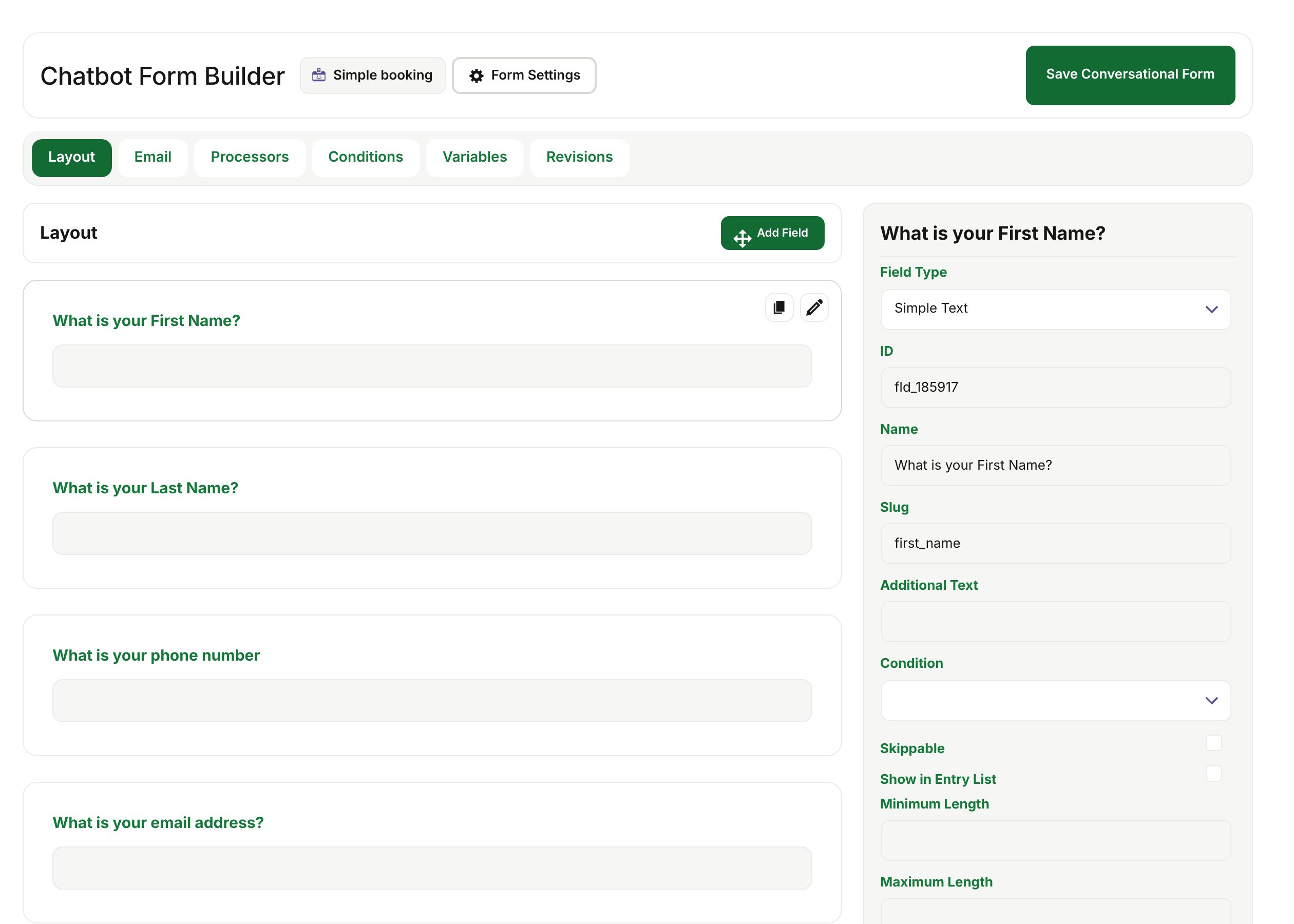
The Layout tab: each field is one question in the chat.
| Setting | What it does |
|---|---|
| Field Type | The kind of answer: text, email, buttons, date, file and more. See Form fields, branching and calculations. |
| ID | The field's internal ID. Leave it as it is. |
| Name | The question the chatbot asks. |
| Slug | A short name for the answer, used in emails, calculations and exports. |
| Additional Text | Extra text shown with the question. |
| Condition | Ask this question only after a certain answer to an earlier Select Option field. |
| Skippable | The visitor can skip the question. |
| Show in Entry List | Show this answer as a column in the entries list. |
Some field types add their own settings, for example Minimum Length and Maximum Length for text.
Note
The conversation is complete when the chatbot reaches the last field. End with an HTML field that thanks the visitor and says what happens next.
Form Settings
Click Form Settings at the top of the builder.
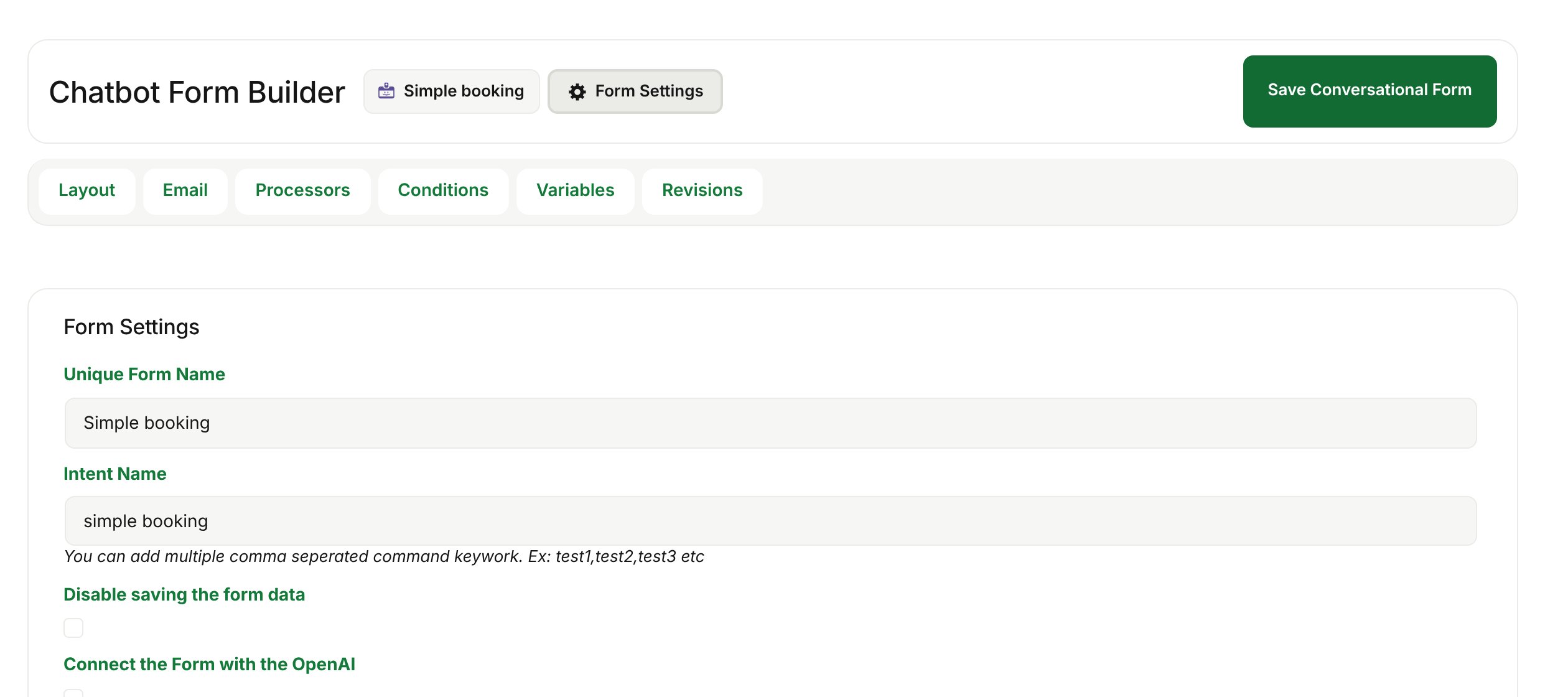
Form Settings: the name, the intent name and the data options.
- Unique Form Name: the name in the forms list.
- Intent Name: what a visitor types to start the form. Add several keywords separated by commas, for example
quote, get a quote, pricing. The intent name must be unique; the screen lists the intents you already have. - Disable saving the form data: the answers are emailed but not stored as entries.
- Connect the Form with the OpenAI: when the form is complete, its questions and answers are sent to OpenAI, which replies to the visitor. Add an OpenAI Instructions field to tell the AI what to do with the answers, for example "Suggest the best plan for these needs." This option uses your OpenAI API key, so OpenAI must be set up in AI / Settings.
Click Save Conversational Form.
Put the form in the chat
- Visitors type one of the form's intent keywords.
- Or add the form to the start menu (see Start menu).
- Or show it when the AI is not sure, on exit intent, or from an automation. See Conversational Forms: capture leads in the chat.
Test it
Open your site in a private browser window, open the chat and type the intent name. Answer every question, then check Entries on the forms list and your inbox.
Other tabs
- Email: who gets the entry by email. See Form emails, processors and entries.
- Processors: what happens after the last answer: auto response, redirect, payment and more.
- Conditions: show or hide fields by rules. See Form fields, branching and calculations.
- Variables: values you can reuse in the form.
- Revisions: earlier saved versions of the form.
Availability
In Master and Professional. Not in Starter or WPBot Free.
Was this article helpful?
Sorry about that. Get help another way:











