

Funnels, goals and custom events
Open Site Insight → Funnels & goals: where visitors drop off on the way to what you want them to do. Switch between Funnels and Goals, and choose the Date range and a segment at the top.
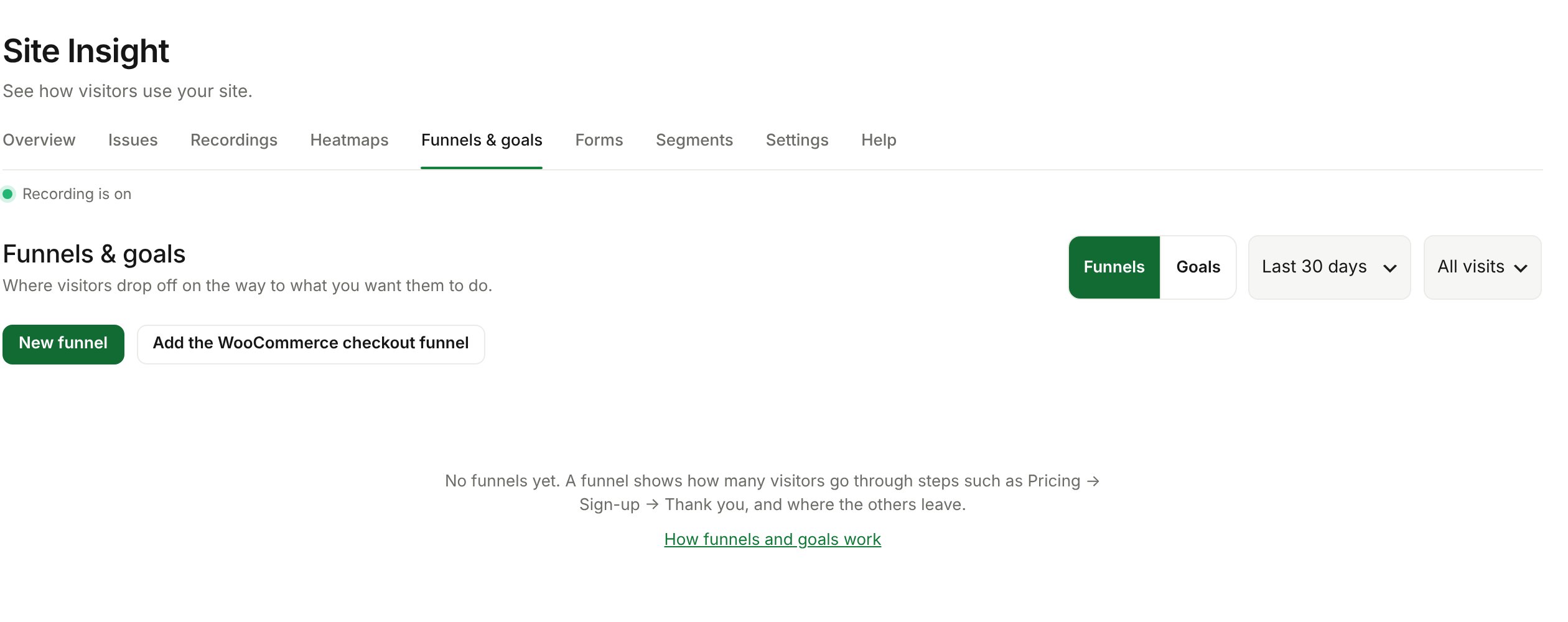
Funnels & goals with the Funnels and Goals tabs.
Create a funnel
A funnel is a list of 2 to 8 steps, such as Pricing page → Sign-up page → Thank-you page.
- Click New funnel and enter a Name, for example "Sign-up".
- For each step choose a Step type:
- Visited a page, with address contains, path is or path starts with and the address. Campaign parameters such as
?utm_source=do not matter. - Custom event, with the event name (see below).
- A WooCommerce step: Viewed a product, Added to cart, Started checkout or Placed an order.
- Visited a page, with address contains, path is or path starts with and the address. Campaign parameters such as
- Optionally give a step a Name (optional). Use Add step, the arrows to move steps, and × to remove one.
- Click Preview to see the numbers, then Save funnel.
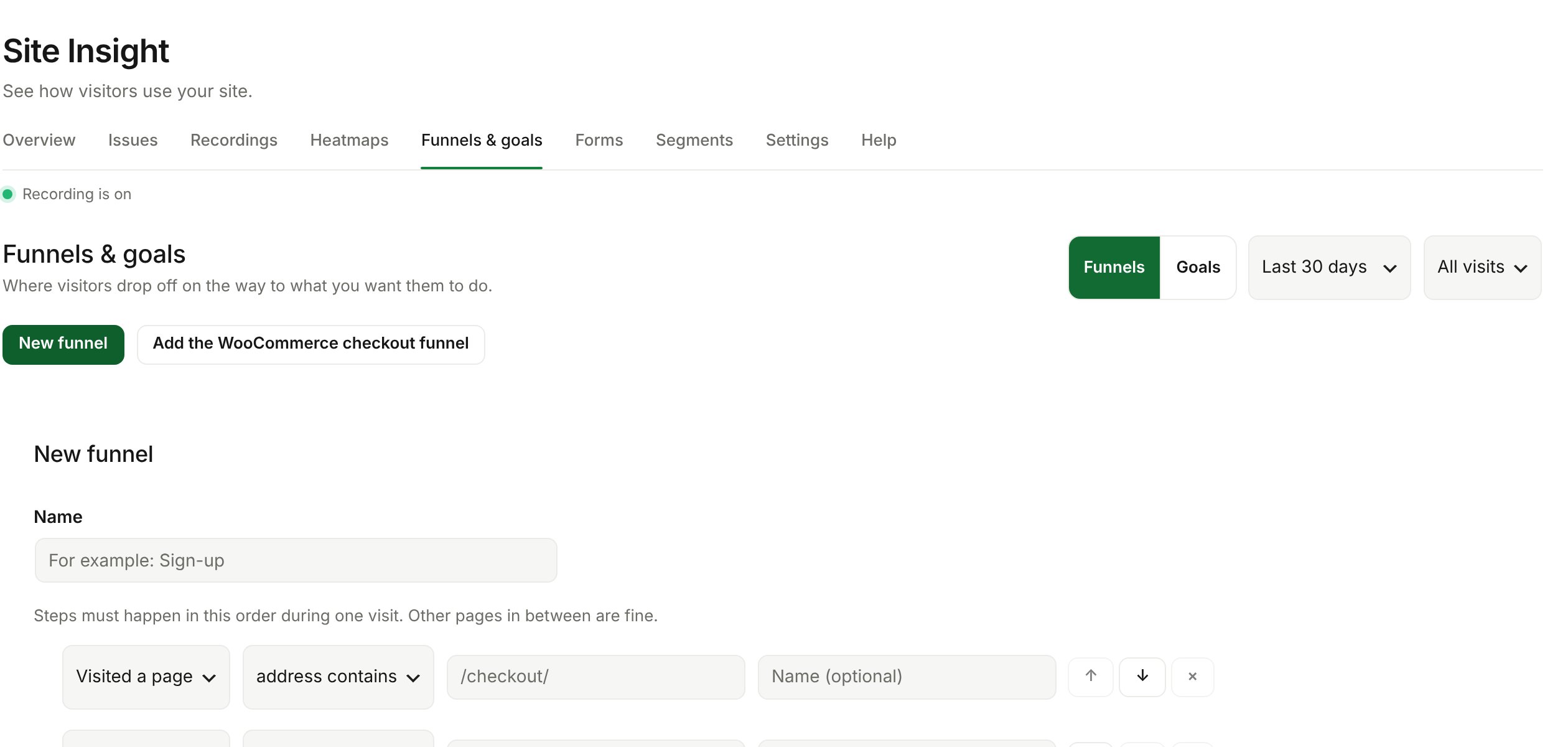
The funnel editor. Steps must happen in this order during one visit; other pages in between are fine.
With WooCommerce, Add the WooCommerce checkout funnel creates a ready-made funnel from product view to order.
Read a funnel
Each step shows how many visits reached it, the median time after the previous step, and how many left before the next step.
- Watch who got here and Watch who left open exactly those recordings.
- The conversion line shows the share of visits that started the funnel and finished it. With Placed an order as the last step, the order value is shown too.
- Why did they leave? asks AI to compare the visitors who went on with those who left, and lists Differences, Likely causes and Changes to try. It sends totals for both groups and up to 8 short visit descriptions, without typed values. It needs Funnel drop-off explanation switched on in the AI settings.
Goals
A goal is one thing you want visitors to do, such as reaching the thank-you page.
- Open Goals and click New goal.
- Enter a Goal name, for example "Contact form sent".
- Choose what counts: a page, a custom event or a WooCommerce step.
- Click Save goal.
The goals table shows Visits, the Conversion rate (visits that reached it, out of all visits) and a link to the Recordings. The Overview shows a Goals card too.
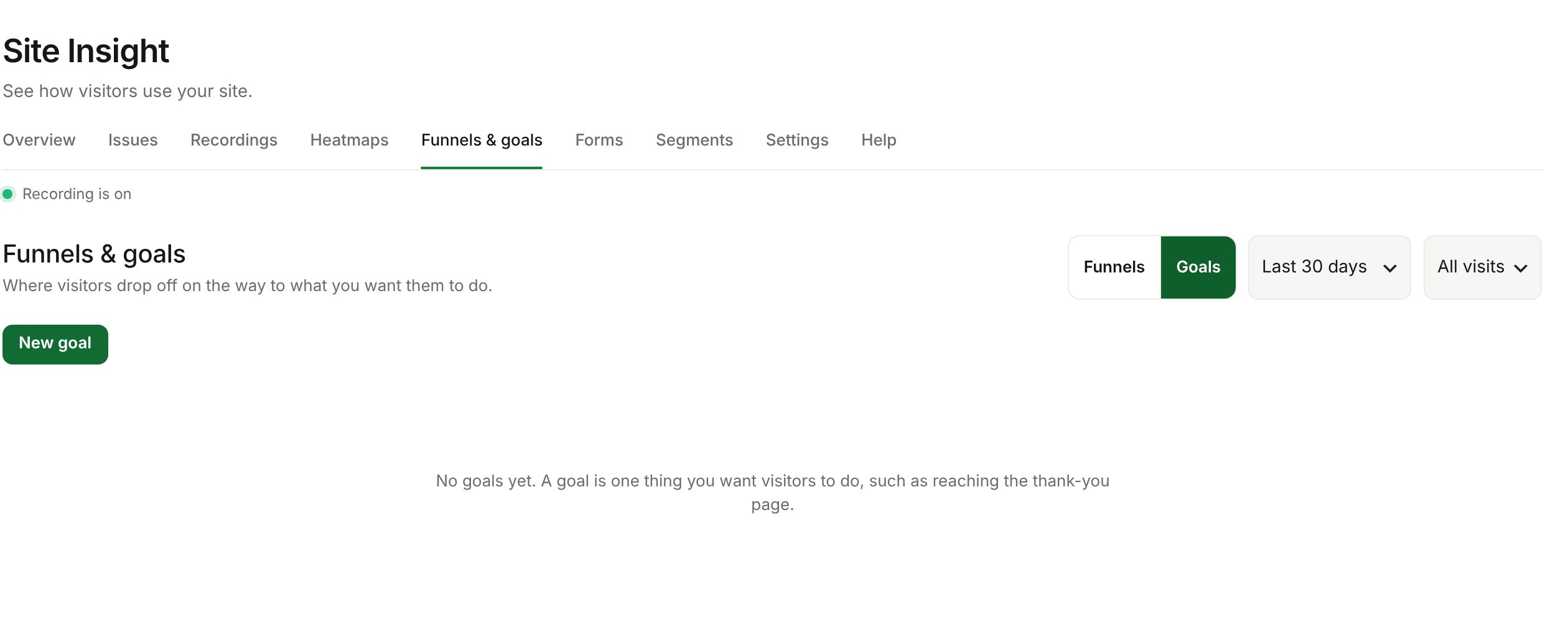
The Goals tab.
Custom events
Some moments have no page of their own, such as a sign-up in a pop-up or a click on a phone number. Your theme or another plugin can send an event with one line of JavaScript where it happens (letters, digits and _ only):
if ( window.qcInsights ) { qcInsights.event( 'signup_done' ); }Events show on the recording's timeline and can be used in funnels, goals and segments. Names already sent appear as suggestions in the step editor.
Funnels that pay off
- Lead funnel: landing page → contact page → thank-you page.
- Shop funnel: the WooCommerce checkout funnel, plus a segment for mobile visitors.
- Content funnel: blog article → pricing page → sign-up. It shows whether your articles from AI Writer send readers to your offer.
- Compare the same funnel for visitors from different campaigns with a segment on
utm_campaign.
Availability
Funnels, goals, custom events in funnels and Why did they leave? need Site Insight Pro: Professional and Master. WooCommerce steps also need WooCommerce. Starter and WPBot Free do not have this screen.
Was this article helpful?
Sorry about that. Get help another way:











