

Connect your AI with the AI Wizard
On this page
The AI Wizard is the quickest way to connect AI. It sets the provider that answers your chatbot and powers every other WPBot AI feature, then prepares your content so the chatbot can answer from it.
Open the wizard
Open WPBot Pro → AI / Settings and click AI Wizard at the top right.
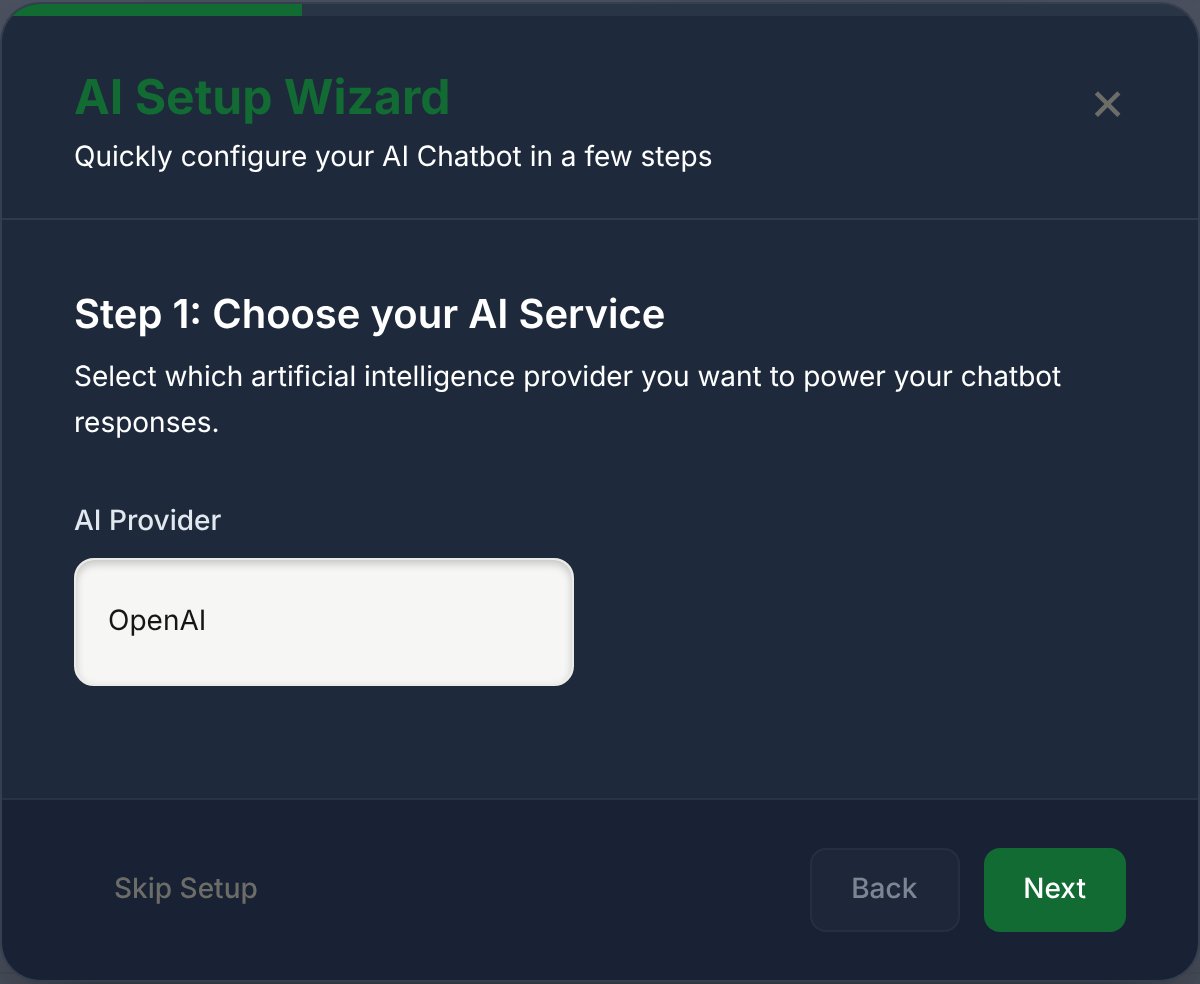
Step 1 of the AI Setup Wizard.
Step 1: Choose your AI service
Pick the provider that should answer: OpenAI, Anthropic Claude, Google Gemini, OpenRouter, xAI Grok, Mistral, DeepSeek or Ollama (your own server).
Not sure? OpenAI and Google Gemini are good, inexpensive starting points; you can change the provider at any time.
Step 2: API credentials
Paste the API key from your provider's dashboard. The wizard checks the connection before it moves on.
- Most providers need a paid API key: a free chat subscription is not the same as API access.
- Anthropic Claude also needs a Voyage AI key for the knowledge base, because Claude does not create the search vectors itself.
- Ollama asks for your server's host, port and model instead of a key.
Keys stay on your server, are shown only as their last 4 characters, and are never sent to the browser.
Step 3: Content sources
Choose what the chatbot learns from: Pages, Posts and your custom post types (for example products). The wizard prepares the content for AI search ("vectorizing") and shows the progress. When it finishes, your chatbot answers from your own site.
You can add documents (PDF, CSV, Word and more), product details and other sources later in AI / Settings → Knowledge Base.
Check that it works
- Open your site in a private window.
- Ask the chatbot a question that one of your pages answers.
- The answer should use your content and show source links under it.
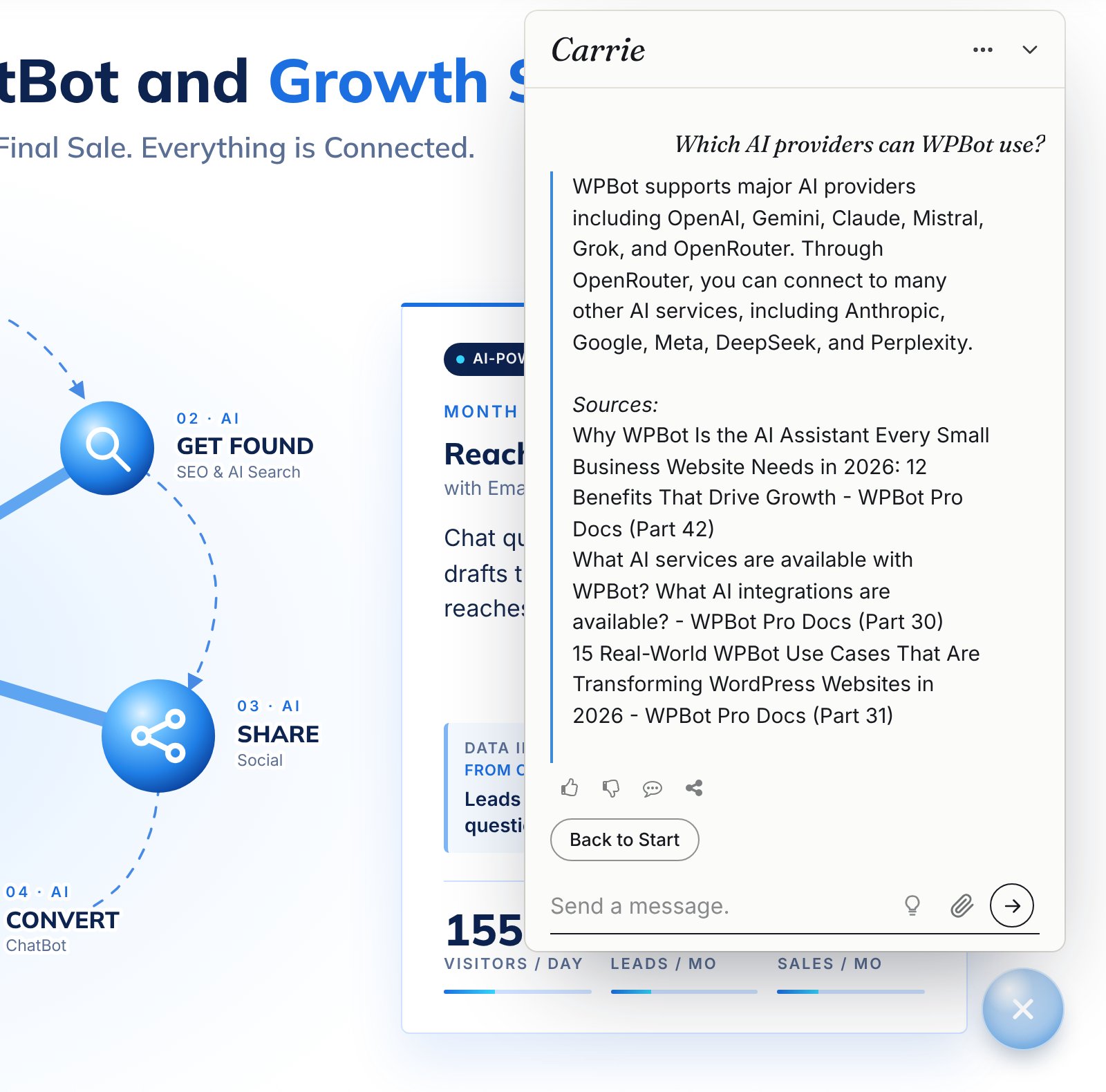
A test question answered from the site's own pages.
Get better answers from day one
- Fill in Business Context: the facts AI must always get right.
- Set a backup provider so the chatbot keeps answering if your main provider has an outage. See Set a backup AI provider.
- Set a spending limit. See Set AI spending limits and alerts.
- Keep Auto Sync on in the knowledge base settings, so new and updated pages are learned when you save them.
Next steps
- Choose your AI provider and add your key for models, prices and every option
- Control how the chatbot answers
Availability
The AI Wizard is in every edition, including WPBot Free. Some knowledge base sources you can add after the wizard (Word files, sitemaps, Google Sheets and Docs, database tables, custom fields and product categories) need Professional or Master.
Was this article helpful?
Sorry about that. Get help another way:











