

Set a backup AI provider
On this page
A backup provider answers only when the primary fails: a bad key, no credit, a rate limit or an outage. When the primary works again, it answers as usual.
Set it up
- Add a key for a second provider in AI / Settings → Providers (see Choose your AI provider and add your key).
- Under Who answers, choose it as the BACKUP PROVIDER.
- Click Save settings.
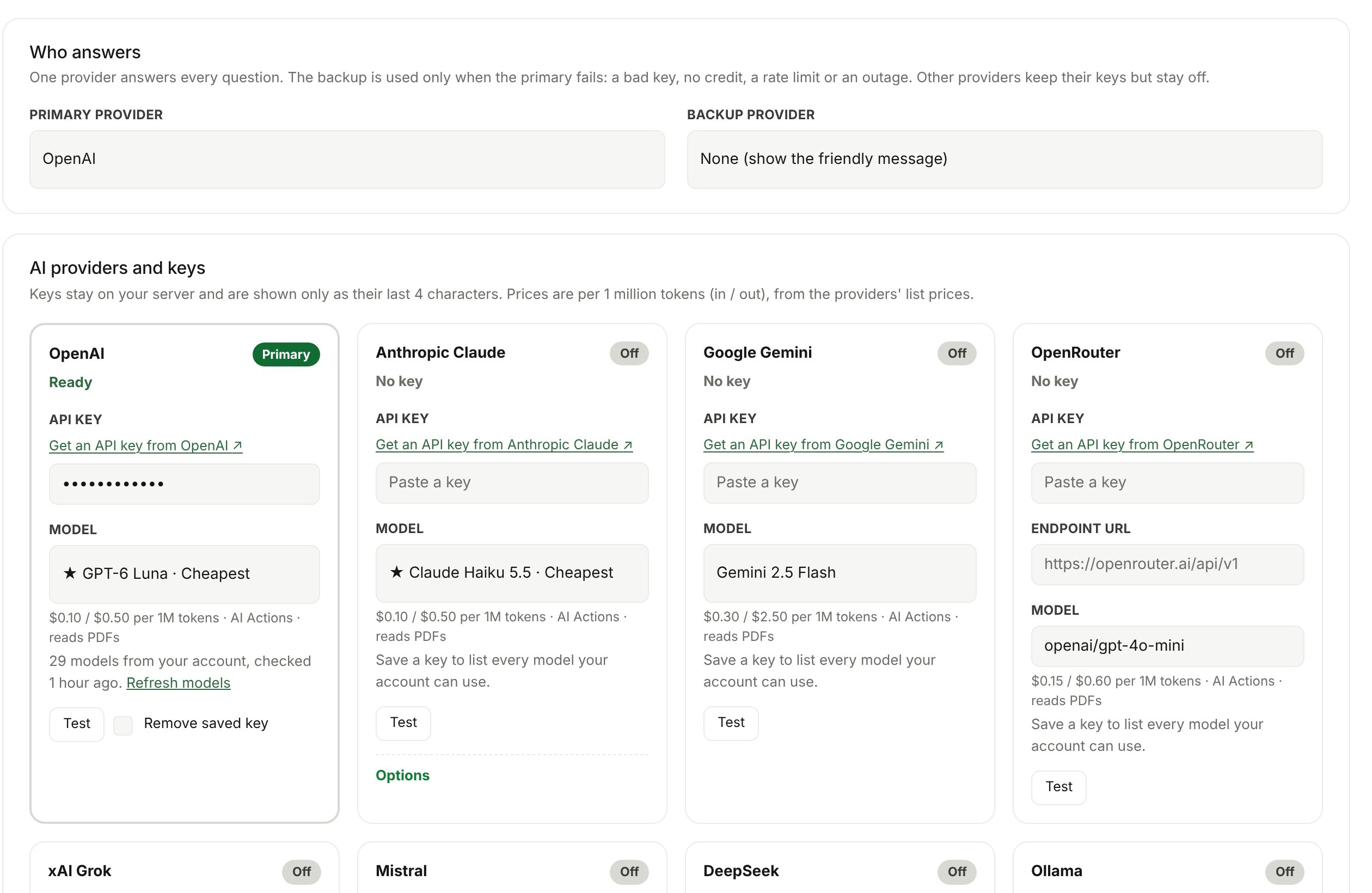
Choose the backup provider next to the primary one.
With None (show the friendly message), visitors see your "can't answer" message when the primary fails. You set that message in AI / Settings → Answers → Message when the AI can't answer. Site admins still see the real error.
Choose a good backup
- Pick a different company. If OpenAI is your primary, use Google Gemini, Anthropic Claude or Mistral as backup, so one outage cannot stop both.
- Choose a similar model. A "Best value" model on both sides keeps answers consistent.
- The backup answers the same way. Your answer settings (personality, scope, source links) apply to every provider.
Why it matters for sales
A chatbot that goes silent during a busy evening loses leads and orders. The backup costs nothing until it is used, and keeps every conversation going.
When the primary failed
Failed requests to the primary are recorded in AI / Settings → Error log with the provider's message (for example "rate limit" or "spend limit reached"). Fix the cause there; the backup covers you meanwhile. See Error log and support reports.
Availability
In every edition, including WPBot Free.
Was this article helpful?
Sorry about that. Get help another way:











