

Improve existing content and regenerate drafts
Updating a page that already ranks is often the quickest way to more traffic. Improve Content finds pages that are slipping and rewrites them section by section, with you in control of every change.
Open WPBot Pro → AI Writer → Improve Content, or click Improve with AI under any post, page or product in its list.
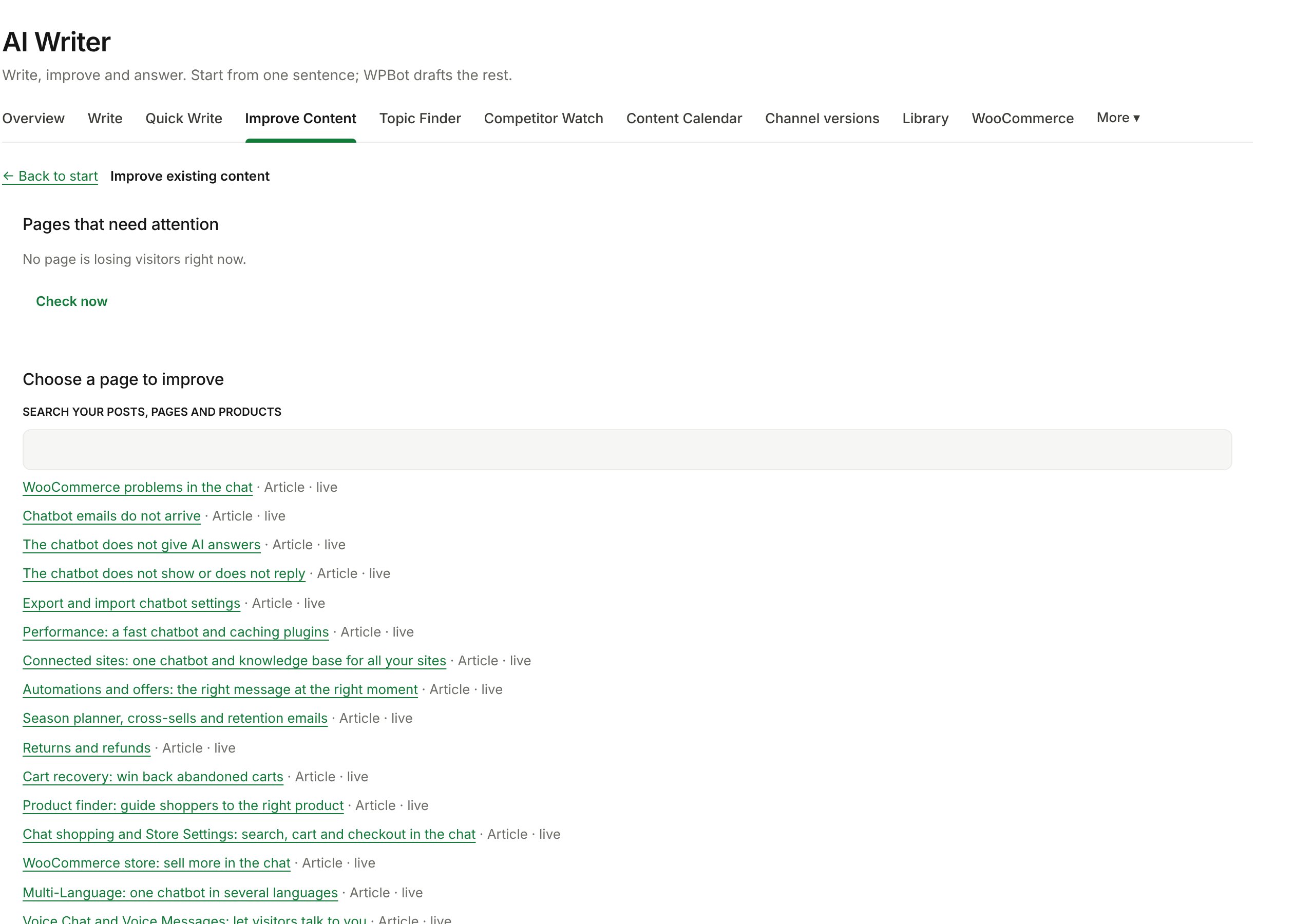
Improve Content: pages that need attention, and choose a page to improve.
Pages that need attention
AI Writer compares each page's visits and search clicks over the last 28 days with the 28 days before. A page that lost 30% or more (from at least 20 before) appears here with the likely cause, and the number shows as a badge on the Improve Content tab. The check runs every week; Check now runs it at once. Data comes from Site Insight (when it is active) and Search Console (when it is connected).
Click Improve to start, or Dismiss to hide a page.
Improve a page
- Under Choose a page to improve, search your posts, pages and products and pick one.
- Optionally describe what to fix under ANYTHING SPECIFIC TO FIX? (OPTIONAL), for example "our prices changed, make it friendlier".
- Tick Re-angle it to rewrite it for another reader stage or with another technique (see How it persuades: reader stage, frameworks and Compare techniques).
- Click Review this page.
AI Writer suggests changes section by section, labelled Clearer, Shorter, Up to date or New angle, plus extras such as Add a summary at the top, Add a FAQ at the end and a new Search title and description. For each suggestion you see Now and Proposed and can Accept, Reject or Edit it. Accept all takes every suggestion.
Click Apply … accepted change:
- A draft: the accepted changes are saved into it.
- A live page: the changes go into an update you check first. Nothing on the live page changes until you click Publish the update (here or in the editor). The previous version is kept in its revisions. Discard it throws the update away.
Note
If the page was edited after the review started, AI Writer asks you to start a new review, so nothing you wrote is lost.
Regenerate
Regenerate rewrites what AI Writer wrote, with new options:
- One section: in the block editor, open the AI Writer sidebar → Regenerate, click Show the sections and choose one.
- The whole article: Regenerate the article on the Done screen, or the sidebar. Choose Keep the outline, rewrite the sections or Write a new outline, and click Show the cost. A draft is rewritten (the earlier text stays in Revisions); a published article arrives as a proposed update.
Options include Tone, Length (About the same, Shorter, Longer), Reading level, Technique, Voice, Language and What to change. Each regeneration keeps the earlier version: use Earlier version and Later version to flip between them.
In Settings & AI Provider → Regenerate you set VERSIONS TO KEEP PER PIECE (1 to 20, default 5) and ASK BEFORE REGENERATING ABOVE (US$) (default $0.05; 0 asks every time).
Tips for more traffic
- Improve pages from Pages that need attention first: they already have visitors to win back.
- Accept Up to date changes for prices, dates and features that changed.
- Accept a new Search title and description when a page is shown in Google but rarely clicked. SEO & AI Search lists those pages under Opportunities → Low click-through.
- After a live update of a page you added to the chatbot's knowledge, click Add again (after changes) in the sidebar's Chatbot knowledge panel, so the chatbot reads the new text.
Availability
Improve Content, decay alerts, updates for live pages and regenerating sections and articles are in every edition, including WPBot Free. Regenerate several pieces at once from the Library is AI Writer Pro (Starter, Professional and Master). Decay alerts need Site Insight or a Search Console connection.
Was this article helpful?
Sorry about that. Get help another way:











